
Why a blank page is shown when I click Video Conferencing?
If Video Conferencing opens to a blank page in the Cloud Voice App, your browser is refusing the cookies that the feature needs to load. A cookie is a small piece of data a website stores in your browser, and Video Conferencing relies on cookies to keep your session signed in. When the browser blocks them, the page has nothing to display, so it comes up blank.
This most often happens when you open the app in a browsing session that blocks cookies by default, such as:
- An Incognito window in Google Chrome
- A Private window in Opera
To get Video Conferencing working again, either reopen the Cloud Voice App in a normal (non-private) browser window, or change your browser settings to allow all cookies using one of the procedures below.
Google Chrome
Section titled “Google Chrome”-
Open Chrome and go to
chrome://settings/. You can paste this address straight into the address bar and press Enter. -
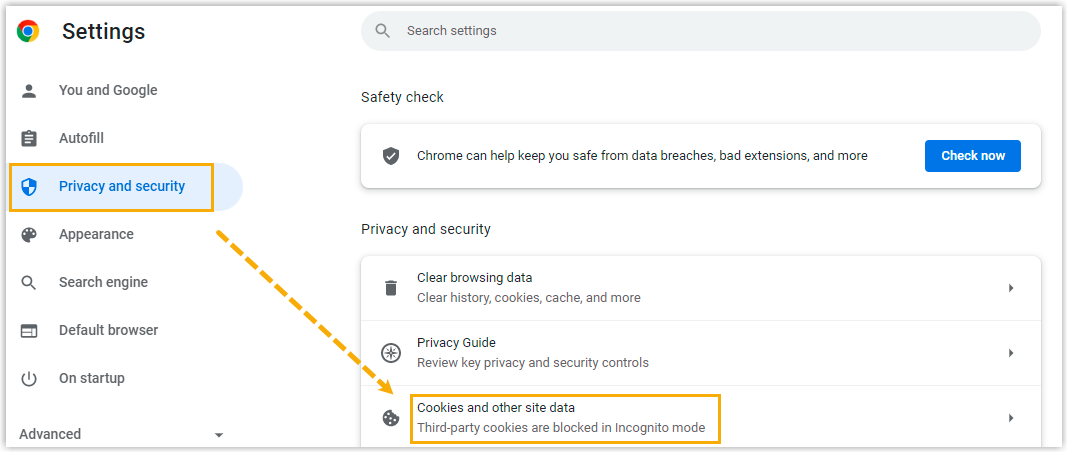
In the left navigation, select Privacy and security, then click Cookies and other site data.
-
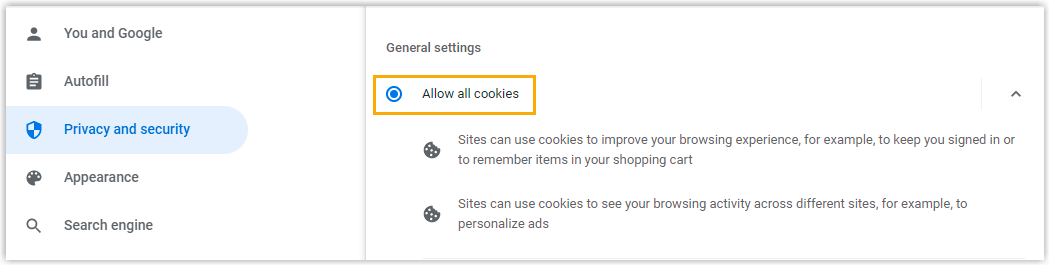
Choose Allow all cookies.
-
Open Opera and go to
opera://settings. You can paste this address straight into the address bar and press Enter. -
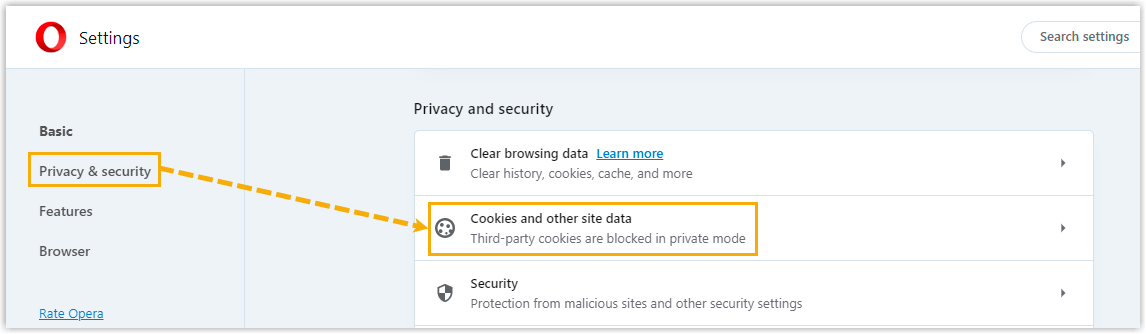
In the left navigation, select Privacy and security, then click Cookies and other site data.
-
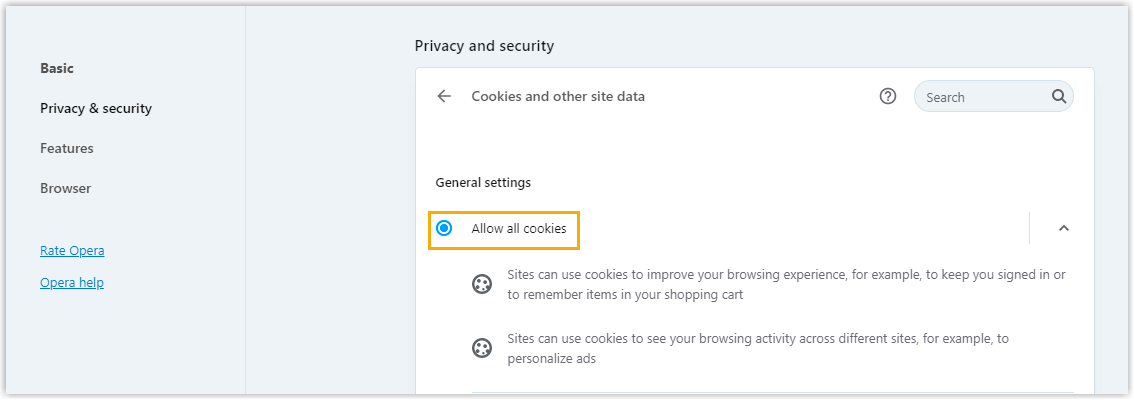
Choose Allow all cookies.
After allowing cookies, reload the Cloud Voice App and open Video Conferencing again. If the page still loads blank, close and reopen the browser tab so the new cookie setting takes effect.
Question about this page?
Ask the AI assistant. It starts from this page, then searches the rest of the docs.
Ask Cloud Voice AI
Answers are AI-generated from the docs and may contain mistakes. Verify with the linked pages.