
Start an Instant Meeting
When something comes up that can’t wait, you don’t have to schedule ahead. The Cloud Voice App lets you spin up a video meeting on the spot and pull people in as soon as it’s running. This page shows how.
Before you start
Section titled “Before you start”- Confirm your setup meets the requirements for Cloud Voice video conferencing.
- Make sure your web browser is allowed to use the computer’s microphone and camera.
Start the meeting
Section titled “Start the meeting”-
Sign in to the Cloud Voice App and open Video Conferencing.
-
Select Create Instant Meeting.
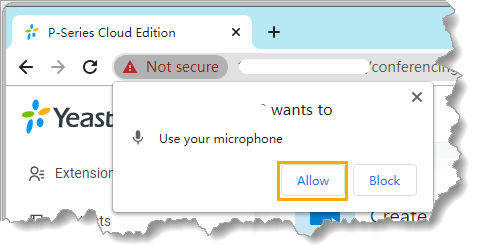
Your browser prompts you to let the Cloud Voice App use the microphone.
-
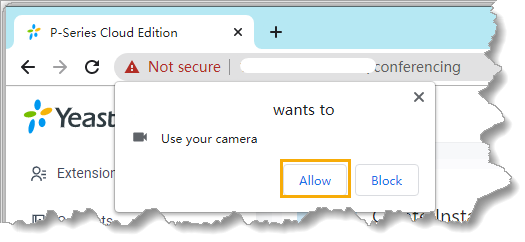
Grant the microphone and camera permissions the app requests:
a. Select Allow to turn on the microphone.
b. Select Allow to turn on the camera. A live preview of your video appears once it’s enabled.
-
On the Preparation page, get the meeting ready:
a. Use the icons to adjust your own audio and video:
 , Mute or unmute yourself.
 , Turn your camera on or off.
 , Switch which camera, microphone, or speaker is used.
b. Fill in the meeting details:
- Meeting Name: A title for the meeting.
- Password: Optional. Set a password that everyone must enter before they can join.
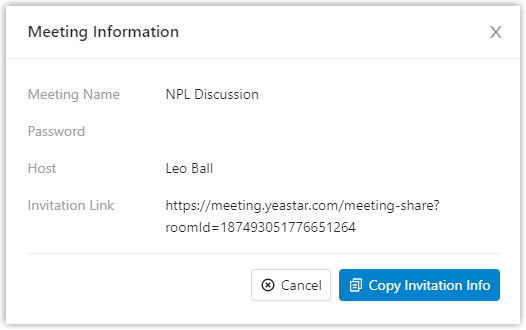
c. Select Join. The meeting starts, and a window shows its details.
Invite people to join
Section titled “Invite people to join”- In the meeting details window, select Copy Invitation Info.
- Share the copied invitation with anyone you want in the meeting.
Question about this page?
Ask the AI assistant. It starts from this page, then searches the rest of the docs.
Ask Cloud Voice AI
Answers are AI-generated from the docs and may contain mistakes. Verify with the linked pages.