
Configure Cloud Voice App Welcome Email
The welcome email is the message a new user receives to get started. It carries their extension number and voicemail PIN, together with the credentials and step-by-step instructions they need to sign in to the Cloud Voice App. A ready-made template ships with the system, and you can replace it with one of your own.
Open the welcome email settings
Section titled “Open the welcome email settings”-
Sign in to the PBX (Private Branch Exchange, your phone system) web portal and open Extension and Trunk > Extension.
-
Above the list of extensions, select Cloud Voice App Server.
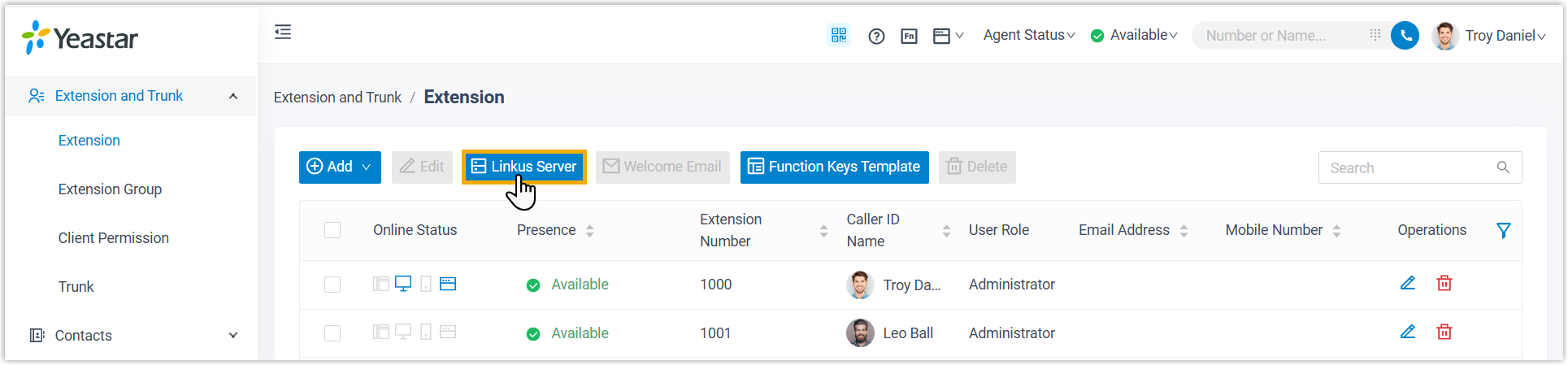
-
Switch to the Email Templates tab.
Customize the template
Section titled “Customize the template”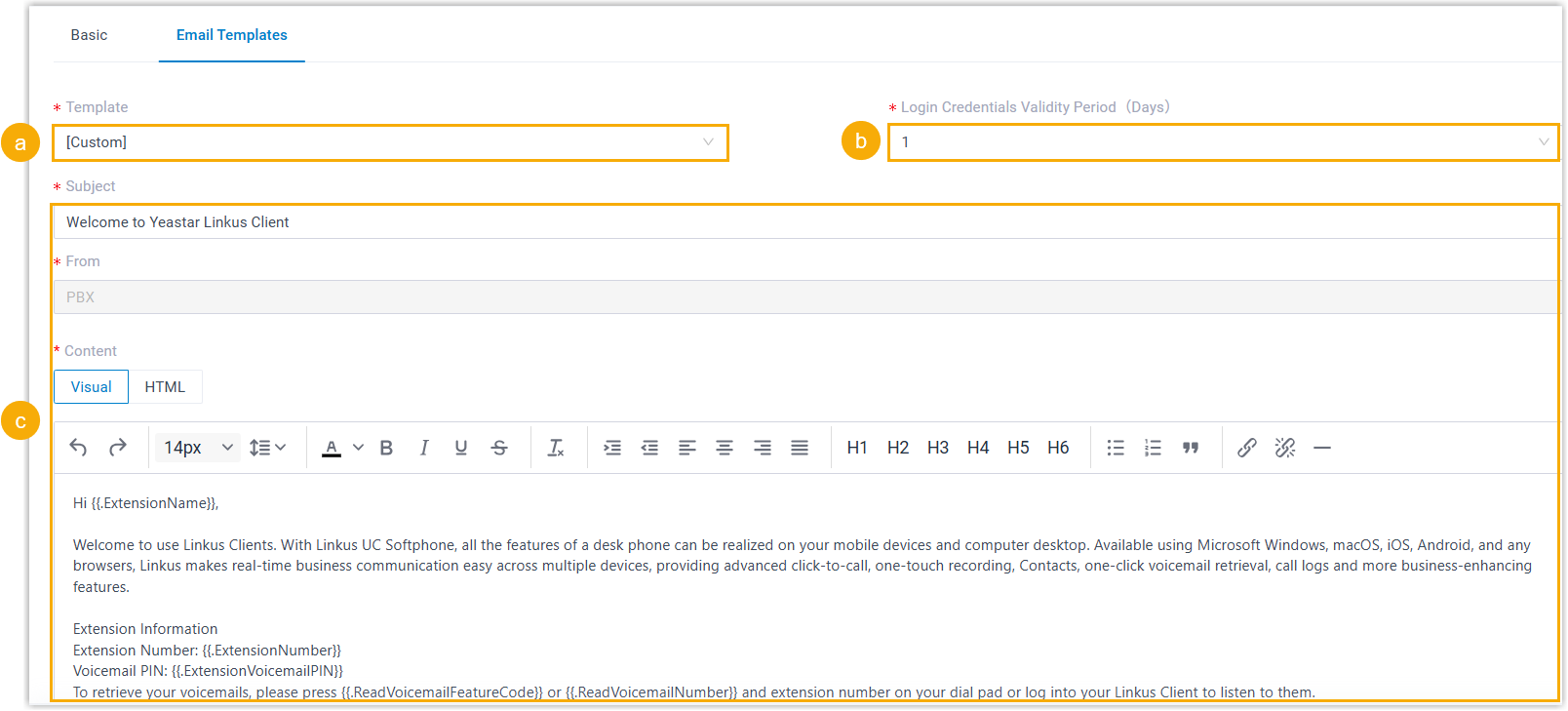
-
From the Template drop-down list, choose Custom.
-
Optional: use the Login Credentials Validity Period (Days) drop-down list to set how long the sign-in credentials in the email remain valid.
-
Adjust the subject line and body text to suit your organization.
-
Select Save.
Question about this page?
Ask the AI assistant. It starts from this page, then searches the rest of the docs.
Ask Cloud Voice AI
Answers are AI-generated from the docs and may contain mistakes. Verify with the linked pages.