
Manage Logged-in Cloud Voice App Clients
Your extension can be signed in on more than one device at a time. From the Cloud Voice App on your phone, you can review each client that is currently logged in to your extension, see details about the device behind it, give a device a recognizable label, and remotely sign your extension out of any device you no longer want connected.
For each logged-in client, the app shows the device name, the client type, and the time of the last login.
Before you begin
Section titled “Before you begin”- Your Cloud Voice system must be running version 84.22.0.134 or later. If it is not, ask your administrator to upgrade it.
- Your Cloud Voice App must meet the minimum version for your platform:
- iOS: 5.24.13 or later
- Android: 5.24.7 or later
Add a remark to a device
Section titled “Add a remark to a device”A remark is a free-text label that helps you tell your devices apart. Once saved, it appears wherever your extension is signed in.
-
Sign in to the Cloud Voice App on your mobile device.
-
On the Calls page, tap your account in the top-left corner.
-
Tap the logged-in devices icon
 next to your user name.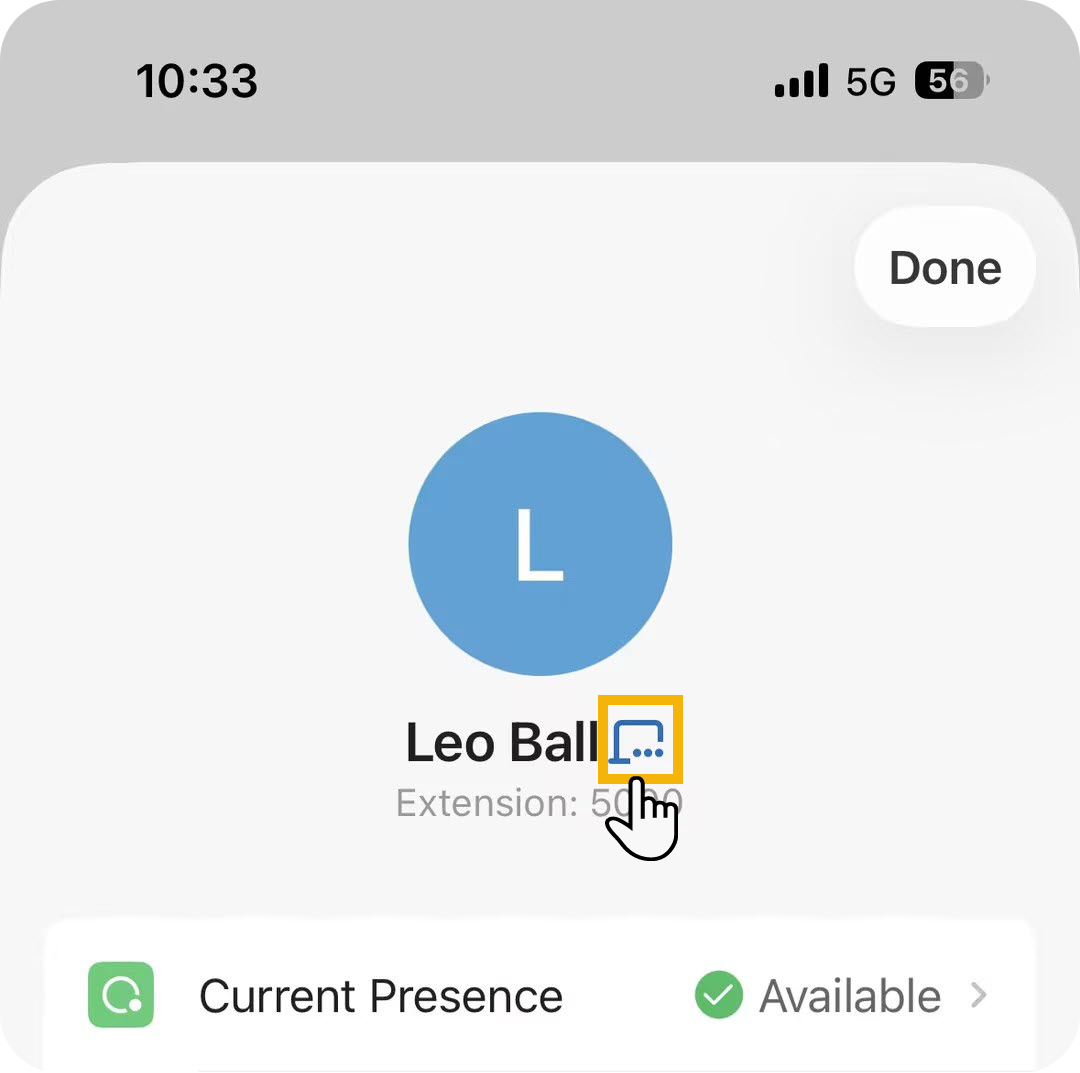
-
In the list of devices that are currently signed in, do the following:
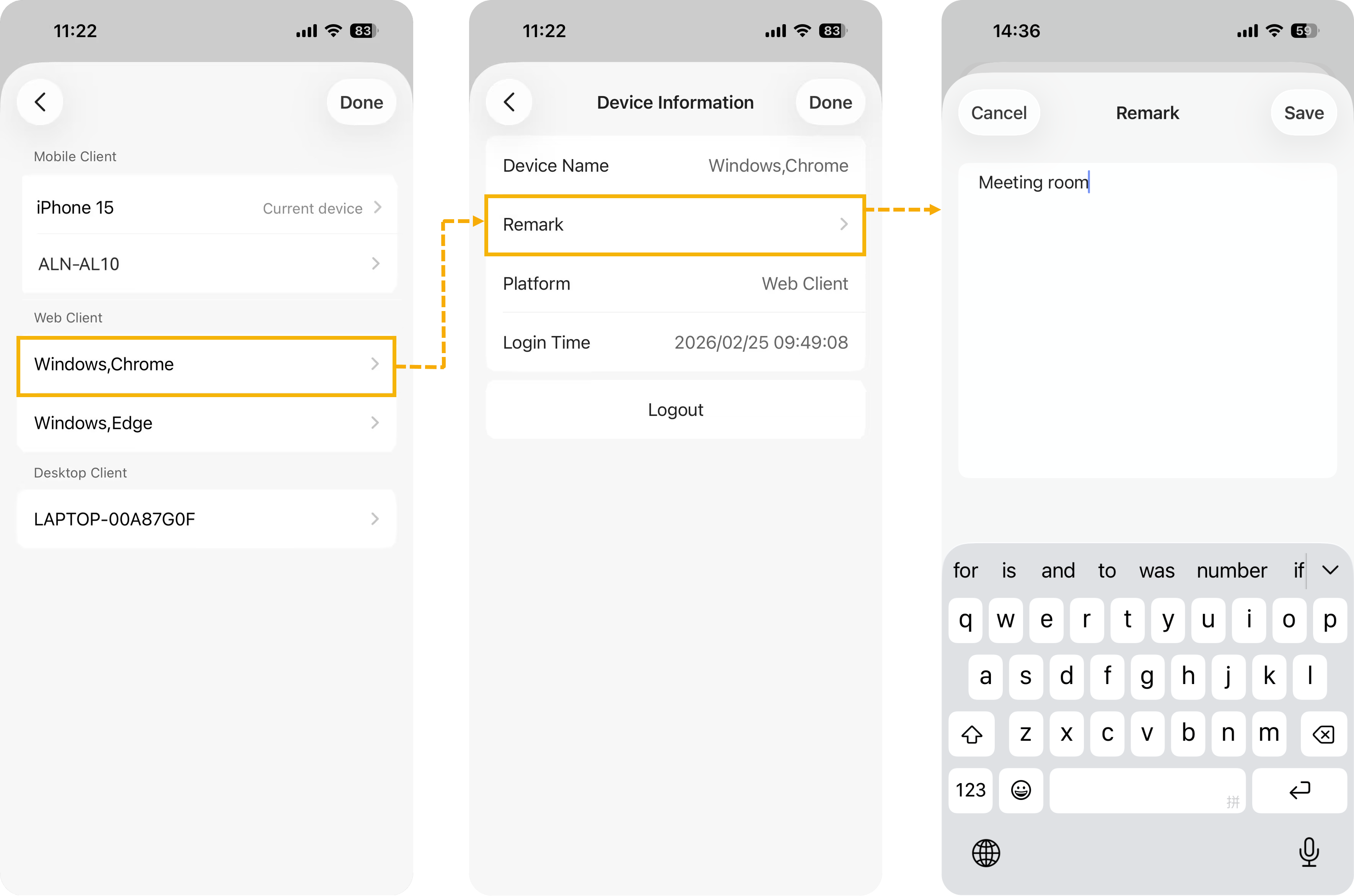
a. Tap the device you want to label.
b. On the Devices Information page, tap Remark.
c. Type your label in the text field, then tap Save.
-
Tap Done in the top-right corner.
Your remark is synchronized across all of your Cloud Voice App clients.
Sign out of a device
Section titled “Sign out of a device”You can sign your extension out of another device remotely, without needing that device in hand.
-
Sign in to the Cloud Voice App on your mobile device.
-
On the Calls page, tap your account in the top-left corner.
-
Tap the logged-in devices icon
next to your user name. -
In the list of devices that are currently signed in, do the following:
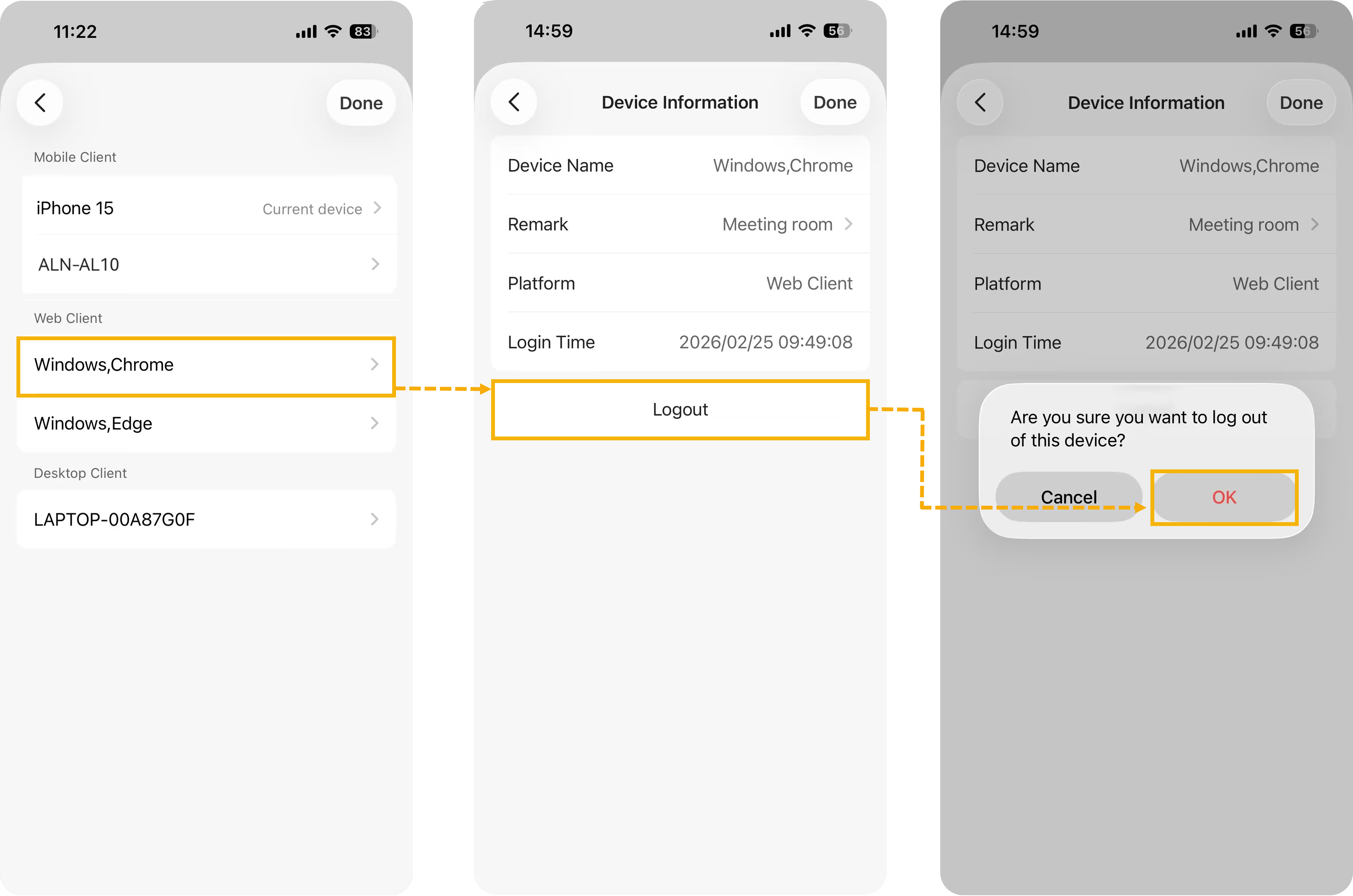
a. Tap the device you want to sign out.
b. On the Devices Information page, tap Logout.
c. Tap OK in the confirmation prompt.
Your extension is signed out of that device. On the affected device, a message reading “This device has been logged out by you or the administrator” appears on screen.
Question about this page?
Ask the AI assistant. It starts from this page, then searches the rest of the docs.
Ask Cloud Voice AI
Answers are AI-generated from the docs and may contain mistakes. Verify with the linked pages.