
Change Incoming Call Pop-up Location
When a call comes in, the Cloud Voice App shows a notification pop-up so you can answer, decline, or check who is calling. Out of the box this pop-up sits in a fixed spot, the bottom-right corner on Windows and the top-right corner on macOS. If that placement gets in your way, you can move it to whichever corner you prefer.
Before you begin
Section titled “Before you begin”Confirm you are running version 1.17.4 or later of the Cloud Voice App for desktop.
Reposition the pop-up
Section titled “Reposition the pop-up”-
Open the app’s Settings. How you get there depends on your operating system.
-
Windows: Right-click the Cloud Voice App icon
 in the system tray, then choose Settings.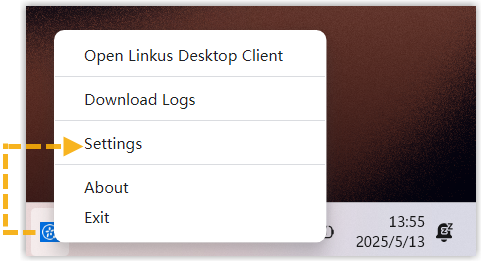
-
macOS: In the menu bar, click Cloud Voice App, then choose Settings.
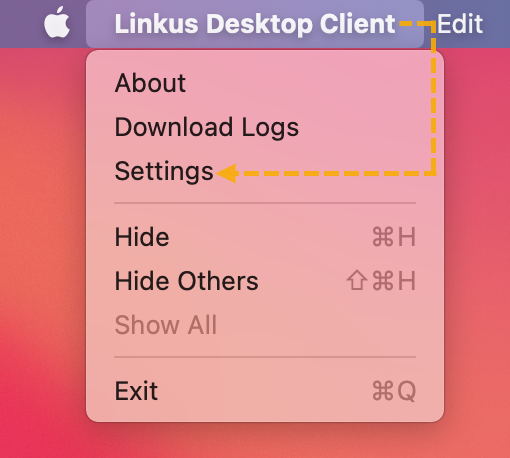
-
-
Under Incoming call pop-up location, pick the corner where you want notifications to appear.
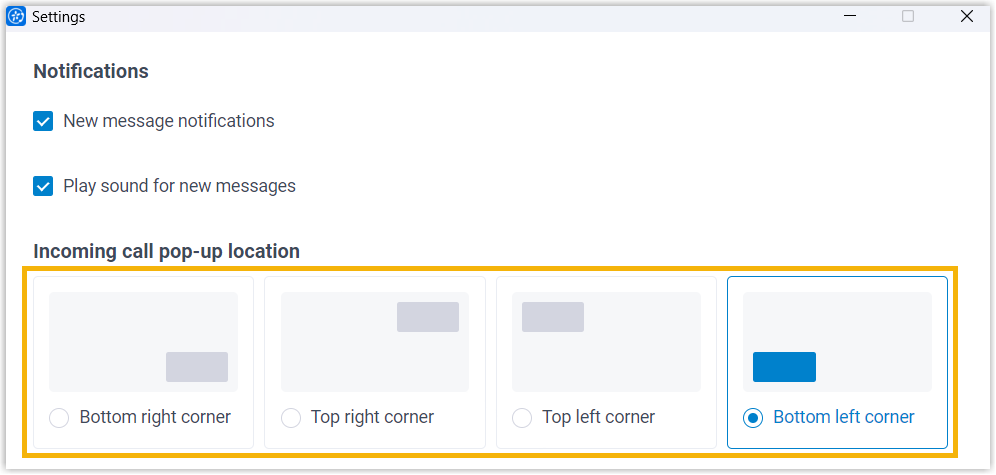
The next time a call reaches you, the pop-up appears in the corner you selected.
Question about this page?
Ask the AI assistant. It starts from this page, then searches the rest of the docs.
Ask Cloud Voice AI
Answers are AI-generated from the docs and may contain mistakes. Verify with the linked pages.