
Control a Yealink IP Phone with the Cloud Voice App
CTI (Computer Telephony Integration) mode links a Yealink IP phone that carries your extension to the Cloud Voice App desktop client. Once the two are paired, the desktop app becomes an on-screen control panel for your calls: you dial, answer, transfer, and hang up from the app, while the audio and the actual call handling stay on the Yealink phone.
Where this applies
Section titled “Where this applies”Use these steps with any Yealink handset that supports CTI in the Cloud Voice App desktop client. For the full compatibility list, see the CTI overview.
Before you start
Section titled “Before you start”Two things must be in place before CTI mode will connect:
- On the PBX: The uaCSTA feature must be turned on. (uaCSTA is the SIP-based protocol that lets the app relay control commands to the phone.) Your administrator enables it under PBX Settings > SIP Settings > Advanced > Other Options > Enable uaCSTA Connection.
- On the IP phone: The phone must be registered with the same extension you use in the Cloud Voice App desktop client.
Step 1. Make the IP phone controllable
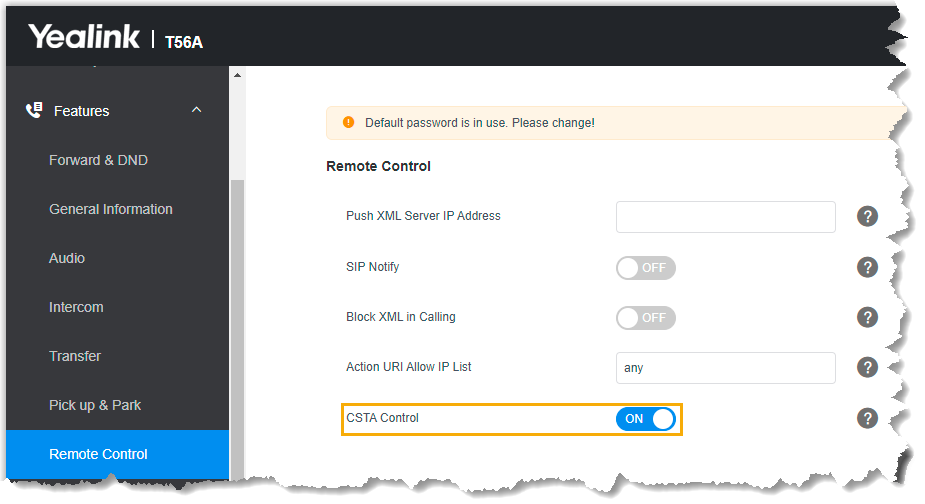
Section titled “Step 1. Make the IP phone controllable”If your extension was registered on the phone by hand, switch on the phone’s CSTA Control before pairing. (CSTA Control is the handset side of the uaCSTA feature: both the PBX and the phone must have it on.) The steps below use a Yealink T56A as the example:
-
Sign in to the phone’s web interface.
-
Open Features > Remote Control.
-
On the Remote Control page, enable CSTA Control.
-
Click Confirm.
-
When prompted, click OK to reboot the phone.
Step 2. Turn on CTI mode in the desktop app
Section titled “Step 2. Turn on CTI mode in the desktop app”Switching the desktop app into CTI mode is what lets it manage calls on your IP phone.
-
Sign in to the Cloud Voice App desktop client.
-
In the top-right corner, click the CTI icon (
 ), then pick your connected Yealink phone from the list.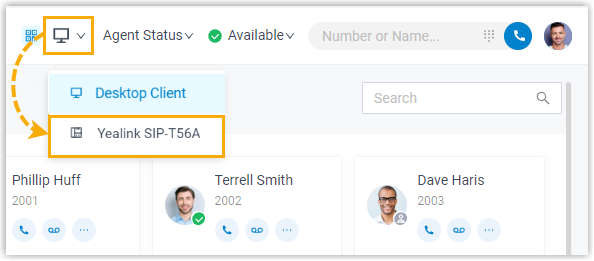
What you can do
Section titled “What you can do”With the phone paired, you can run these call actions from the Cloud Voice App while the Yealink phone carries the call:
- Place and end a call
- Start a second call
- Answer or reject an incoming call
- Record a call
- Transfer a call, both attended and blind
- Hold and resume
- Swap between held calls
- Flip a call
Question about this page?
Ask the AI assistant. It starts from this page, then searches the rest of the docs.
Ask Cloud Voice AI
Answers are AI-generated from the docs and may contain mistakes. Verify with the linked pages.