
Beginner's Guide to the Cloud Voice App
The Cloud Voice App turns your extension into a full softphone, so you can place and answer business calls, chat with colleagues, check voicemail, and manage your presence without a physical desk phone. This page is a starting point: it explains the pieces that make up the app and points you toward the right client for the way you work.
Pick the client that fits you
Section titled “Pick the client that fits you”The Cloud Voice App runs on several platforms, and they all connect to the same extension. Sign in on more than one at the same time and your calls, contacts, and history stay in sync.
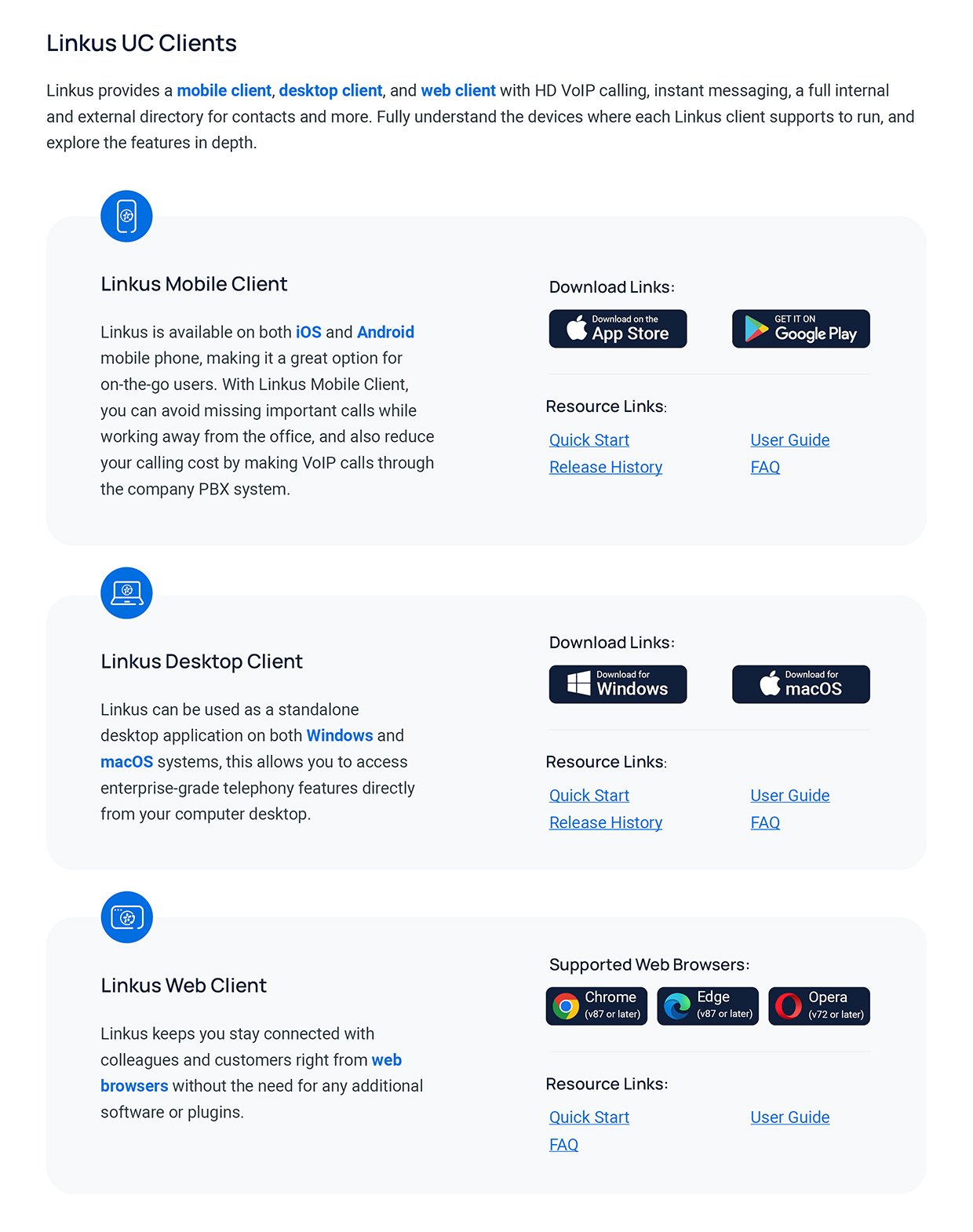
- Mobile app: Keep your business number with you on a phone or tablet. Take calls over Wi-Fi or cellular data, and let push notifications ring the app even when it is closed. Available for iOS and Android.
- Desktop app: A dedicated application for Windows and macOS, built for people who spend the day at a computer and want call control, contacts, and messaging in one window.
- Web client: Open your extension straight from a browser, with nothing to install. A good fit for shared or locked-down machines.
Get the app
Section titled “Get the app”How you install depends on the client:
- Mobile: Search for the Cloud Voice App in the Apple App Store or Google Play, then install it like any other app.
- Desktop: Download the installer for Windows or macOS and run it.
- Web: No download needed. Open the web client address in your browser and sign in.
Each client has its own quick start guide that walks you through your first sign-in and the basics of making a call. If a sign-in ever fails, each client also has a short troubleshooting article that covers the most common causes.
Connect the tools you already use
Section titled “Connect the tools you already use”Beyond calling, the Cloud Voice App can plug into the software your team relies on so that dialing and call information follow you between apps:
- Google: Add click-to-call and incoming-call pop-ups inside Chrome and Google Workspace.
- Microsoft Teams: Bring your phone system’s calling into Teams so you can dial and handle calls from the same place you collaborate.
- Microsoft Outlook: Click a contact to call, and see caller details surface from your Outlook contacts.
- TAPI (Telephony Application Programming Interface): Let compatible Windows applications trigger calls through the desktop app.
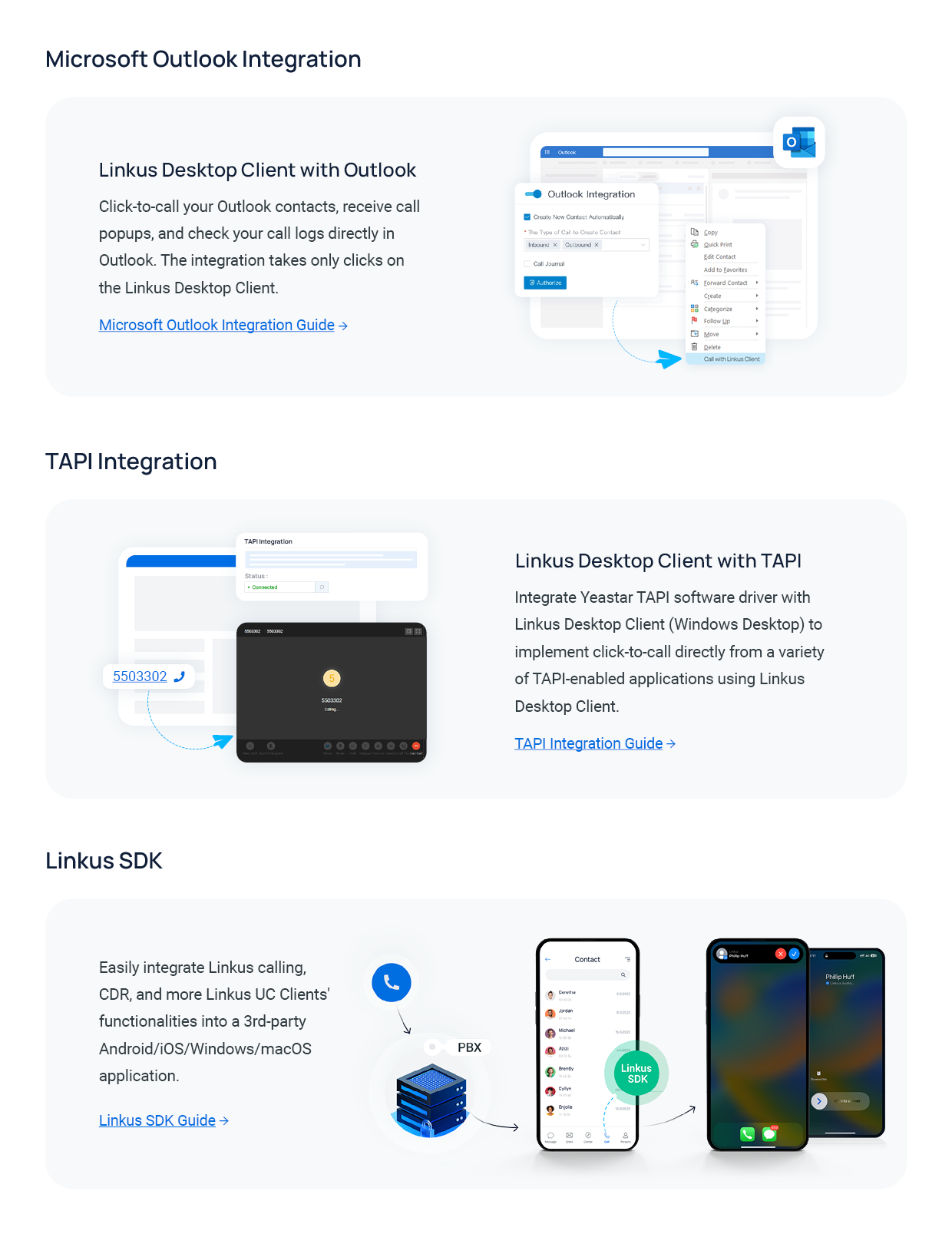
Developers who want to build calling into their own products can do so with the Cloud Voice App SDK (software development kit).
Working away from the office
Section titled “Working away from the office”Your phone system supports secure remote access, so the app keeps working the same whether you are on the office network or connecting from home, the road, or a client site. There is nothing extra to set up on your end once your administrator has enabled remote access on the server.
Question about this page?
Ask the AI assistant. It starts from this page, then searches the rest of the docs.
Ask Cloud Voice AI
Answers are AI-generated from the docs and may contain mistakes. Verify with the linked pages.