
Set up Hotkeys
Hotkeys (keyboard shortcuts) let you trigger common call and messaging actions with a single keystroke combination instead of clicking through the interface. This page lists the operations you can bind, their default key combinations, and how to switch them on in the Cloud Voice App for desktop.
Before you begin
Section titled “Before you begin”Confirm that your environment meets these minimums:
- PBX server (Private Branch Exchange, the phone system that routes your calls): version 84.12.0.32 or later.
- Cloud Voice App (desktop): version 1.21.2 or later, on both Windows and macOS.
Available operations and default hotkeys
Section titled “Available operations and default hotkeys”Each action ships with a default combination. Because the modifier keys differ between platforms, Windows and macOS have their own defaults.
| Operation | Windows | macOS |
|---|---|---|
| Dial the selected number | Ctrl + Shift + E | ⌘ + Shift + E |
| Answer a call | Ctrl + Shift + A | ⌘ + Shift + A |
| Blind transfer | Ctrl + Shift + B | ⌘ + Shift + B |
| Attended transfer | Ctrl + Shift + T | ⌘ + Shift + T |
| Hold or resume | Ctrl + Shift + H | ⌘ + Shift + H |
| Hang up | Ctrl + Shift + F | ⌘ + Shift + F |
| Send a message | Enter | Return |
Enable and customize hotkeys
Section titled “Enable and customize hotkeys”Every hotkey operation is off until you turn it on, so a fresh install has no working shortcuts until you enable them. Follow these steps to activate the ones you want.
-
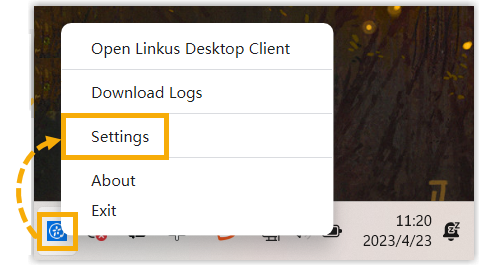
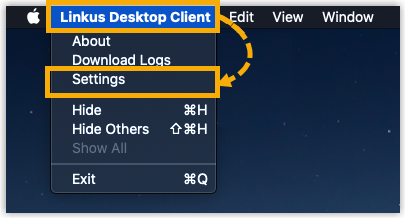
Open the app’s Settings, using the method for your operating system.
-
Windows: right-click the Cloud Voice App icon in the system tray, then choose Settings.
-
macOS: in the app menu bar, click Cloud Voice App, then Settings.
-
-
Go to the Hotkeys section.
-
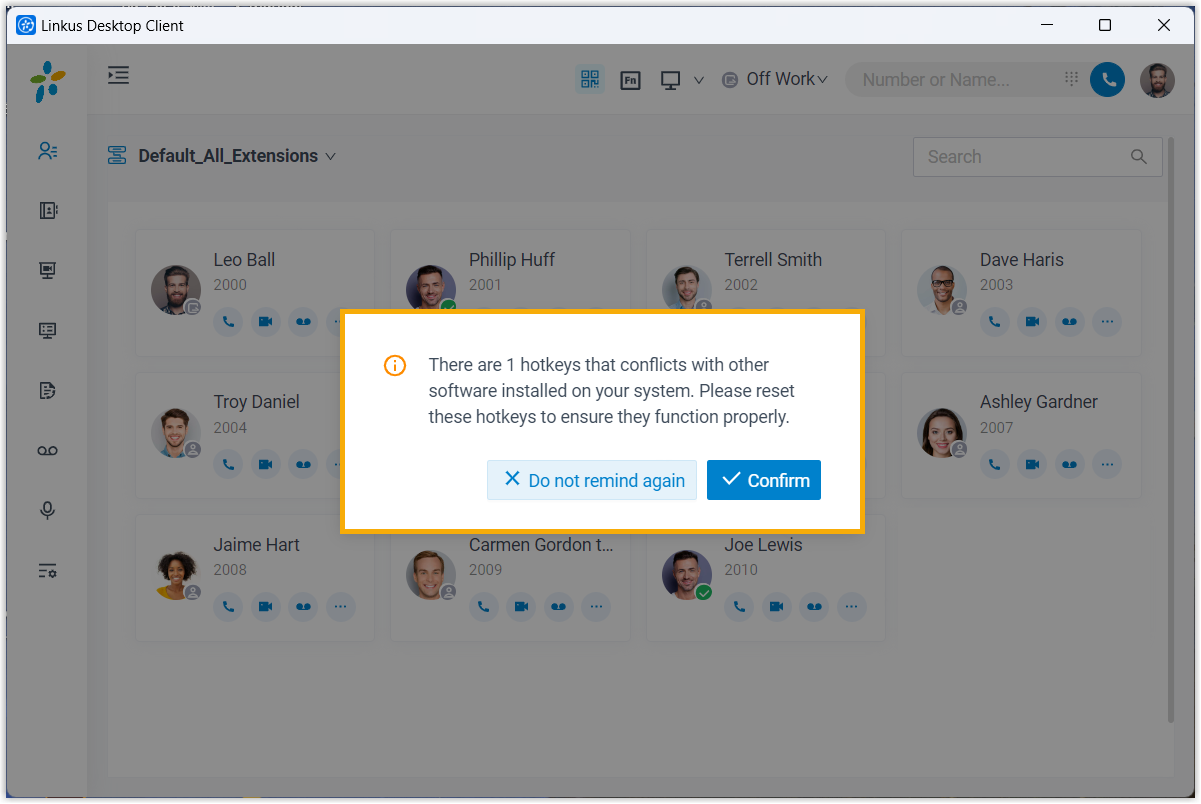
(Optional) Select Notify When Hotkey Conflicts so you are warned when a shortcut is unusable.

With this on, the app checks your hotkeys for conflicts every time you launch and sign in. When it finds one, it shows a pop-up describing the clash so the binding does not silently stop working.
-
Turn on the operations you want and adjust their keys.
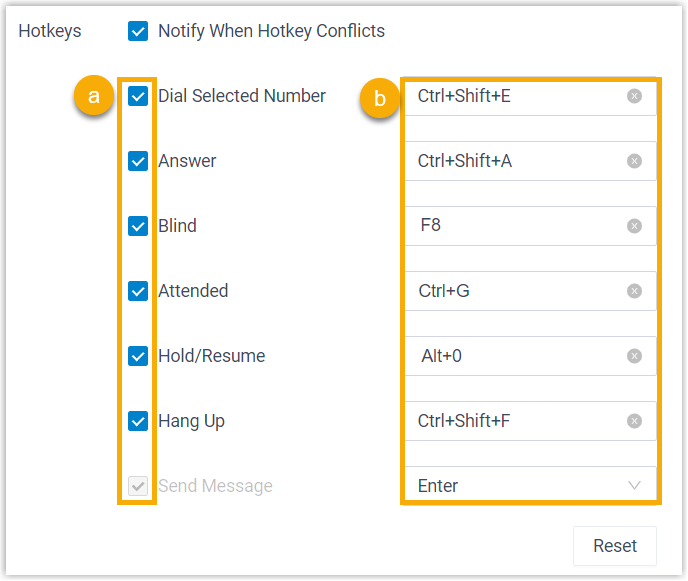
- Select the checkbox next to an operation to enable it.
- To replace the default binding, click that operation’s key field, then press the keys you want to use:
- Single function key (
F1throughF12): the key on its own becomes the hotkey. - Key combination: start with
Ctrl,⌘,Shift, orAlt, and finish with one letter, one number, or a function key (F1throughF12).
- Single function key (
Question about this page?
Ask the AI assistant. It starts from this page, then searches the rest of the docs.
Ask Cloud Voice AI
Answers are AI-generated from the docs and may contain mistakes. Verify with the linked pages.