
Enable Call Quality Monitoring
If you run into problems on your calls, the Cloud Voice App can record what happened under the hood. With call quality monitoring switched on, your extension gathers performance data during each call and produces a report our support team can use to pinpoint the cause. This page walks you through enabling the feature.
Before you begin
Section titled “Before you begin”- Your PBX (Private Branch Exchange, the server that runs your phone system) must be running firmware 84.23.0.123 or later.
- An administrator must have granted your account permission to turn on call quality monitoring for your own extension. If the option is missing, ask your administrator to enable it for you.
Turn on monitoring
Section titled “Turn on monitoring”-
Sign in to the Cloud Voice App and open Preferences > Features.
-
Find the Monitor Call Quality section and set it up as follows.
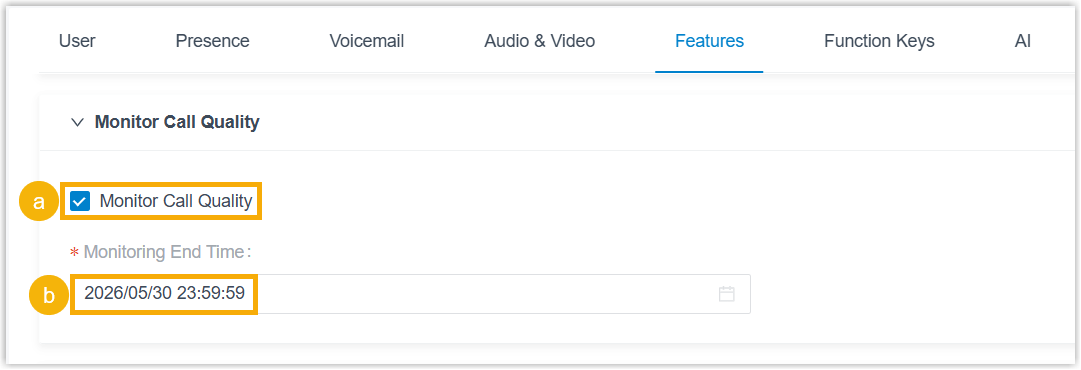
a. Select the Monitor Call Quality checkbox.
b. Open the Monitoring End Time drop-down and choose when monitoring should stop.
-
Click Save.
What happens next
Section titled “What happens next”From now until the end time you set, every call your extension places or answers in the Cloud Voice App is measured automatically, and a quality report is built for each one. Open the matching entry in your call log to review it.
For a breakdown of the report and the metrics it contains, see Access Call Quality Monitoring Report.
Question about this page?
Ask the AI assistant. It starts from this page, then searches the rest of the docs.
Ask Cloud Voice AI
Answers are AI-generated from the docs and may contain mistakes. Verify with the linked pages.