
Add Notes to a Call
Call Notes let you record what happened on a call without leaving the conversation. On any inbound or outbound call you can attach a disposition code and a short remark, and those details stay with the call afterward so you can look them up or refine them later.
Before you start
Section titled “Before you start”- Your Cloud Voice system must be running version 84.18.0.102 or later.
- An administrator must have enabled Call Notes for your account and defined the disposition codes you’ll choose from.
- The Cloud Voice App must be version 1.11.7 or later.
Add a note during a call
Section titled “Add a note during a call”-
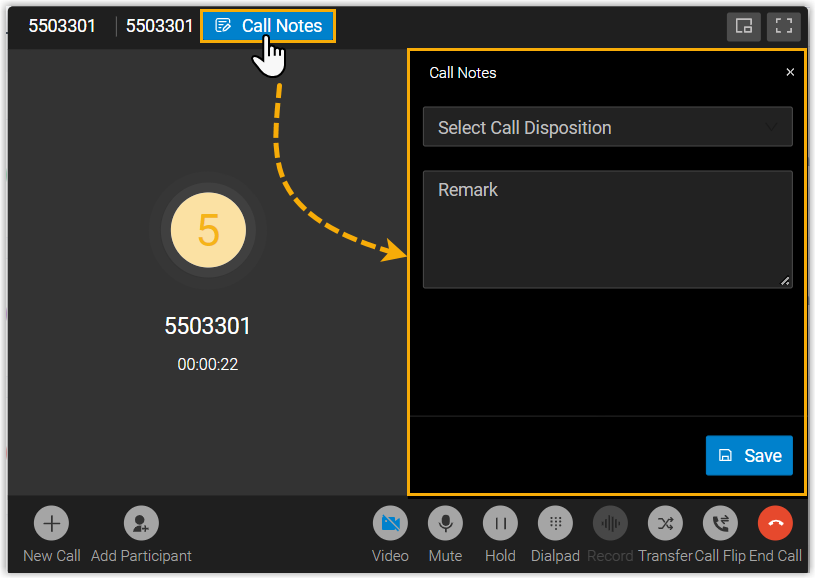
While the call is connected, select Call Notes to open the notes panel.
-
Enter the details you want to keep for the call.
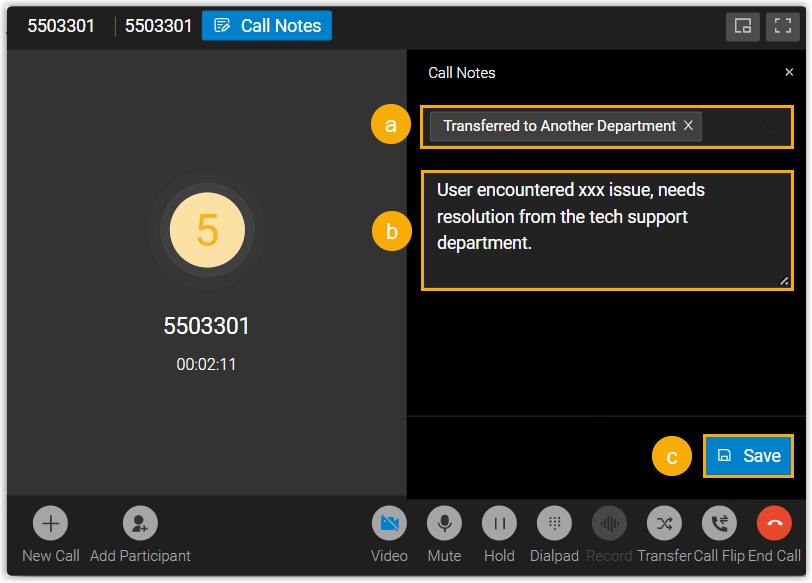
a. From the Select Call Disposition list, pick the disposition code that best describes the call. b. In the Remark field, type a brief note capturing the key points. c. Select Save.
What happens next
Section titled “What happens next”-
An Operation Succeeded message confirms your note was saved.
-
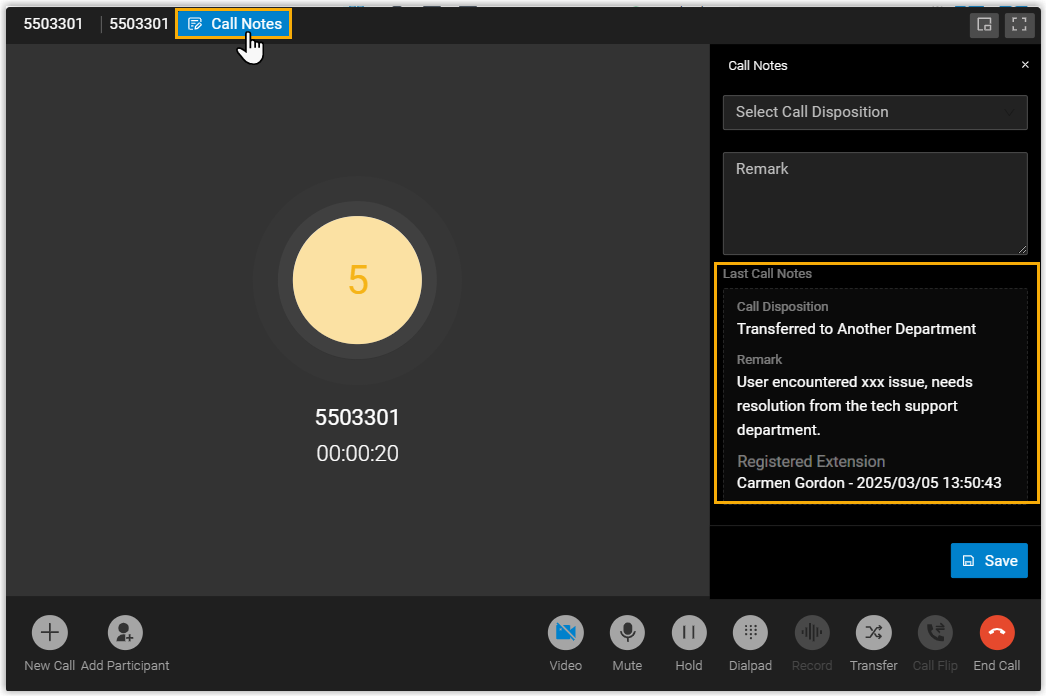
If the call is transferred, the next person who has access to Call Notes sees your most recent note once they answer.
-
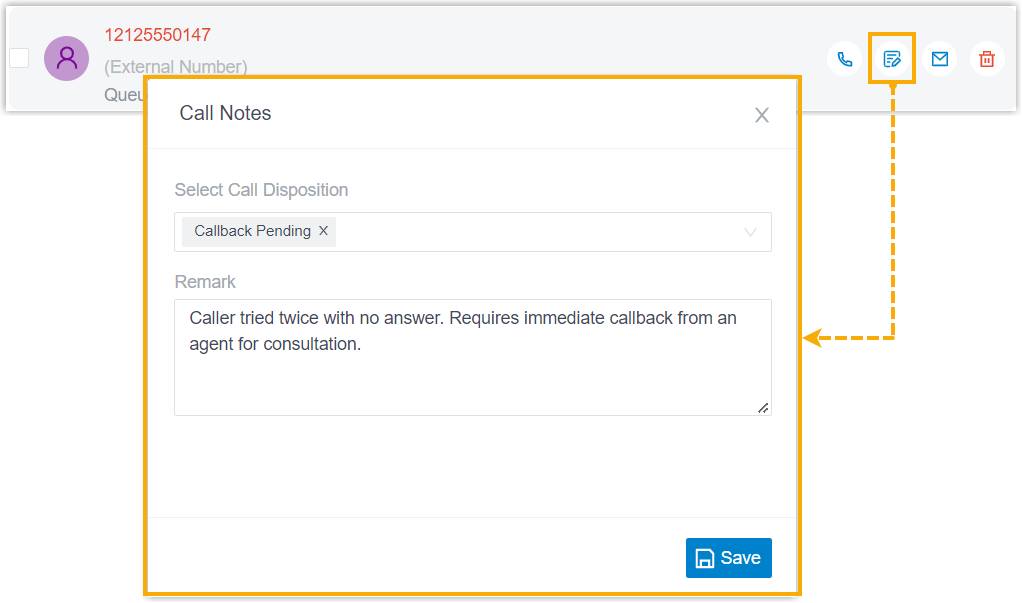
Once the call is over, open Call Logs to read or edit the note attached to that call.
Question about this page?
Ask the AI assistant. It starts from this page, then searches the rest of the docs.
Ask Cloud Voice AI
Answers are AI-generated from the docs and may contain mistakes. Verify with the linked pages.