
Access the Call Quality Monitoring Report
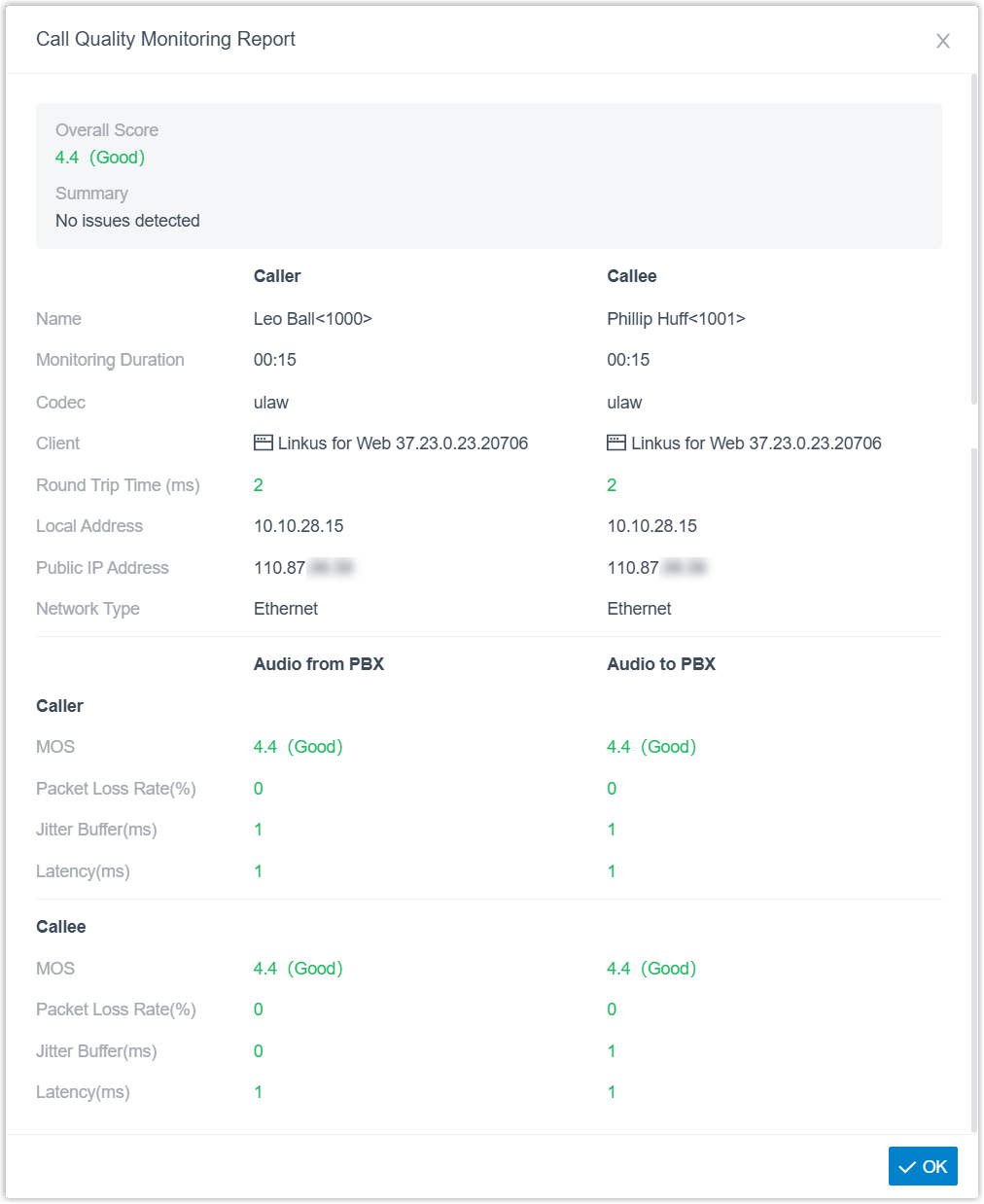
The Call Quality Monitoring Report gives you a single quality rating for a call along with the underlying network and audio measurements that produced it. You can open the report for any call directly from your personal call history in the Cloud Voice App desktop client. This page walks through opening the report and explains what each metric means.
Open the report
Section titled “Open the report”-
Sign in to the Cloud Voice App desktop client and go to Call Logs > Personal Logs.
-
Point to the call you want to review, then select the call quality icon (
 ) that appears on the row.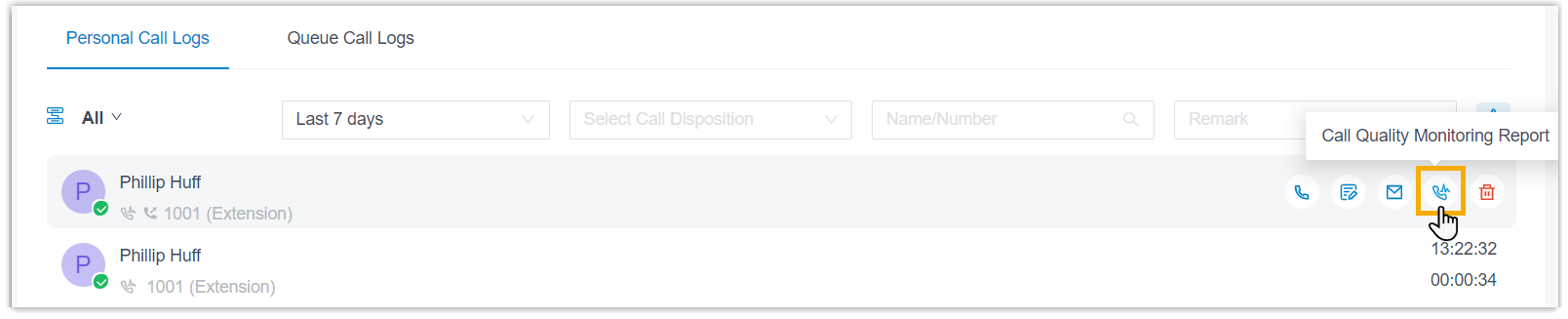
The report opens in a separate window.
Understand the metrics
Section titled “Understand the metrics”The report groups its figures into an overall assessment, endpoint details for both parties, and separate audio measurements for each direction of the call.
| Metric | What it tells you |
|---|---|
| Overall Score | The combined quality score for the call and its rating. |
| Summary | A short assessment of the call’s quality. |
| Caller & Callee | |
| Name | The party’s name and number. |
| Monitoring Duration | How long call quality was measured. |
| Codec | The codec negotiated for the call. |
| Client | The client that placed or received the call. |
| Round Trip Time (ms) | The time for an audio packet to make a round trip. |
| Local Address | The local IP address the client used on the call. |
| Public IP Address | The public IP address the client used on the call. |
| Network Type | The kind of network connection the client was on. |
| Audio from PBX & Audio to PBX | |
| MOS | The Mean Opinion Score for audio quality: below 3.5 is poor, 3.5 up to 4.0 is moderate, and 4.0 through 5.0 is good. |
| Packet Loss Rate (%) | The share of audio packets that were lost. |
| Jitter Buffer (ms) | The buffer used to smooth out variation in packet arrival. |
| Latency (ms) | The delay introduced by network transmission. |
Question about this page?
Ask the AI assistant. It starts from this page, then searches the rest of the docs.
Ask Cloud Voice AI
Answers are AI-generated from the docs and may contain mistakes. Verify with the linked pages.