
Log in to the Cloud Voice App within Dynamics 365 CRM
Once your administrator has connected Cloud Voice to Dynamics 365 CRM (Customer Relationship Management), a Cloud Voice App plugin becomes available directly inside the Dynamics 365 workspace. Signing in to the plugin lets you handle calls and other phone-system tasks alongside your CRM records, with no need to switch windows. This page walks you through opening the plugin and logging in.
Before you begin
Section titled “Before you begin”-
Your administrator must have finished connecting Cloud Voice to Microsoft Dynamics 365 CRM.
-
Have the right credentials ready for the sign-in method you plan to use. The requirements differ by method:
Sign-in method What you need Extension credentials The username and password for your extension account, provided by your administrator. Google account Your administrator has connected the phone system to Google Workspace, synced your Google account to Cloud Voice and linked it to an extension, and turned on Single Sign-on (SSO). Microsoft account Your administrator has connected the phone system to Microsoft Entra ID (Azure Active Directory), synced your Microsoft account to Cloud Voice and linked it to an extension, and turned on Single Sign-on (SSO). Active Directory account Your administrator has connected the phone system to Active Directory, synced your AD account to Cloud Voice and linked it to an extension, and turned on Single Sign-on (SSO).
Open the plugin
Section titled “Open the plugin”-
Sign in to your Dynamics 365 instance, for example
https://{{your-organization}}.crm.dynamics.com. -
On the right edge of the Dynamics 365 window, click the Cloud Voice App icon
 .
.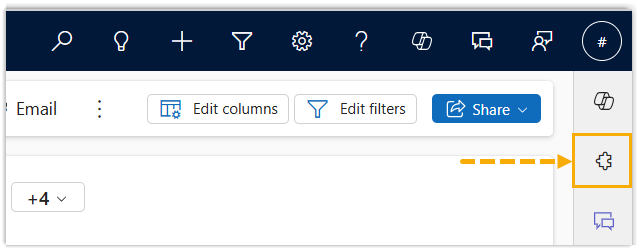
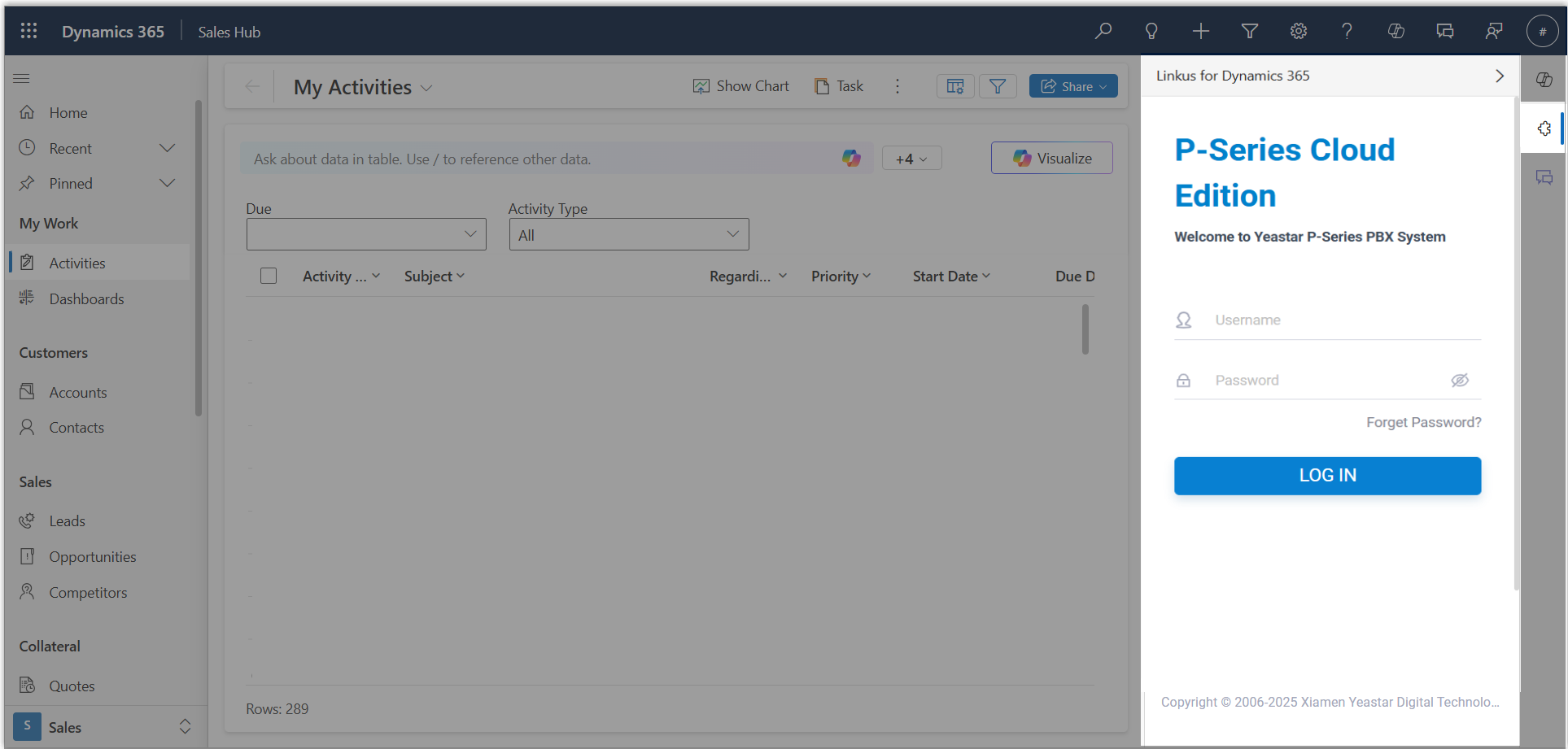
The Cloud Voice App plugin opens as a fixed side pane.
Sign in
Section titled “Sign in”Use whichever of the following methods matches your account.
Extension credentials
Section titled “Extension credentials”-
On the sign-in page, enter your extension account details:
- Username: the email address tied to your extension account.
- Password: the password for that account.
-
Click LOG IN.
-
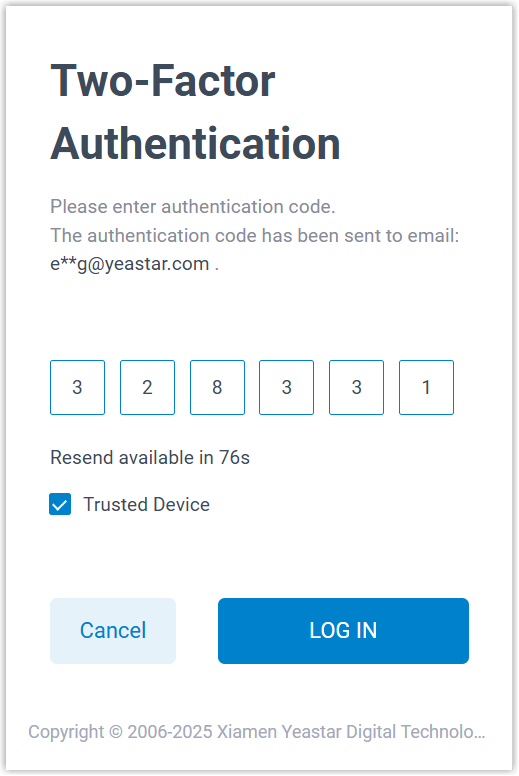
If two-factor authentication is enabled on your account, type the verification code and click LOG IN again.
Google account
Section titled “Google account”- On the sign-in page, click the Google icon
 .
. - Sign in to your Google account. Once you are authenticated, you are logged in to the Cloud Voice App automatically.
Microsoft account
Section titled “Microsoft account”- On the sign-in page, click the Microsoft icon
 .
. - Sign in to your Microsoft account. Once you are authenticated, you are logged in to the Cloud Voice App automatically.
Active Directory account
Section titled “Active Directory account”- On the sign-in page, enter your Active Directory details:
- Username: your AD domain username, in the format
username@domainname. - Password: the password for that account.
- Username: your AD domain username, in the format
- Click LOG IN.
Result
Section titled “Result”You are now signed in to the plugin and can use Cloud Voice calling features without leaving Dynamics 365 CRM.
To get familiar with the plugin’s layout and controls, see Learn about the Cloud Voice App for Dynamics 365 plugin.
Question about this page?
Ask the AI assistant. It starts from this page, then searches the rest of the docs.
Ask Cloud Voice AI
Answers are AI-generated from the docs and may contain mistakes. Verify with the linked pages.