
Use Odoo CRM Integration
Once Cloud Voice is linked to Odoo CRM (Customer Relationship Management, the system that stores your contacts and deals), your calls and your customer records stay in step with each other. This page describes the main features the integration unlocks and how to put each one to use.
Click to call
Section titled “Click to call”Before you start
Install the Cloud Voice App for Google Chrome extension and set up the Cloud Voice App web client to work alongside it.
How it works
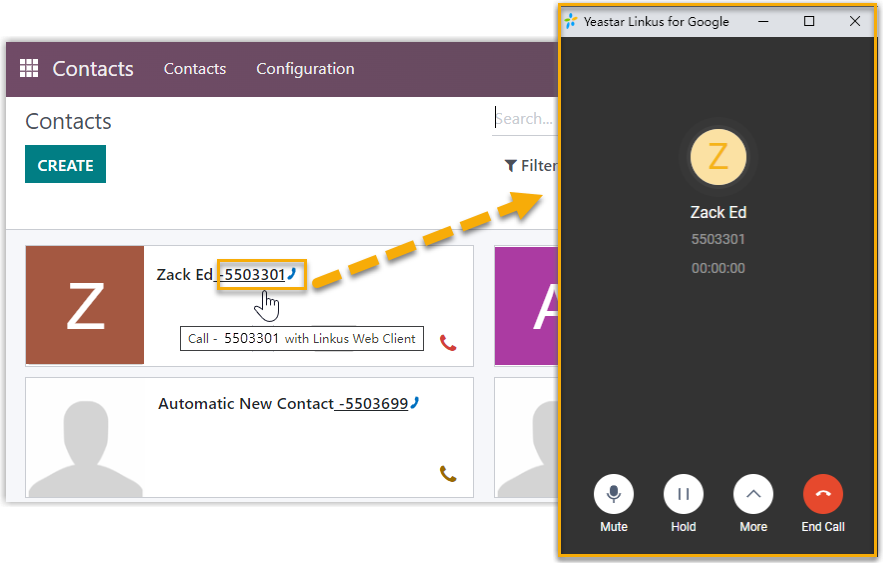
Cloud Voice detects phone numbers shown anywhere on an Odoo CRM page. Click one and the call is placed straight away through the extension tied to your account, so there is no need to key the number in by hand.
Call popup
Section titled “Call popup”Before you start
Keep at least one of the following signed in:
- Cloud Voice App desktop client
- Cloud Voice App web client
How it works
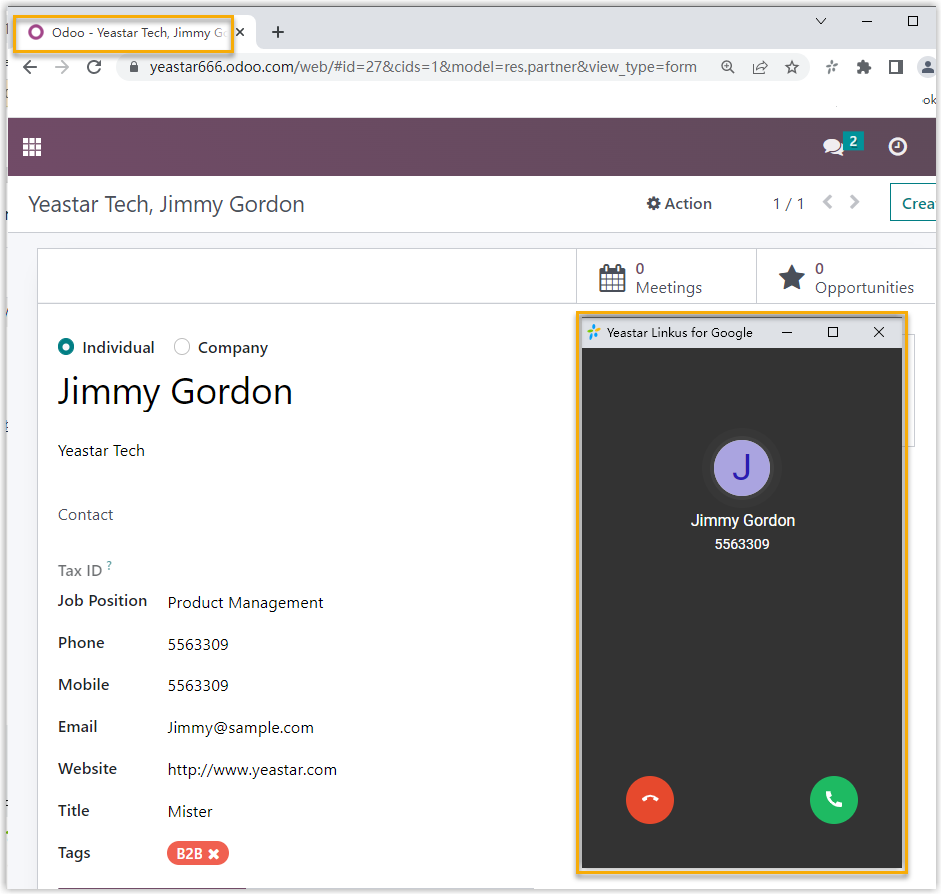
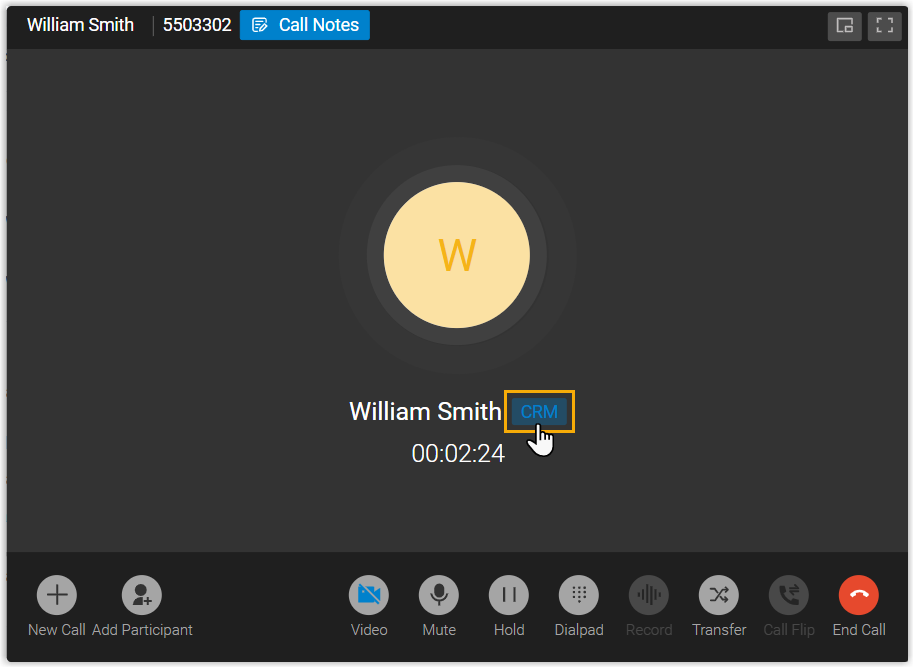
When you receive or answer an inbound call from a CRM contact, or wrap up a call with one, a browser tab opens automatically to display that contact’s details. You can also open the contact record yourself from the call window while the call is in progress.
For the different ways a popup can be triggered, see Set up Call Popup.
Automatic popup:
Manual popup:
Call journal
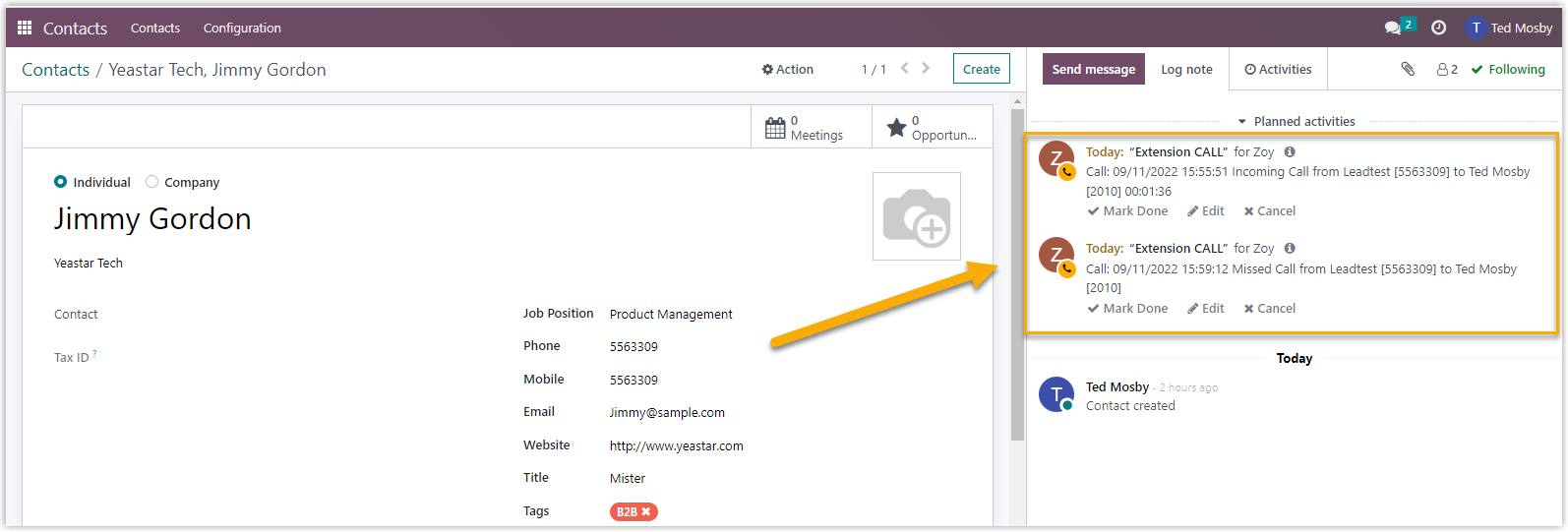
Section titled “Call journal”Every outbound call, inbound call, and missed call is written to CRM automatically, giving you a running record of each conversation without any manual note-taking.
To review the entries, sign in to Odoo CRM, open a contact’s detail page, and go to the Activity tab.
Chat journal
Section titled “Chat journal”When an external chat session between a Cloud Voice user and a CRM contact ends, whether you close it or the system does, every message from that session is synced to Odoo CRM, so you keep a full history of each customer interaction.
To read the synced messages, sign in to Odoo CRM and open the contact’s detail page.
Contact synchronization
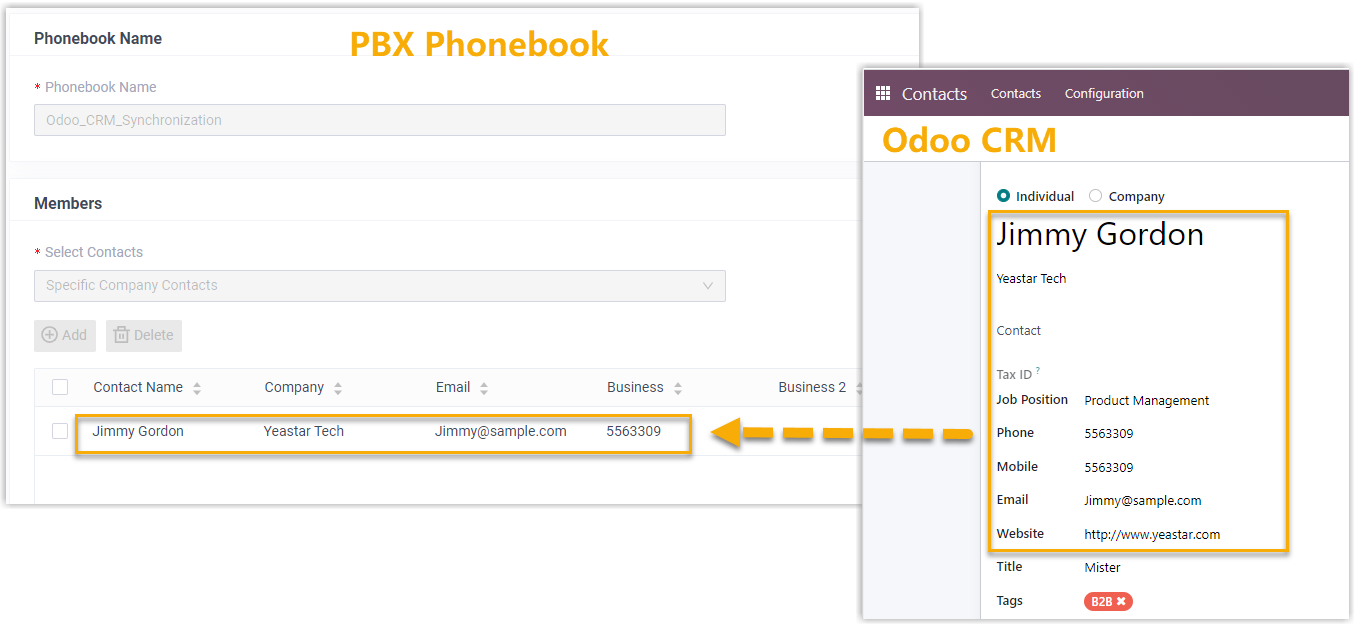
Section titled “Contact synchronization”Both inbound calls from Odoo contacts and outbound calls to them trigger a contact lookup in CRM. When the number matches an existing Odoo contact, that contact is synced one way, from Odoo CRM into the linked Cloud Voice phonebook. Because the copy flows in that single direction, the synced entry is read-only in Cloud Voice.
For the full setup, see Set up Contact Synchronization with Odoo CRM.
Contact or lead creation
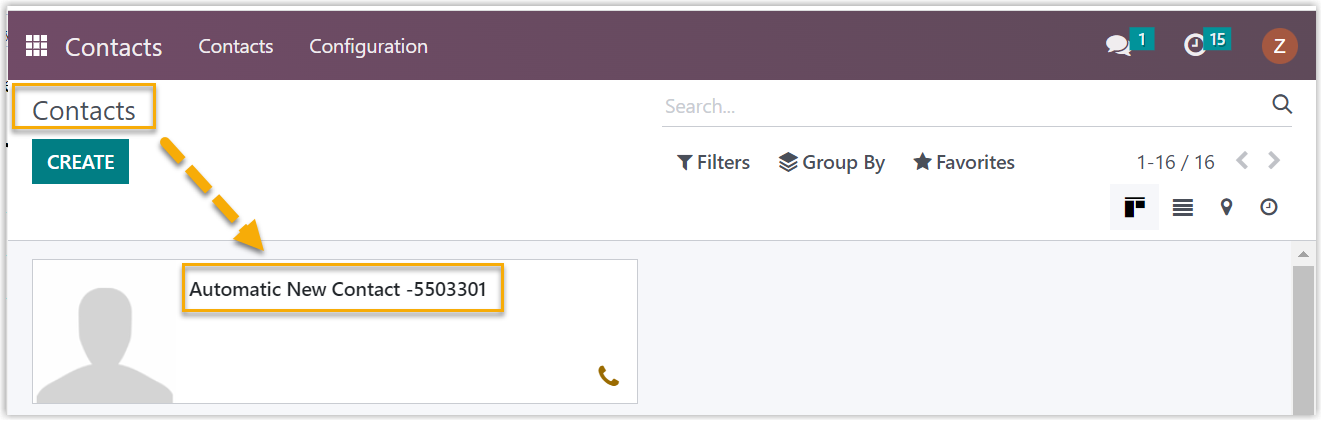
Section titled “Contact or lead creation”When one of your extensions calls or receives a call from a number that isn’t already in CRM, Odoo can create a new contact or lead for it, either automatically or on your confirmation. This keeps your database growing so no unknown caller slips through.
For the full setup, see Set up Lead or Contact Creation for Odoo CRM.
Question about this page?
Ask the AI assistant. It starts from this page, then searches the rest of the docs.
Ask Cloud Voice AI
Answers are AI-generated from the docs and may contain mistakes. Verify with the linked pages.