
Integrate Cloud Voice PBX with Microsoft Teams
This integration lets your Microsoft Teams users place and receive calls through your Cloud Voice PBX (Private Branch Exchange: the business phone system that routes your calls). Once the preparation is complete, you finish the setup from the integration configuration portal. Sign in with a Microsoft 365 administrator account and work through the four stages below to connect Cloud Voice with Microsoft Teams.
Step 1. Verify your Microsoft 365 tenant
Section titled “Step 1. Verify your Microsoft 365 tenant”Start by confirming that your Microsoft 365 tenant is ready for the integration. A tenant is your organization’s dedicated Microsoft 365 environment.
-
In the top navigation bar, select the Getting Started tab.
-
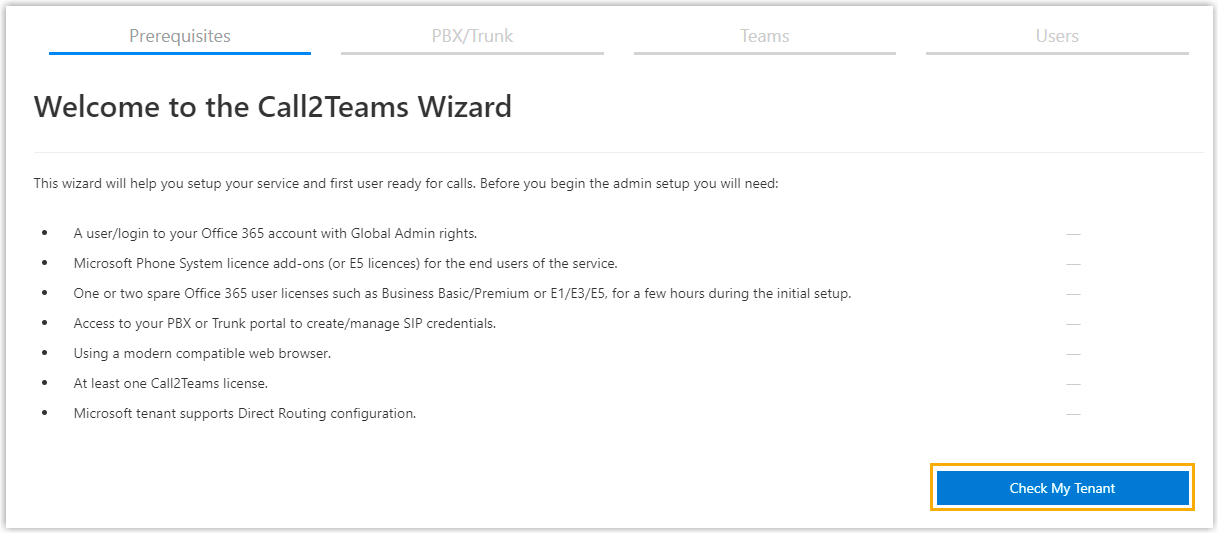
On the Prerequisites page, select Check My Tenant.
-
When prompted, choose your Microsoft 365 admin account. The portal begins checking the tenant.
-
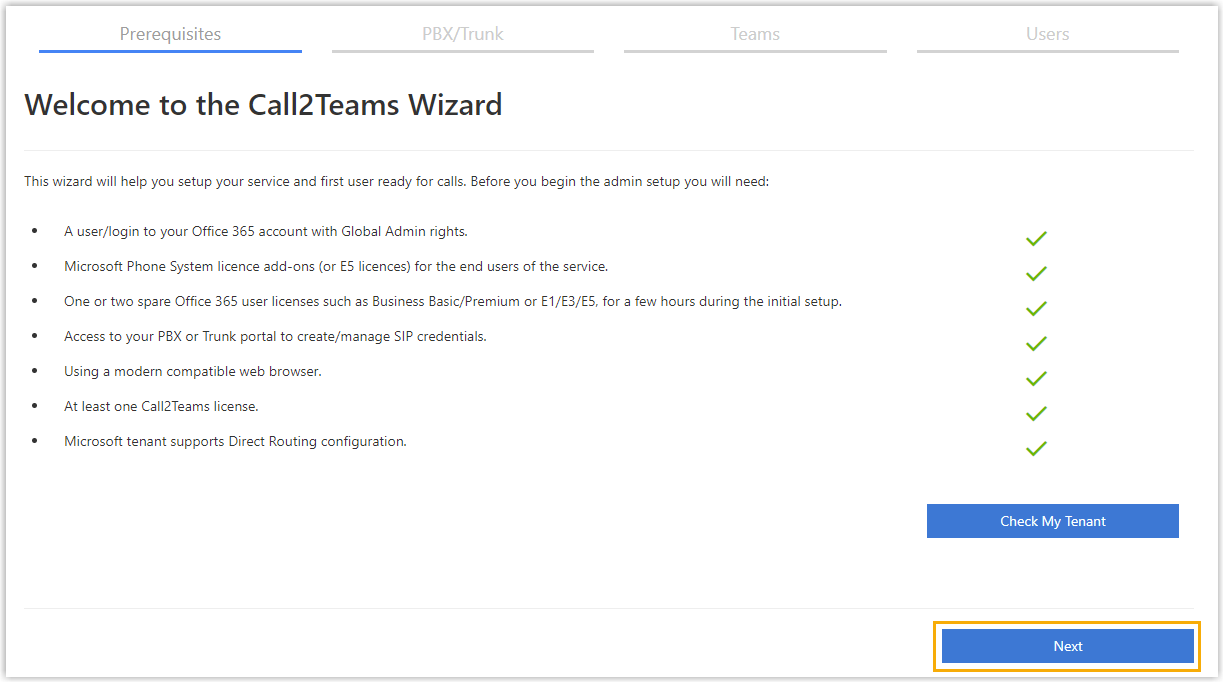
When the tenant passes, select Next to continue to the PBX service setup.
Step 2. Add your PBX service
Section titled “Step 2. Add your PBX service”-
Open the PBX/Trunk page and select the PBX tab.
-
Provide the PBX details:
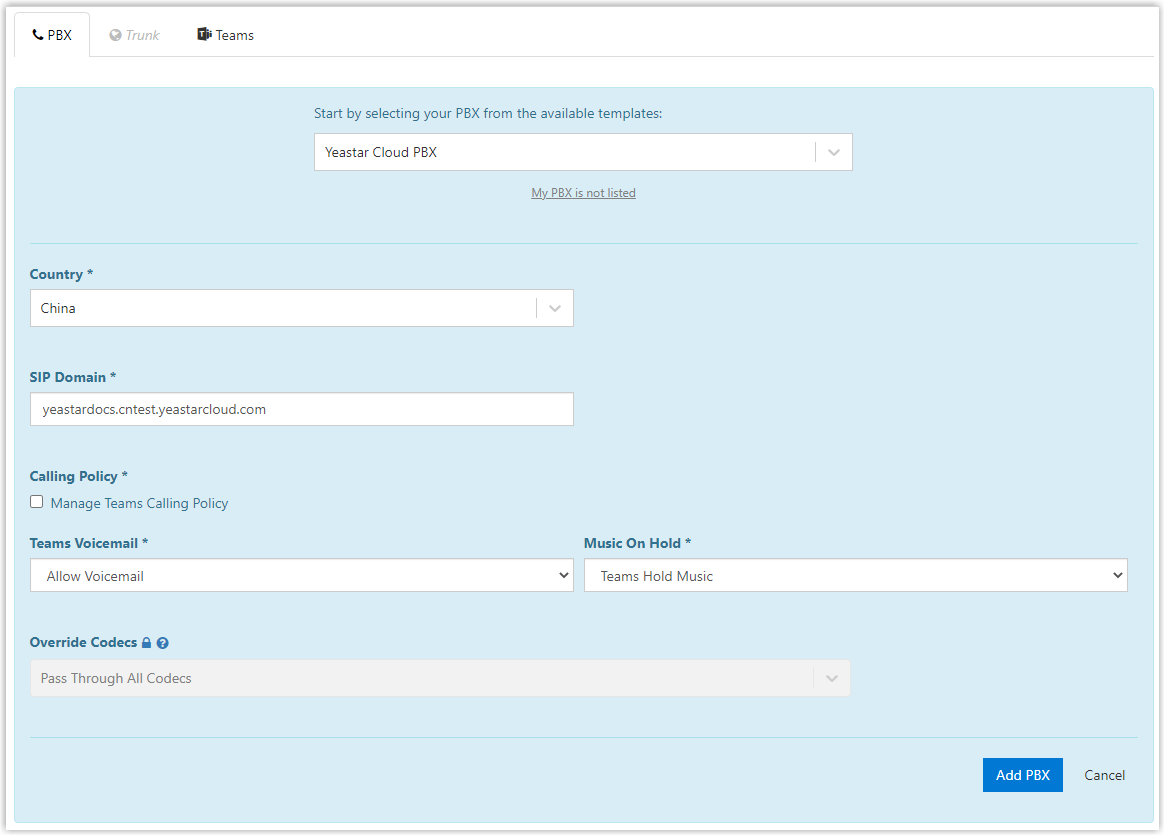
- Start by selecting your PBX from the available templates: choose Cloud Voice PBX.
- Country: select the country where your system operates.
- SIP Domain: enter your PBX domain name, for example
yourcompany.cloudvoice.com. SIP (Session Initiation Protocol) is the signaling standard that sets up and tears down voice calls.
-
Select Add PBX. A green “Service successfully enabled” confirmation appears, and the portal moves automatically to the Teams page to begin synchronization.
Step 3. Synchronize with Microsoft 365
Section titled “Step 3. Synchronize with Microsoft 365”-
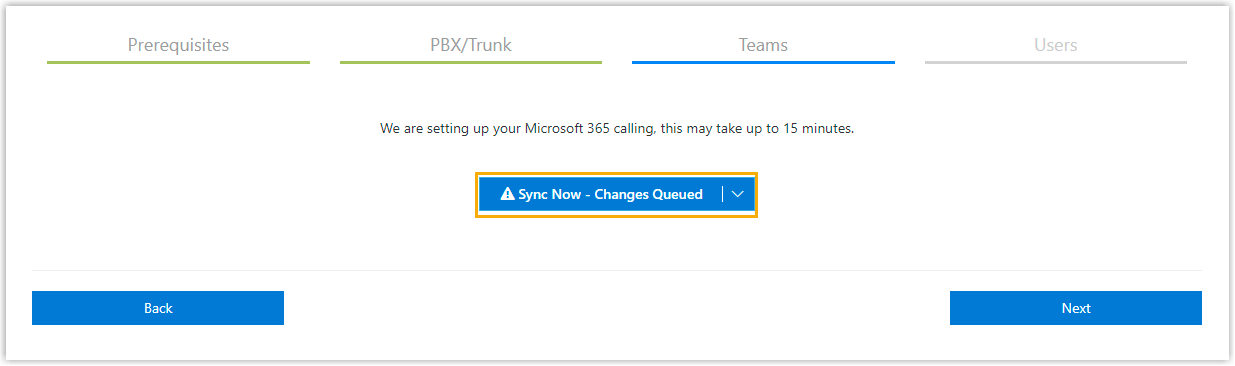
Select Sync Now - Changes Queued to push your Cloud Voice configuration to Microsoft 365.
-
When synchronization finishes, select Next to start mapping Teams users to extensions.
Step 4. Link a Teams user to a SIP extension
Section titled “Step 4. Link a Teams user to a SIP extension”So that a user can place and answer calls in Microsoft Teams through your phone system, associate that Teams user with a SIP extension.
-
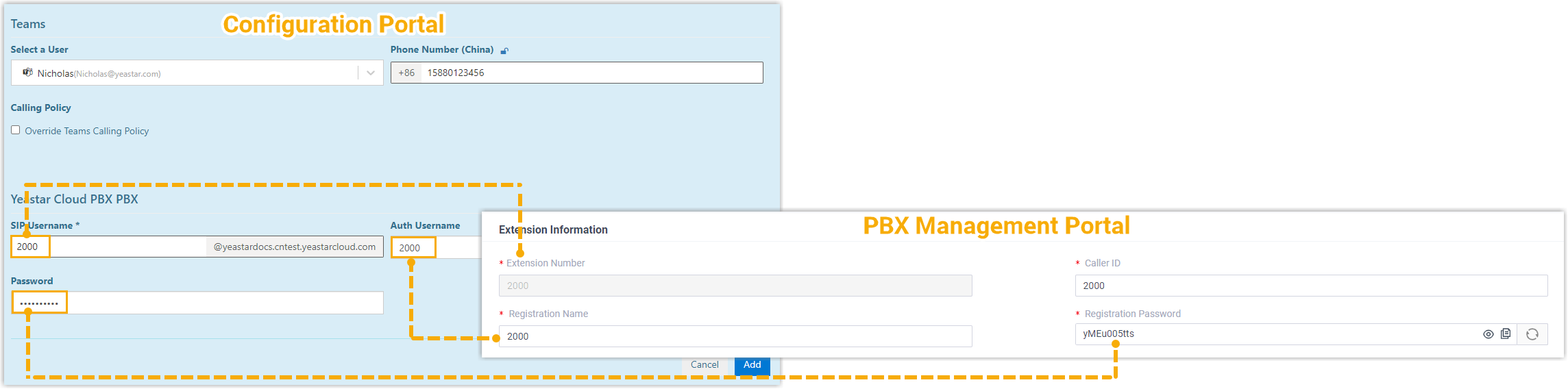
On the Users page, complete the following fields:
-
Select a User: choose a Teams user from the drop-down list.
-
Phone Number: assign the user’s phone number.
-
SIP Username: enter the extension’s Extension Number.
-
Auth Username: enter the extension’s Registration Name.
-
Password: enter the extension’s Registration password.
-
-
Select Add User and Sync. A green “Service user successfully added” message confirms the change. When the user is linked to the PBX, the Registration status shows a success indicator
 .
.
Result
Section titled “Result”With the integration in place, Teams users can make and receive internal calls between Microsoft Teams and your Cloud Voice extensions.
Next steps
Section titled “Next steps”- To let Teams users place outbound calls over a Cloud Voice trunk, configure dial plans in Microsoft Teams.
- To let Teams users receive inbound calls over a trunk, make sure at least one inbound route delivers calls to the extensions that are linked to those users.
Question about this page?
Ask the AI assistant. It starts from this page, then searches the rest of the docs.
Ask Cloud Voice AI
Answers are AI-generated from the docs and may contain mistakes. Verify with the linked pages.