
Allow Users to Log in to the Cloud Voice App with AD Domain Accounts
Once your directory users are synced, you can let them reach the Cloud Voice App with the same Active Directory (AD) domain account they already use elsewhere. Turning on single sign-on (SSO) removes the need for a separate extension password and gives users one credential to remember.
Before you begin
Section titled “Before you begin”Make sure you have already connected Cloud Voice to Active Directory. SSO relies on users that have been imported through that integration.
Turn on single sign-on
Section titled “Turn on single sign-on”-
Sign in to the PBX web portal and open Integrations > Collaboration.
-
Find the Single Sign-on (SSO) section and switch it on.

-
Optional: Use the Login Method drop-down to decide how AD users are allowed to authenticate.
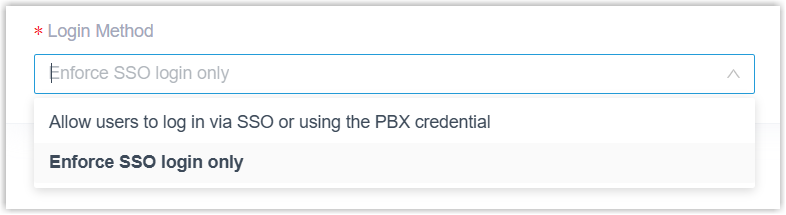
- Allow users to log in via SSO or using the PBX credential: Users may sign in either through SSO with their AD account or with the username and password of the linked extension.
- Enforce SSO login only: Users are restricted to SSO and cannot use their extension credentials.
-
Click Save.
Result
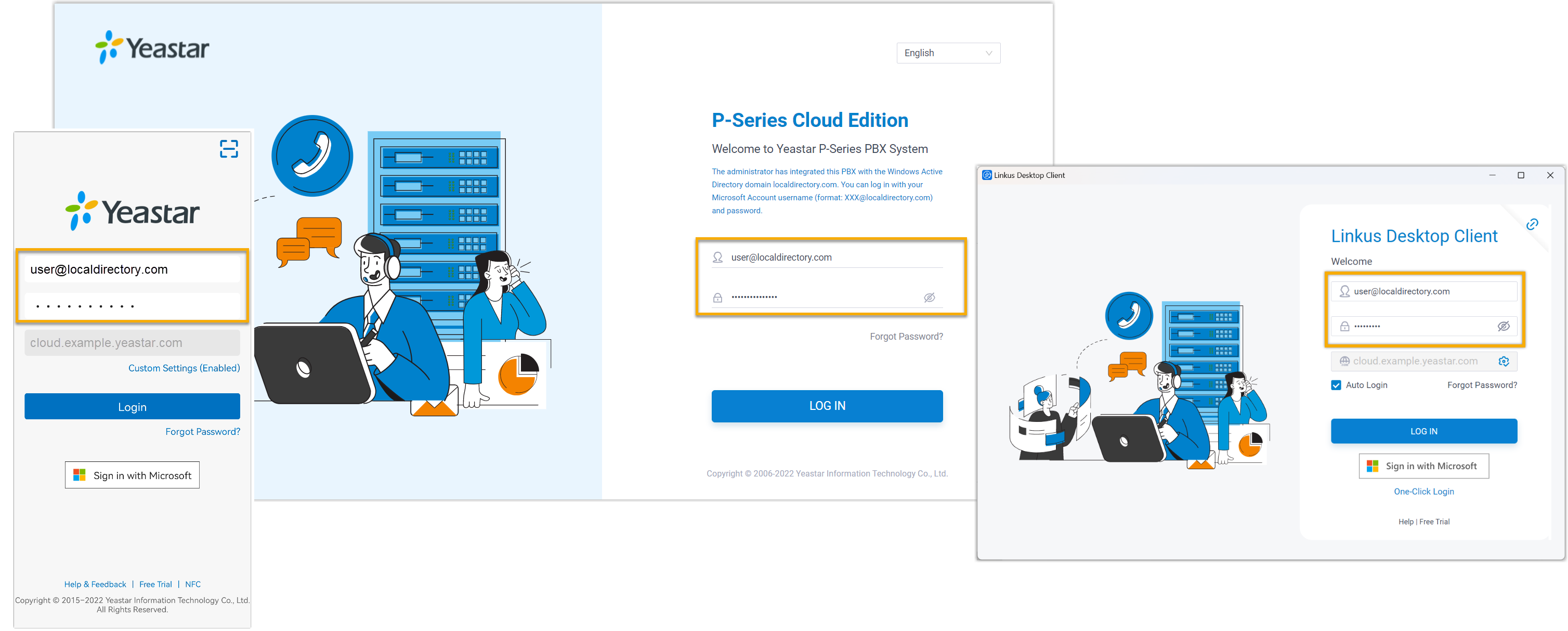
Section titled “Result”Synced users can now sign in to the Cloud Voice App by entering their AD domain credentials directly, using the format username@domainname.
Question about this page?
Ask the AI assistant. It starts from this page, then searches the rest of the docs.
Ask Cloud Voice AI
Answers are AI-generated from the docs and may contain mistakes. Verify with the linked pages.