
Use Zendesk Integration
Once Cloud Voice is linked to your Zendesk account, calls and Zendesk records stay in step automatically. This page walks through each capability the integration unlocks and points you to the setup guide for the ones that need configuring.
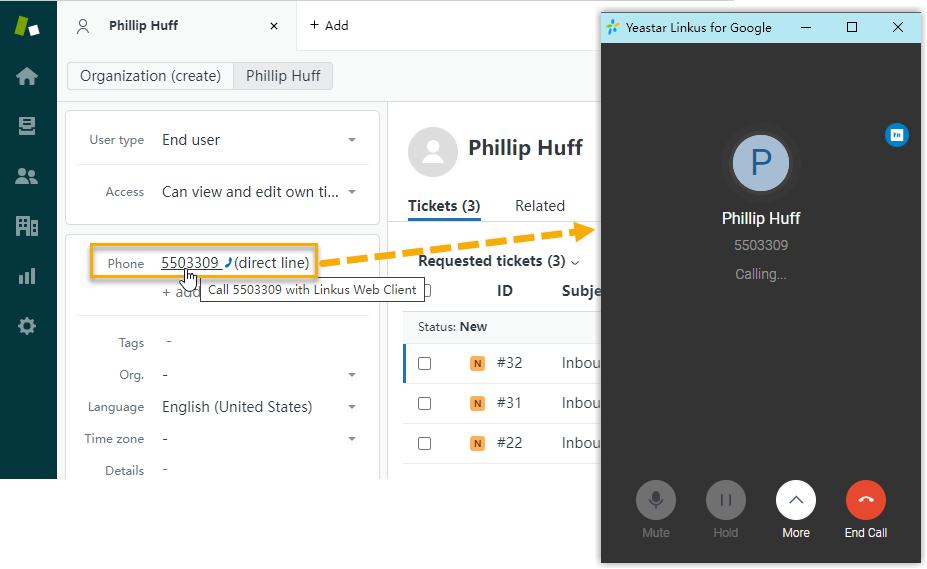
Click to call
Section titled “Click to call”Turn any phone number shown in Zendesk into a one-click outbound call.
Before you start: Add the Cloud Voice App for Google Chrome extension to your browser and connect it to your Cloud Voice App (Web) session.
How it works: Numbers that appear on a Zendesk page become clickable. Selecting one places the call straight from your assigned Cloud Voice extension.
Call popup
Section titled “Call popup”Bring up a caller’s Zendesk profile automatically around the moment of a call.
Before you start: Stay signed in to at least one of these clients:
- Cloud Voice App (Desktop)
- Cloud Voice App (Web)
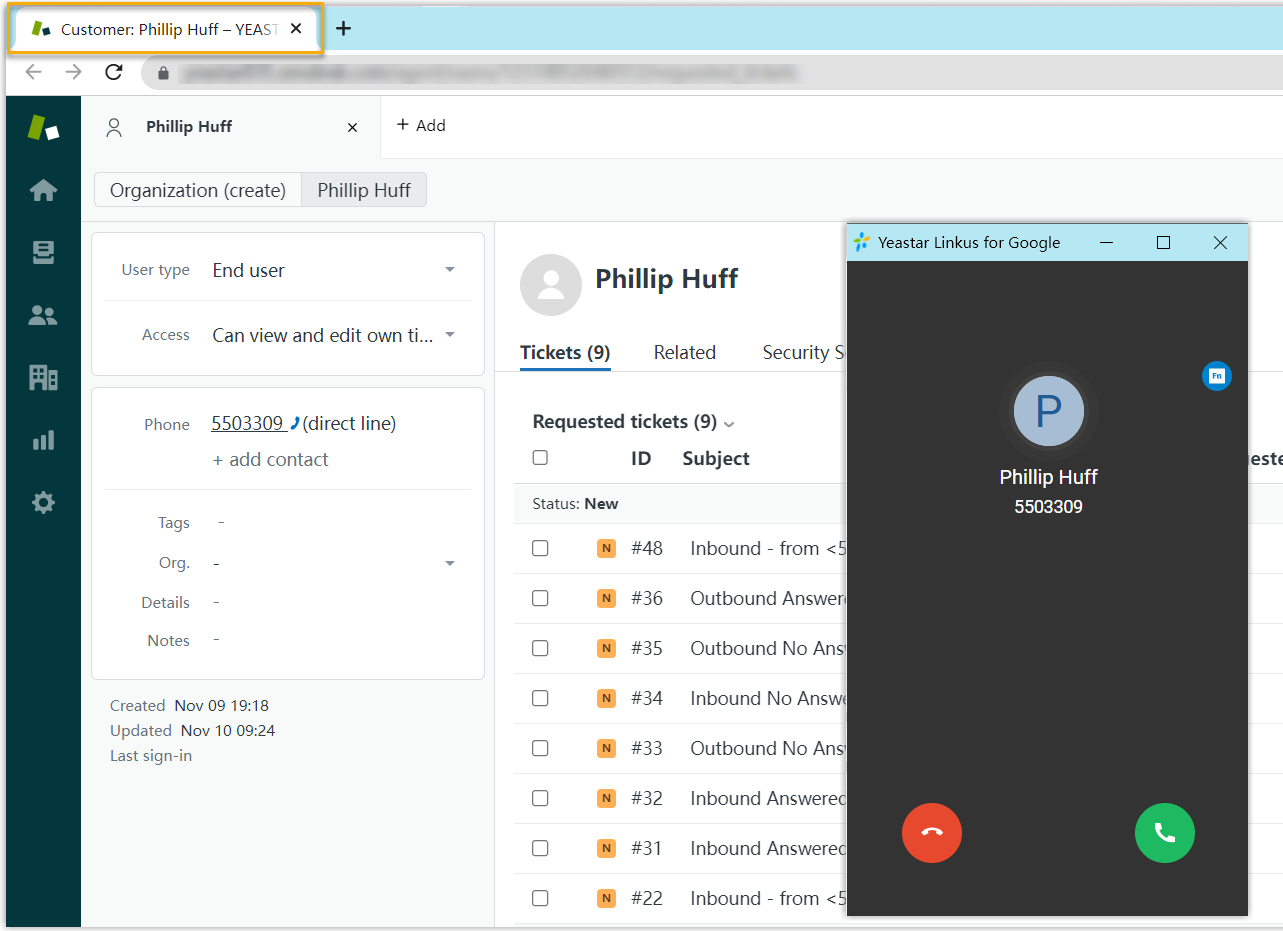
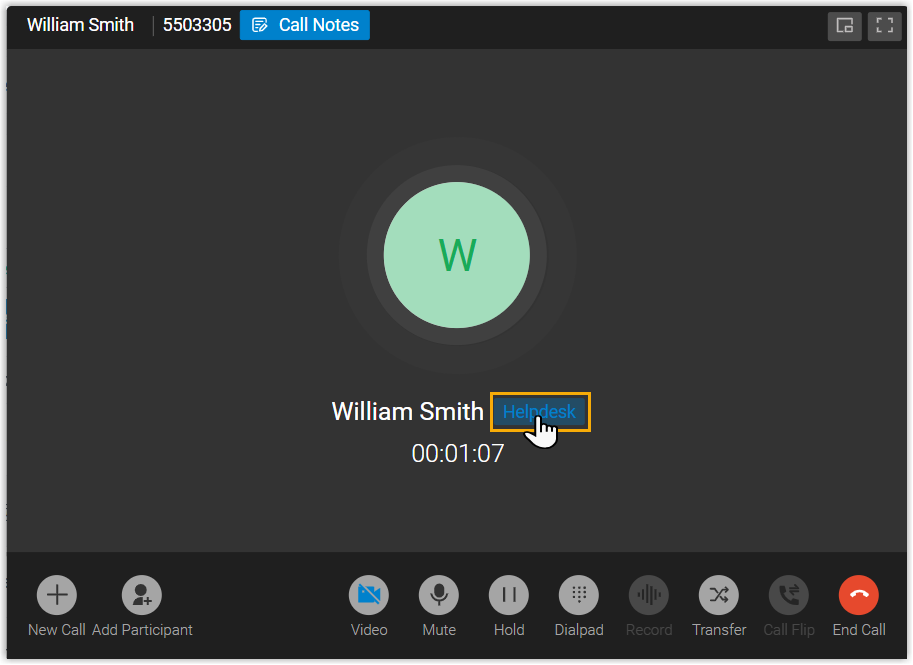
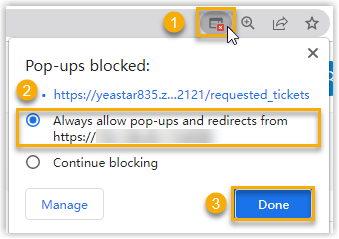
How it works: When you receive or answer an inbound call from a Zendesk contact, or wrap up a call with one, a new browser tab opens showing that contact’s details. You can also open the contact from the call window yourself at any point during the call. To choose which events trigger the popup, see Set up Call Popup.
| Automatic popup | Manual popup |
|---|---|
 |  |
Contact synchronization
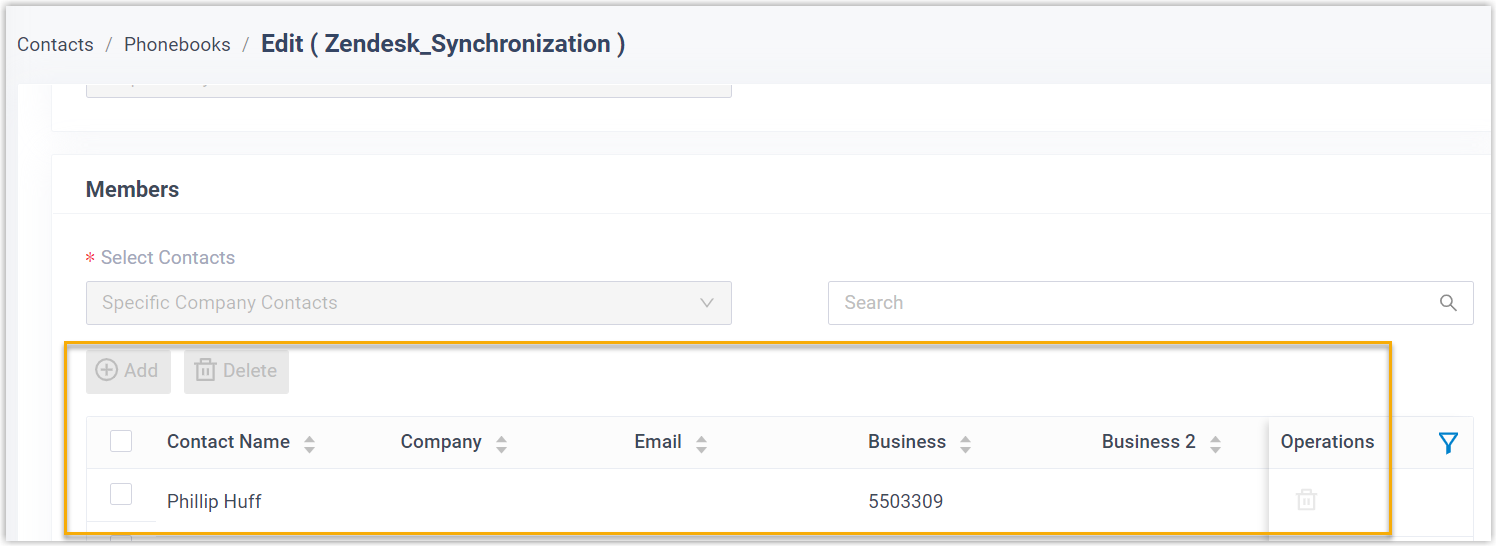
Section titled “Contact synchronization”Every inbound and outbound call runs a lookup against your Zendesk contacts. When the number matches an existing Zendesk contact, that contact is copied into the linked Cloud Voice phonebook. Synced entries are read-only within Cloud Voice.
For details, see Set up Contact Synchronization from Zendesk.
Contact creation
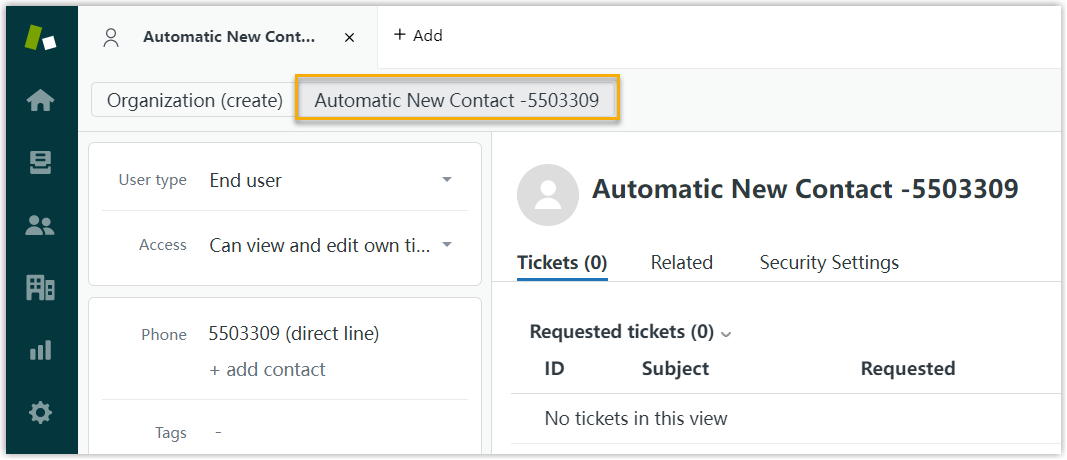
Section titled “Contact creation”When an associated extension calls or takes a call from a number Zendesk doesn’t recognize, a new contact can be added in Zendesk, either automatically or on demand.
For details, see Set up Contact Creation for Zendesk.
Automatic ticket creation
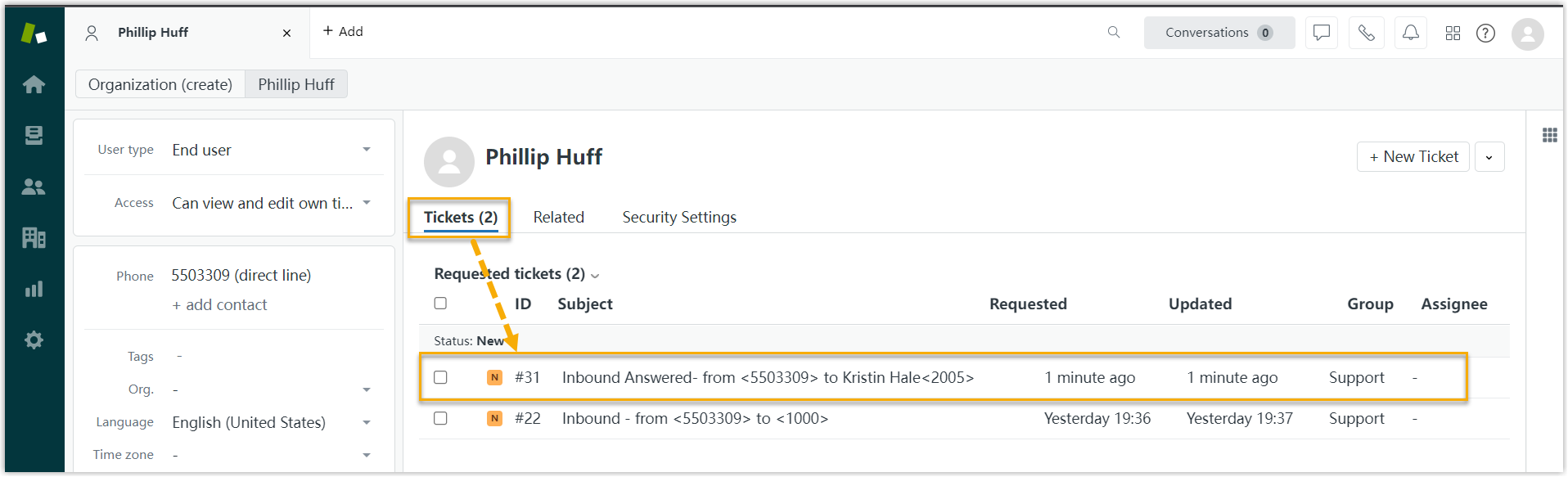
Section titled “Automatic ticket creation”Whenever an extension tied to a Zendesk user takes an inbound call from, or dials an outbound call to, a Zendesk contact, a ticket is opened automatically on that contact’s detail page.
For details, see Set up Automatic Ticket Creation for Zendesk.
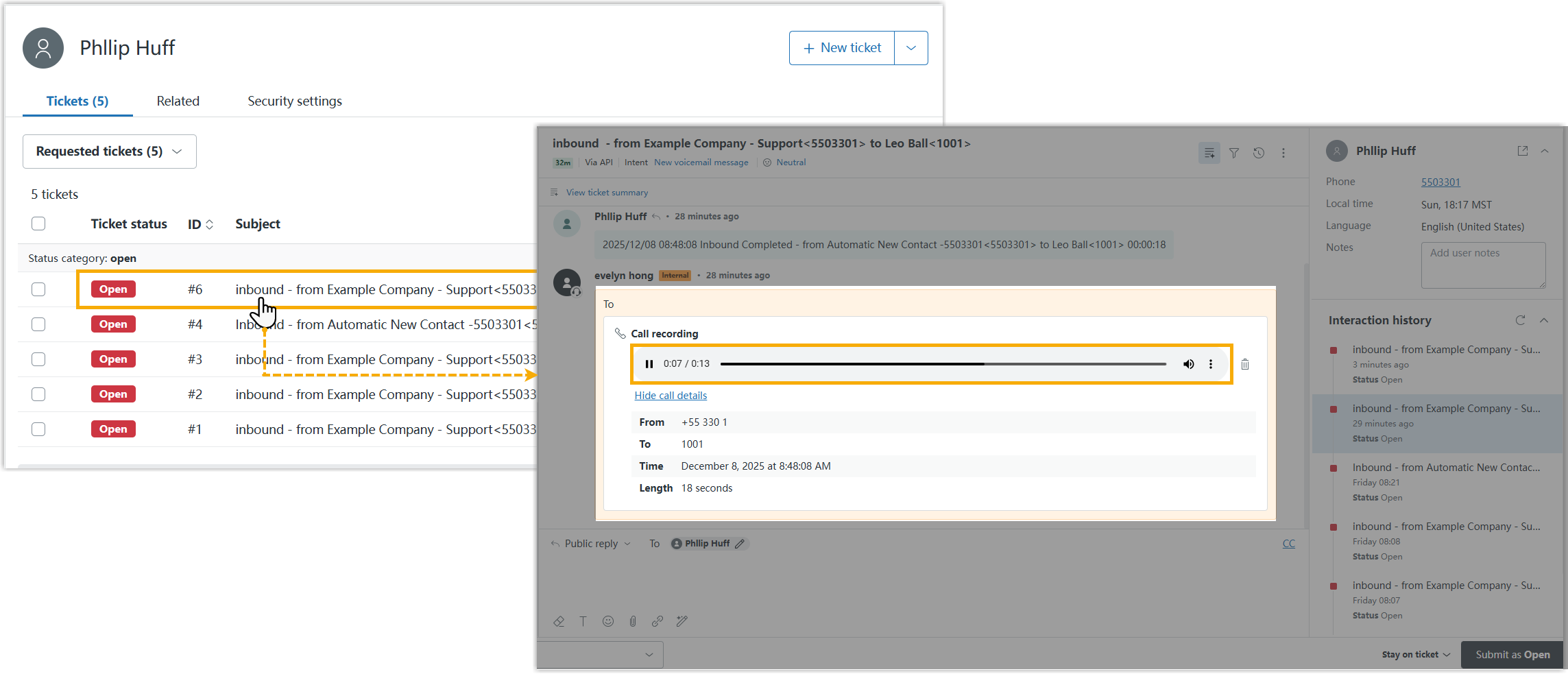
Call journal
Section titled “Call journal”View call history and recordings without leaving Zendesk.
-
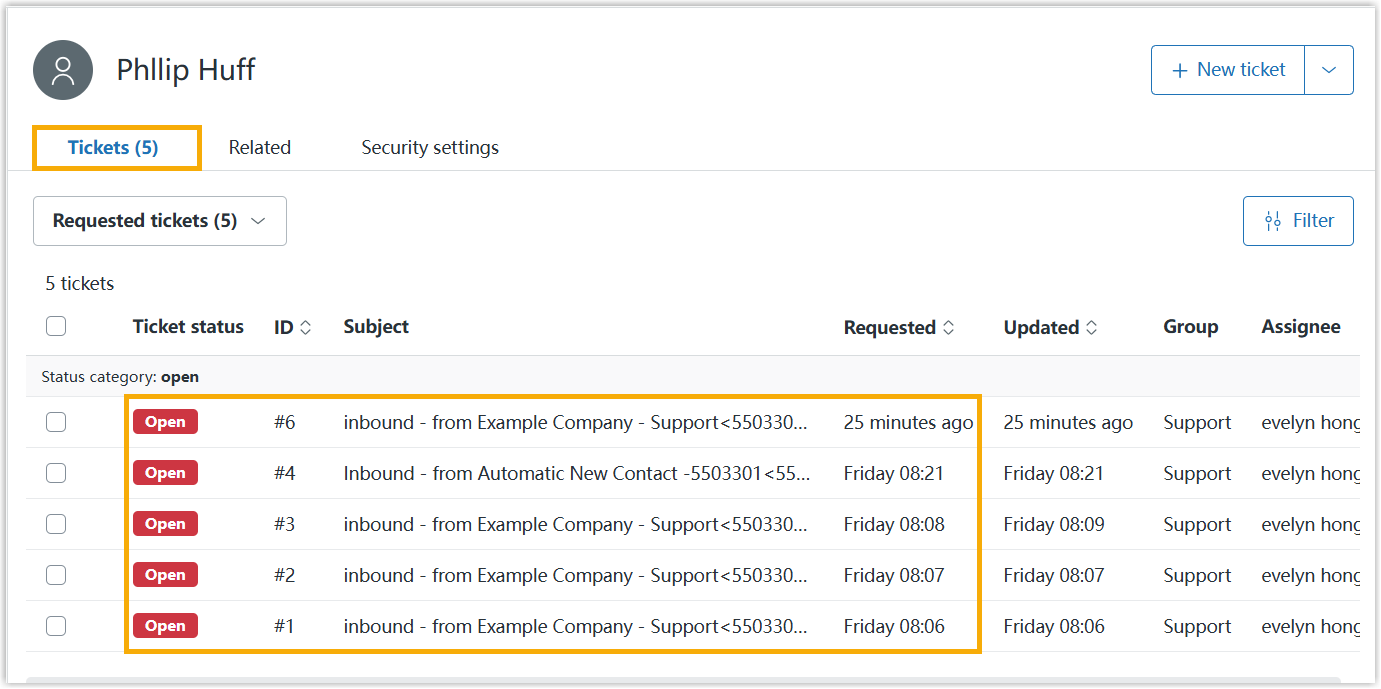
With automatic ticket creation turned on, the call types you choose (inbound, outbound, and missed) are written into the auto-created tickets on each Zendesk contact’s detail page.
-
If you also enable call recording playback, the matching recording appears in the ticket and can be played back there.
Chat journal
Section titled “Chat journal”When an external chat between a user (on a Cloud Voice extension) and a Zendesk contact ends, whether the user closes it or the system does, the full message thread is synced to Zendesk so you keep a complete record of every customer conversation.
To review a synced conversation, sign in to Zendesk and open the contact’s detail page.
Question about this page?
Ask the AI assistant. It starts from this page, then searches the rest of the docs.
Ask Cloud Voice AI
Answers are AI-generated from the docs and may contain mistakes. Verify with the linked pages.