
Manage Personal Contacts
Your personal contacts are private to you and never appear in the shared company directory. When you edit or delete one in the Cloud Voice App, the change carries over automatically to every client where you are signed in.
Edit a contact
Section titled “Edit a contact”-
Open the Contacts section of the Cloud Voice App.
-
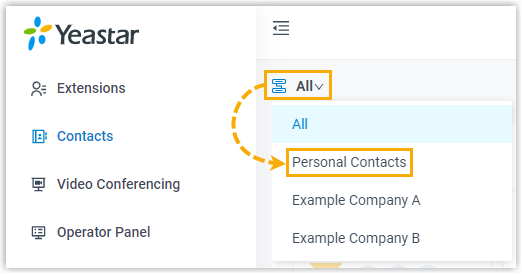
In the top-left corner, click the contact group selector and choose Personal Contacts.
-
Find the contact you want to change and click the edit icon on its card.
-
Adjust any of the contact’s details, then click Save.
Delete contacts
Section titled “Delete contacts”- Open the Contacts section of the Cloud Voice App.
- In the top-left corner, click the contact group selector and choose Personal Contacts.
- Remove contacts using whichever method fits your need.
Remove a single contact
Section titled “Remove a single contact”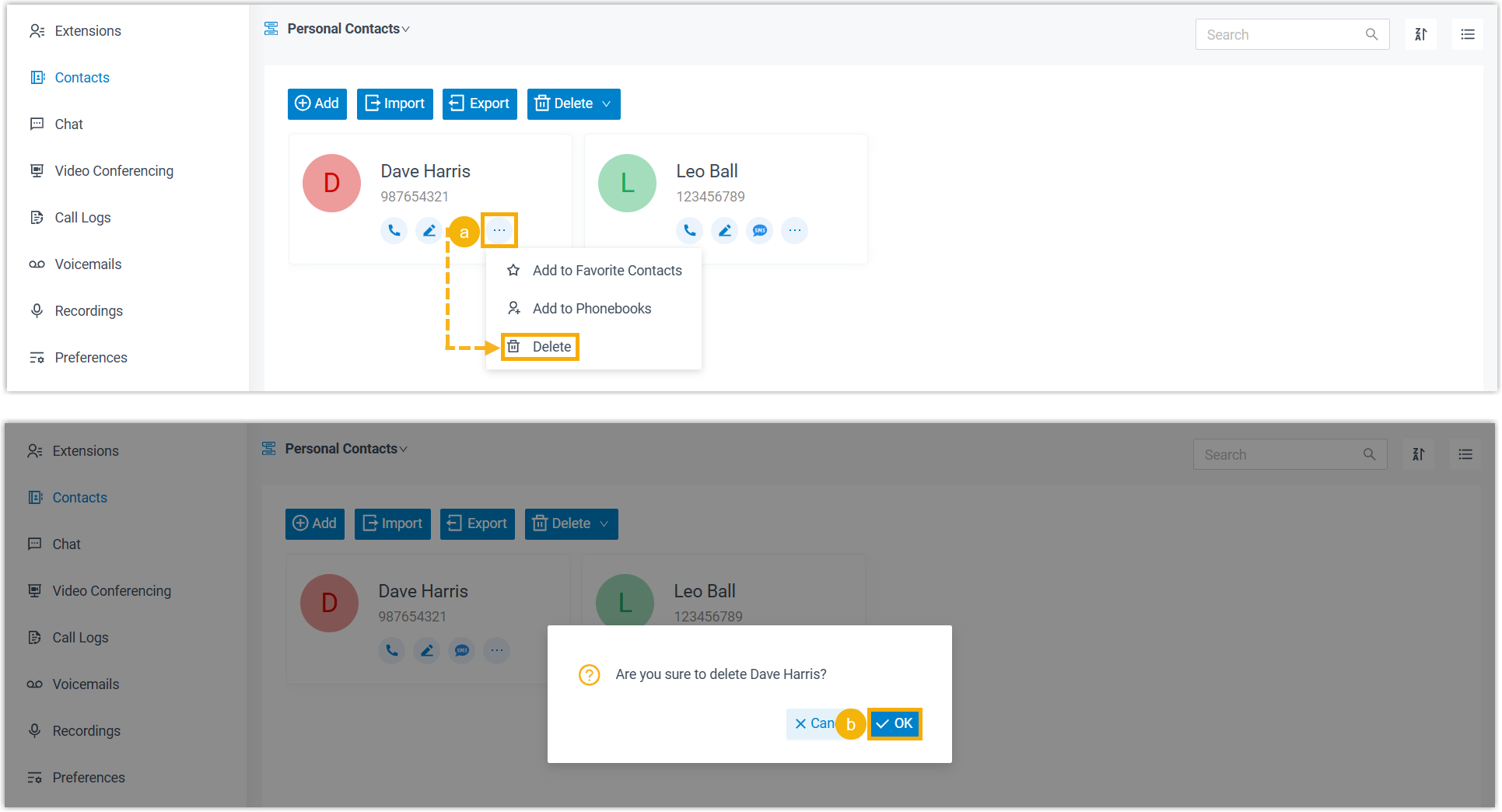
- Click the more-options icon on the contact you want to remove, then select Delete.
- Click OK in the confirmation dialog.
Remove several contacts at once
Section titled “Remove several contacts at once”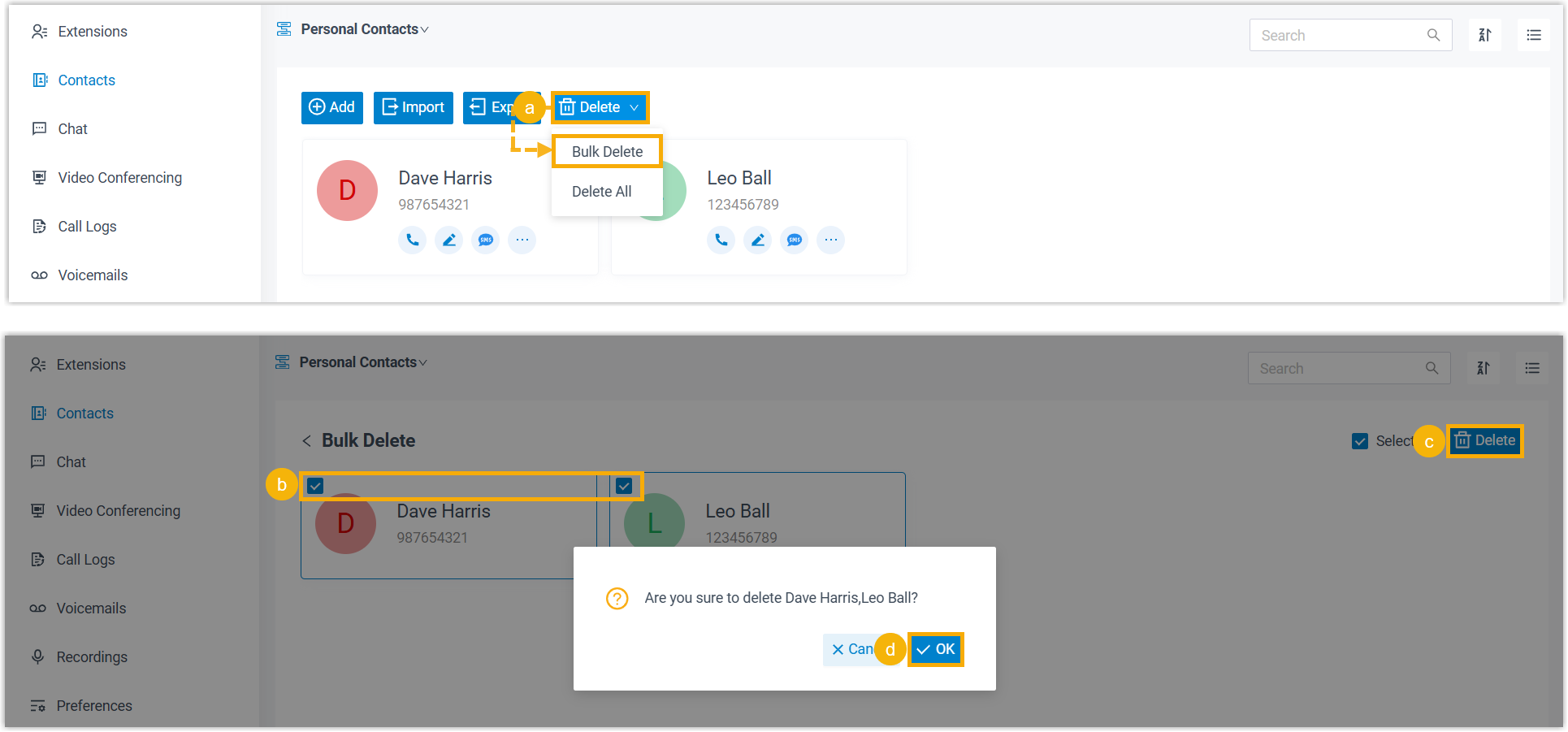
- At the top of the list, click Delete and choose Bulk Delete.
- Select the checkbox for each contact you want to remove.
- Click Delete in the top-right corner.
- Click OK in the confirmation dialog.
Remove every contact
Section titled “Remove every contact”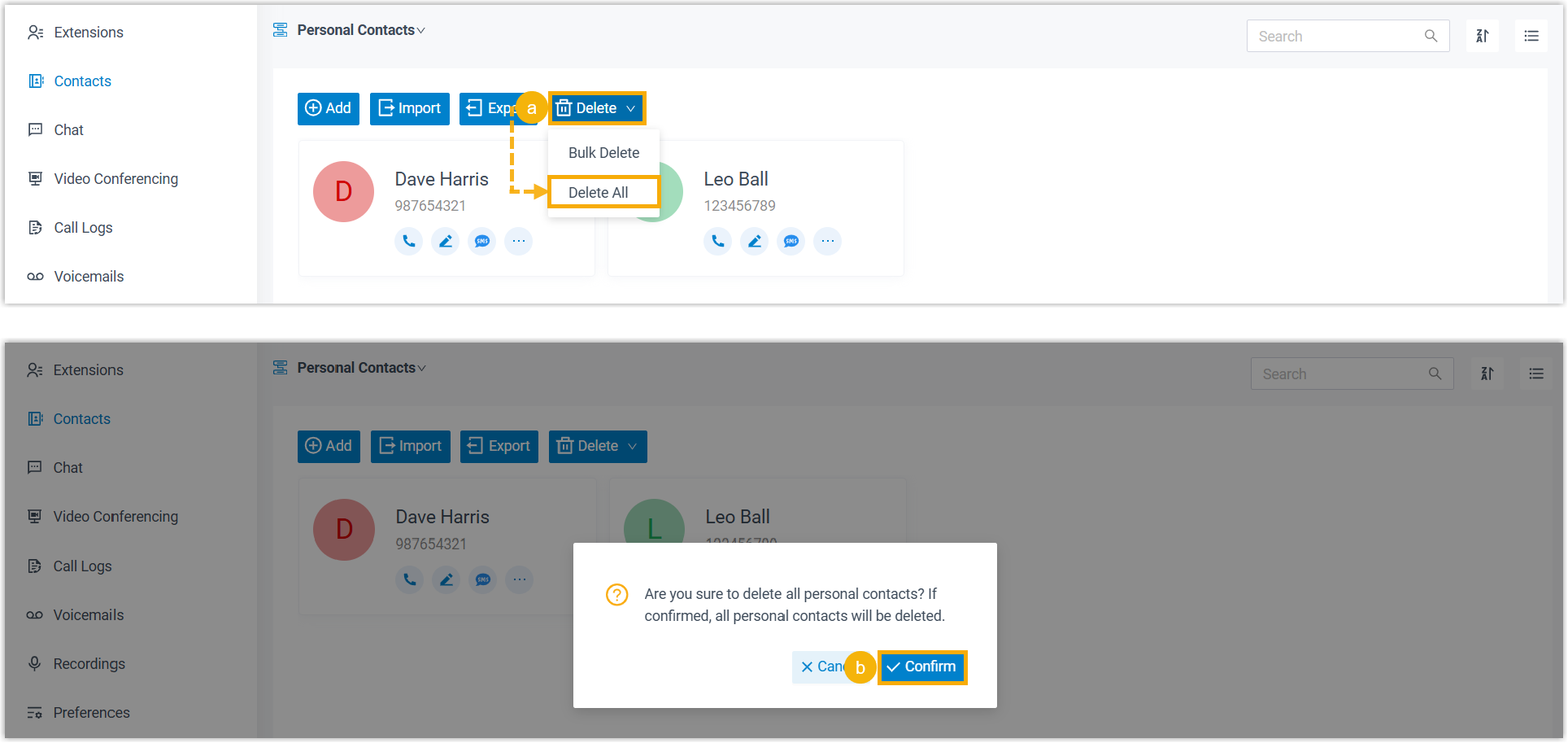
- At the top of the list, click Delete and choose Delete All.
- Click Confirm in the dialog to clear all of your personal contacts.
Question about this page?
Ask the AI assistant. It starts from this page, then searches the rest of the docs.
Ask Cloud Voice AI
About
Answers are AI-generated from the docs and may contain mistakes. Verify with the linked pages.