
Log in to Cloud Voice App Web Client
Your first sign-in to the Cloud Voice App Web Client happens through a one-click link in the welcome email, so you don’t need a password yet. Follow the steps below to open the client, turn on call notifications, accept the privacy terms, and set a password of your own.
Before you begin
Section titled “Before you begin”Confirm that the welcome email has arrived in your inbox.
Sign in for the first time
Section titled “Sign in for the first time”-
Open your mailbox and locate the welcome email.
-
Select the Cloud Voice App Web Client sign-in link.
The client opens directly, with no credentials required.
-
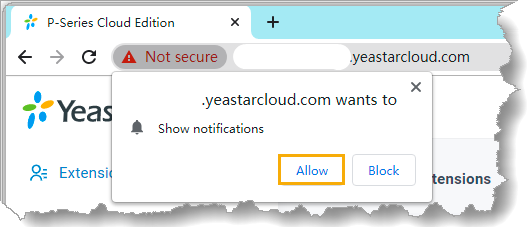
Turn on notifications so the client can alert you to incoming calls. When the browser prompt appears, choose Allow.
-
Accept the Privacy Policy Agreement:
- Tick the I have read and agree to the above agreement checkbox.
- Select Confirm.
-
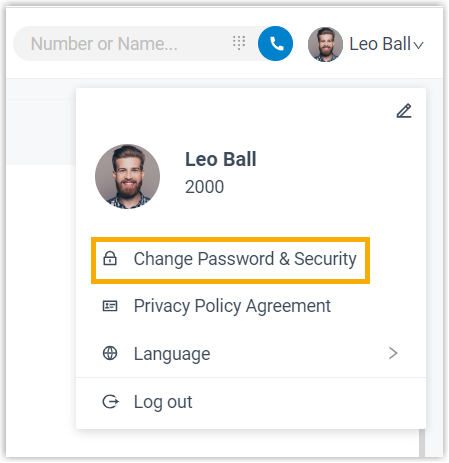
Set your password in the window that appears:
- Type a new password in the New Password field.
- Re-enter it in the Confirm New Password field.
- Select Save.
Next steps
Section titled “Next steps”-
Sign back in with your user name (your email address) and the password you just created.
-
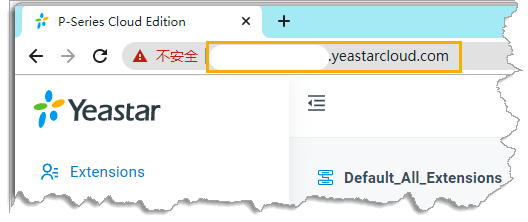
Make a note of the domain shown in your browser’s address bar. Enter that domain the next time you want to reach the Web Client.
Question about this page?
Ask the AI assistant. It starts from this page, then searches the rest of the docs.
Ask Cloud Voice AI
Answers are AI-generated from the docs and may contain mistakes. Verify with the linked pages.