
Select and Dial with Hotkey
With Select and Dial, you can call a phone number from anywhere on your computer without retyping it. Wherever a number appears (a web page, an email, a spreadsheet, a document), highlight it, press your hotkey (a keyboard shortcut you assign), and the Cloud Voice App places the call. It does not matter which application the number lives in.
Before you begin
Section titled “Before you begin”Make sure your environment meets these requirements:
- Your Cloud Voice system is running version 84.12.0.32 or later.
- The Cloud Voice App for desktop is version 1.21.2 or later, on either Windows or macOS.
Step 1. Turn on the hotkey
Section titled “Step 1. Turn on the hotkey”A key combination is already assigned by default, but the whole feature ships switched off. Nothing happens when you press it until you enable the option below.
-
Open the app’s Settings. How you get there depends on your operating system.
-
Windows: Right-click the Cloud Voice App icon
 in the system tray (the small icons near the clock), then choose Settings.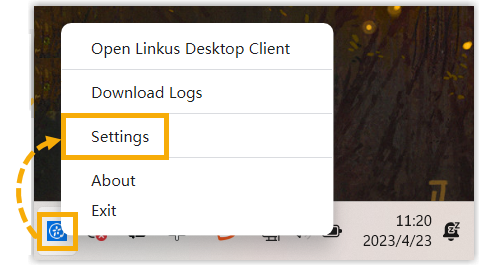
-
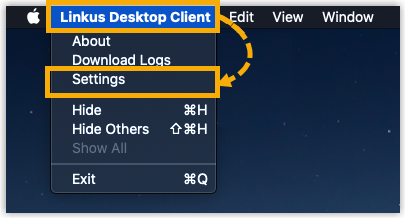
macOS: In the menu bar at the top of the screen, click Cloud Voice App, then choose Settings.
-
-
Find the Hotkeys section and do the following:
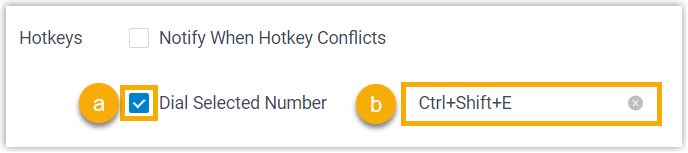
a. Select the Dial Selected Number checkbox.
b. To use a different key combination, click the hotkey field beside the option and press the keys you want to assign.
Step 2. (Optional) Review the number before dialing
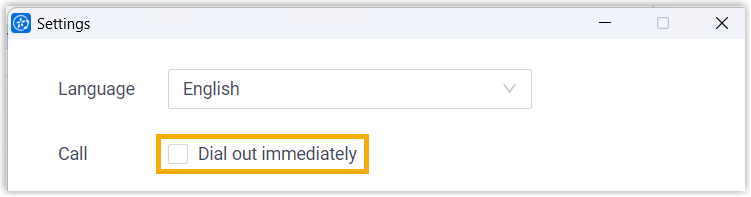
Section titled “Step 2. (Optional) Review the number before dialing”By default, the app dials as soon as you select a number and press the hotkey. If you would rather check or edit the number before the call goes out, turn off Dial out immediately.
-
Open the Settings page.
-
In the Call section, clear the Dial out immediately checkbox.
What to expect
Section titled “What to expect”The result depends on the Dial out immediately setting from Step 2:
- Left on (default): Select a number, press the hotkey, and the call starts right away.
- Turned off: Select a number and press the hotkey. The number opens in the dialer so you can adjust it, then place the call when you are ready.
Question about this page?
Ask the AI assistant. It starts from this page, then searches the rest of the docs.
Ask Cloud Voice AI
Answers are AI-generated from the docs and may contain mistakes. Verify with the linked pages.