
Log in with a Microsoft Account
When your administrator has connected Cloud Voice to Microsoft Entra ID (formerly Azure Active Directory), you can skip the usual credentials and sign in to the Cloud Voice App with your existing Microsoft account. This uses Single Sign-on (SSO), a setup where one identity provider (here, Microsoft) handles the login for several apps, so you sign in once with the account you already use for email and other work tools.
Before you start
Section titled “Before you start”Confirm the following before you attempt to sign in:
- Your administrator has linked the Cloud Voice server to Microsoft Entra ID and turned on Single Sign-on (SSO).
- You have the SSO server address, which your administrator provides.
- Your desktop client is up to date:
- Cloud Voice App for Windows: version 1.15.3 or later.
- Cloud Voice App for Mac: version 1.15.3 or later.
-
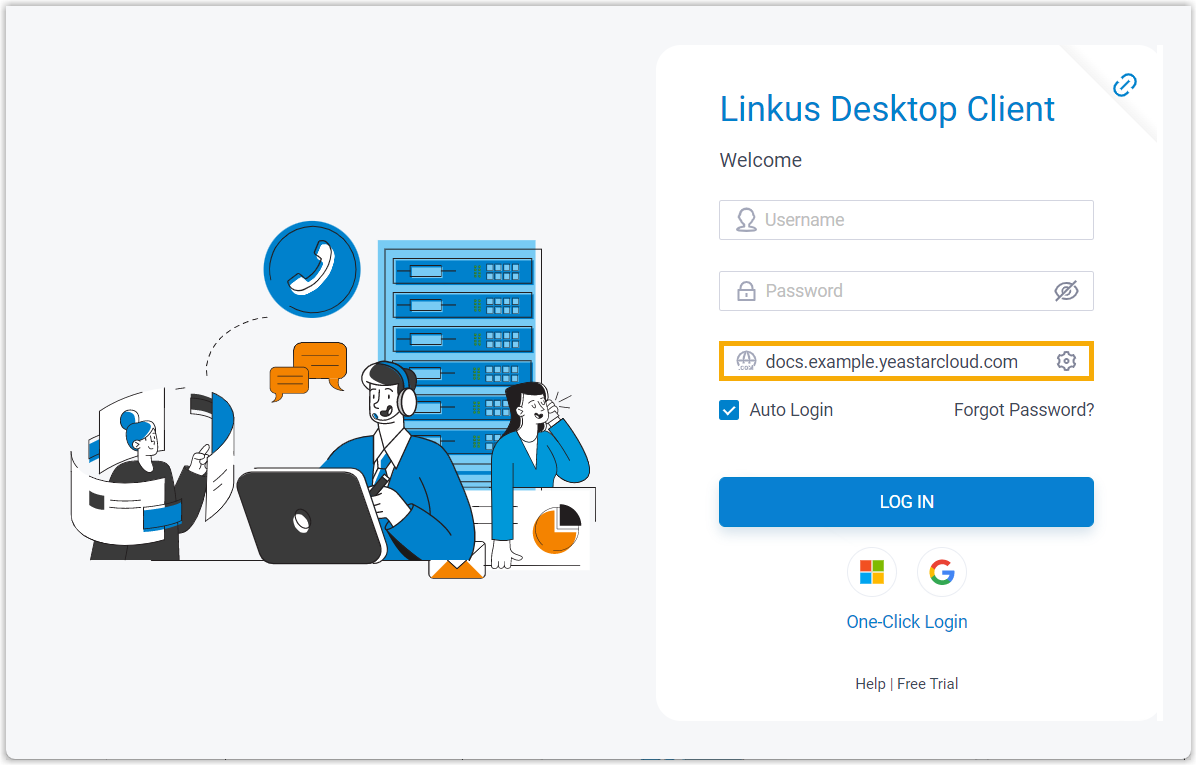
Launch the Cloud Voice App desktop client.
-
In the Domain field, type the server address.
-
Select the Microsoft icon
 , then authenticate with your Microsoft account.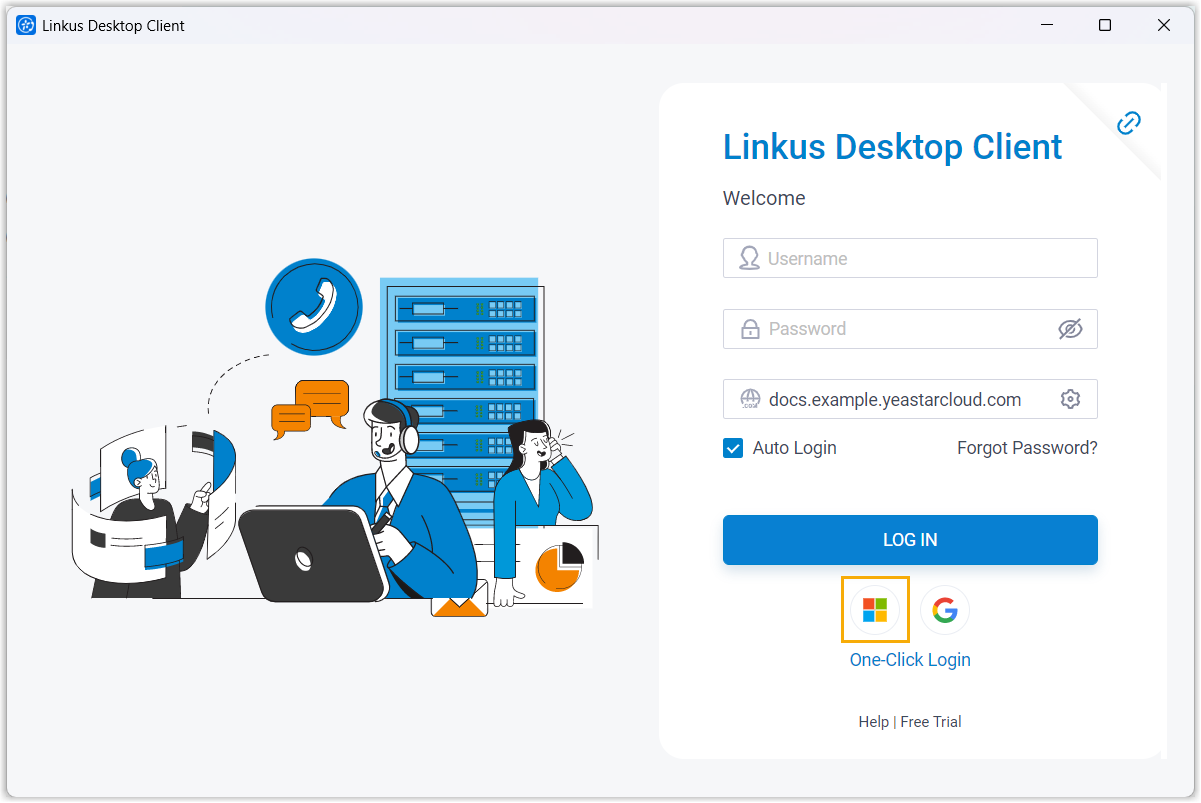
Once your Microsoft sign-in succeeds, the desktop client logs you in automatically.
Question about this page?
Ask the AI assistant. It starts from this page, then searches the rest of the docs.
Ask Cloud Voice AI
Answers are AI-generated from the docs and may contain mistakes. Verify with the linked pages.