
Control a Fanvil IP Phone from the Cloud Voice App
CTI (Computer Telephony Integration) mode links a Fanvil desk phone to your Cloud Voice App (web) session. Once connected, the web client becomes an on-screen control panel for the phone: you click to answer, hold, transfer, and manage calls, while the audio and the actual call legs stay on the Fanvil handset.
Where this applies
Section titled “Where this applies”This method works with Fanvil desk phones that support Cloud Voice App CTI. To confirm your model is on the list, see the CTI overview.
Before you start
Section titled “Before you start”Make sure the following are in place:
- On the phone system: uaCSTA must be turned on under PBX Settings > SIP Settings > Advanced > Other Options > Enable uaCSTA Connection. uaCSTA (user agent Computer Supported Telecommunications Applications) is the channel that lets the app send control commands to the phone. SIP (Session Initiation Protocol) is the standard the phone uses to register with the phone system.
- On the desk phone: the extension registered on the Fanvil phone must match the extension you sign in with on the Cloud Voice App.
Step 1. Make the phone controllable
Section titled “Step 1. Make the phone controllable”If your extension was registered on the phone by hand, enable uaCSTA and set a uaCSTA number on the phone itself. The steps below use a Fanvil X5S as the example.
- Sign in to the phone’s web interface and open Line > SIP.
- From the Line drop-down, choose your extension.
- Open the Advanced Settings section and type your extension number into the uaCSTA Number field.
- Open the SIP Global Settings section and select Enable uaCSTA.
- Click Apply.
Step 2. Turn on CTI mode in the Cloud Voice App
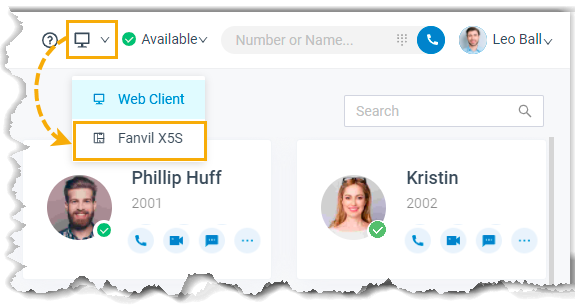
Section titled “Step 2. Turn on CTI mode in the Cloud Voice App”Switching the web client to CTI mode is what lets you run the phone’s calls from your browser.
- Sign in to the Cloud Voice App (web).
- In the top-right corner, click the CTI icon
 , then pick your connected Fanvil phone from the drop-down.
What you can do next
Section titled “What you can do next”With the Fanvil phone connected, you can run these actions from the Cloud Voice App:
- Place and end calls
- Start a second call
- Answer or reject an incoming call
- Record a call
- Transfer a call, either attended or blind
- Hold and resume a call
- Swap between held calls
- Flip a call
Question about this page?
Ask the AI assistant. It starts from this page, then searches the rest of the docs.
Ask Cloud Voice AI
Answers are AI-generated from the docs and may contain mistakes. Verify with the linked pages.