
Enable or Disable Call Waiting for Cloud Voice App UC Clients
Call waiting lets an extension take a new incoming call while the user is already on an active one. As an administrator, you can turn the feature on or off for an extension’s Cloud Voice App (the user’s unified communications, or UC, clients), and your choice is pushed automatically to that user’s mobile, desktop, and web apps.
Requirements
Section titled “Requirements”Before you configure call waiting, confirm that the PBX (Private Branch Exchange, the phone system) and the user’s apps meet these minimum versions.
| Server / Client | Version requirement |
|---|---|
| PBX server | 84.17.0.16 or later |
| Cloud Voice App (mobile) | iOS: 5.8.2 or later; Android: 5.8.3 or later |
| Cloud Voice App (desktop) | Windows: 1.8.3 or later; Mac: 1.8.3 or later |
Set call waiting for an extension
Section titled “Set call waiting for an extension”-
Sign in to the PBX web portal and open Extension and Trunk > Extension.
-
Next to the extension you want to change, select the edit icon
 , then open the Cloud Voice App tab.
 -
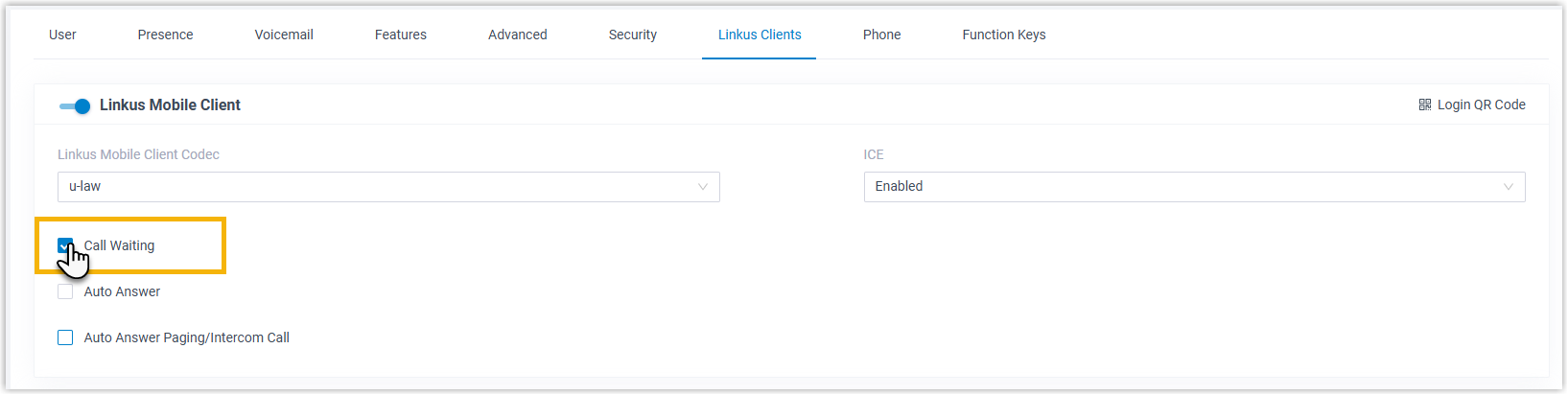
Turn Call Waiting on or off for the client you want to configure.
-
Select Save.
Result
Section titled “Result”The setting syncs to the user’s Cloud Voice App and takes effect right away. How the system handles a second incoming call depends on the setting:
- Call waiting off: When a second call arrives during an active call, the system plays “The extension you dialed {extension_number} is busy now.” and then drops the new call.
- Call waiting on: When a second call arrives during an active call, the system plays “Please hold on, the extension you dialed {extension_number} is busy now.”, and the user hears a tone signaling the waiting call.
Question about this page?
Ask the AI assistant. It starts from this page, then searches the rest of the docs.
Ask Cloud Voice AI
Answers are AI-generated from the docs and may contain mistakes. Verify with the linked pages.