
Schedule Automatic CDR Delivery via Email
Cloud Voice can email call detail records (CDRs) to the people who need them, on a schedule you set. Each delivery contains a download link, and recipients can save the report as CSV, XLS, PDF, or HTML. This page walks you through building a scheduled delivery task.
Before you begin
Section titled “Before you begin”Make sure the system email server is configured and working, since deliveries are sent through it.
Limits
Section titled “Limits”-
You can create up to 2,000 scheduled CDR delivery tasks.
-
The number of records a single download can contain depends on the file format:
File format Maximum CDRs per scheduled download CSV 10,000 XLS 10,000 HTML 10,000 PDF 5,000
Create a scheduled delivery
Section titled “Create a scheduled delivery”-
Sign in to the PBX web portal and go to Reports and Recordings > CDR.
-
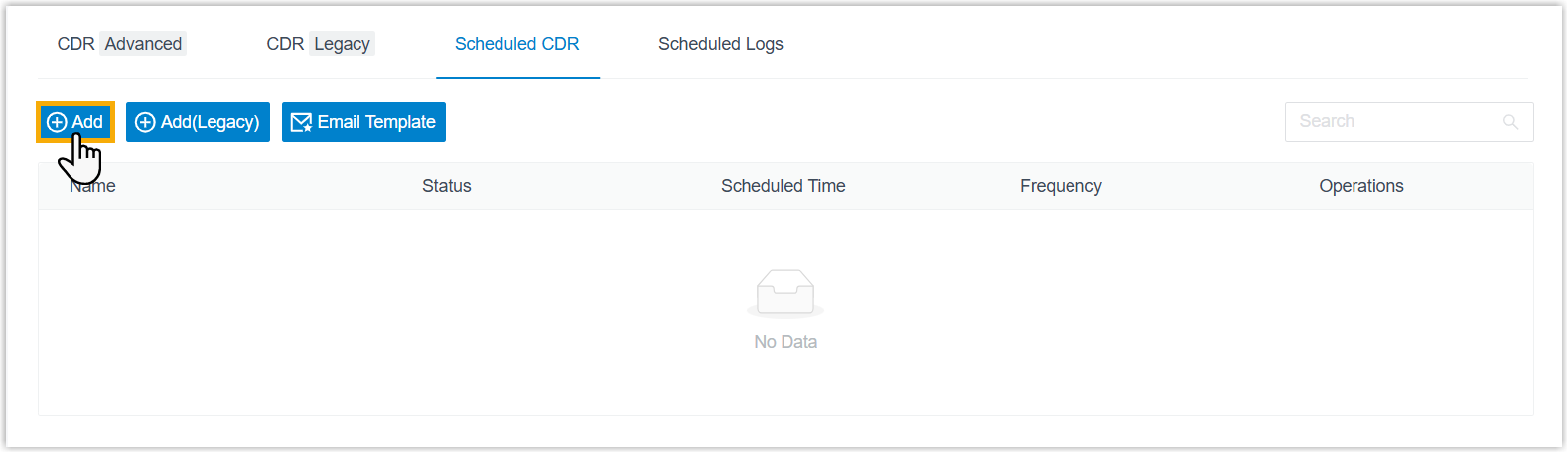
Open the Scheduled CDR tab and click Add.
-
Build the task.
a. Under Column header filters, narrow the CDR list with column-based criteria.
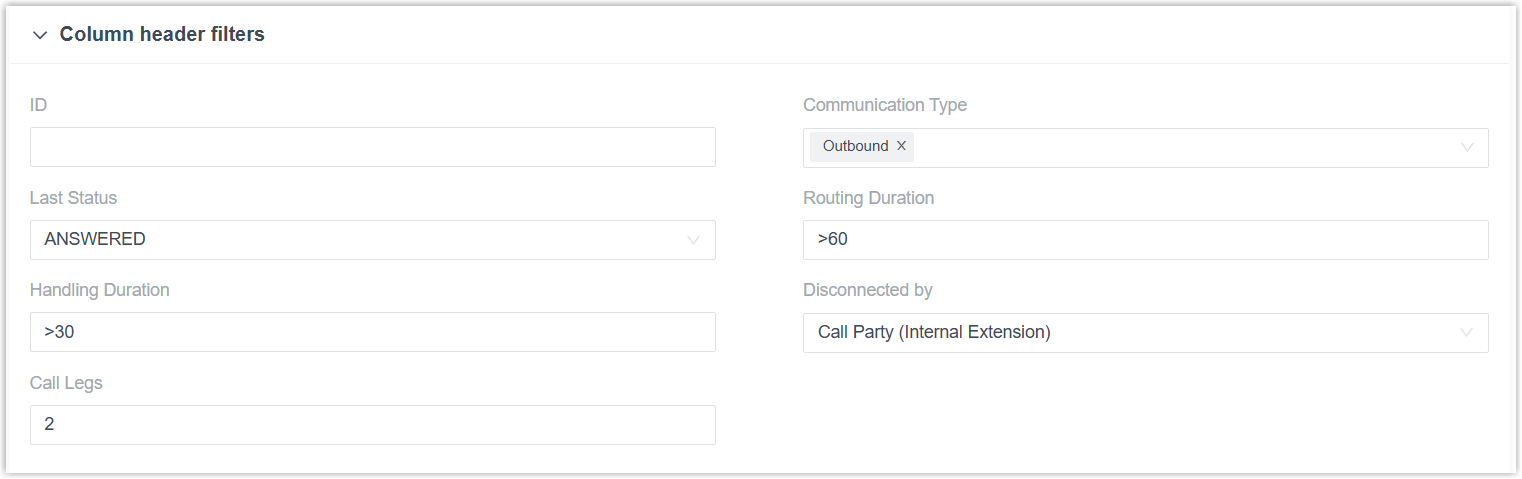
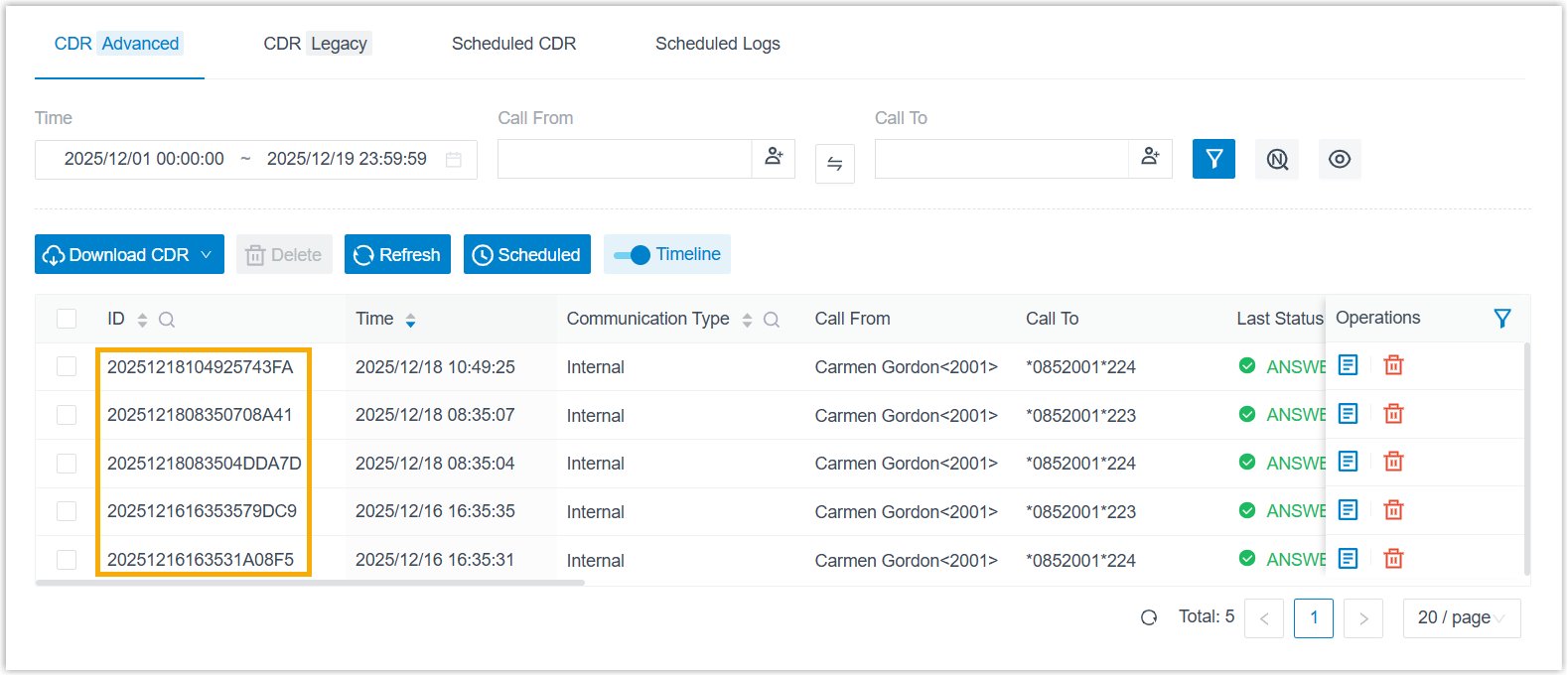
Setting Description ID The unique ID of a single record. You can copy an ID from the CDR list. Communication Type One or more call directions: Inbound, Outbound, or Internal. For a call with multiple legs, the first leg’s type is used. Last Status The final call outcome: All, ANSWERED, NO ANSWER, BUSY, FAILED, VOICEMAIL, or ABANDONED. For a multi-leg call, the last leg’s status is used. Routing Duration The time between when the call started and when it was answered. Accepts numbers, -,=,<,<=,>,>=, and ranges. Time the call spends inside an IVR (interactive voice response, the automated phone menu callers hear) or a call flow, from entering it to leaving it, is included.Handling Duration The time between when the call was answered and when it ended, including hold time. Accepts the same operators and ranges. Disconnected by The party that ended the call: All, Call Party (Internal Extension), Call Party (External Number), or PBX Others. PBX Others means a party not on the call ended it, for example, an unanswered call that exceeds the maximum wait time, or a call interrupted by an emergency call. Call Legs The number of call legs. Accepts numbers, -,=,<,<=,>,>=, and ranges.Outbound Caller ID The outbound caller ID. PIN Code The PIN code. To find a record’s ID, look it up in the CDR list.
b. Under Top filters, refine which call-leg data is included.
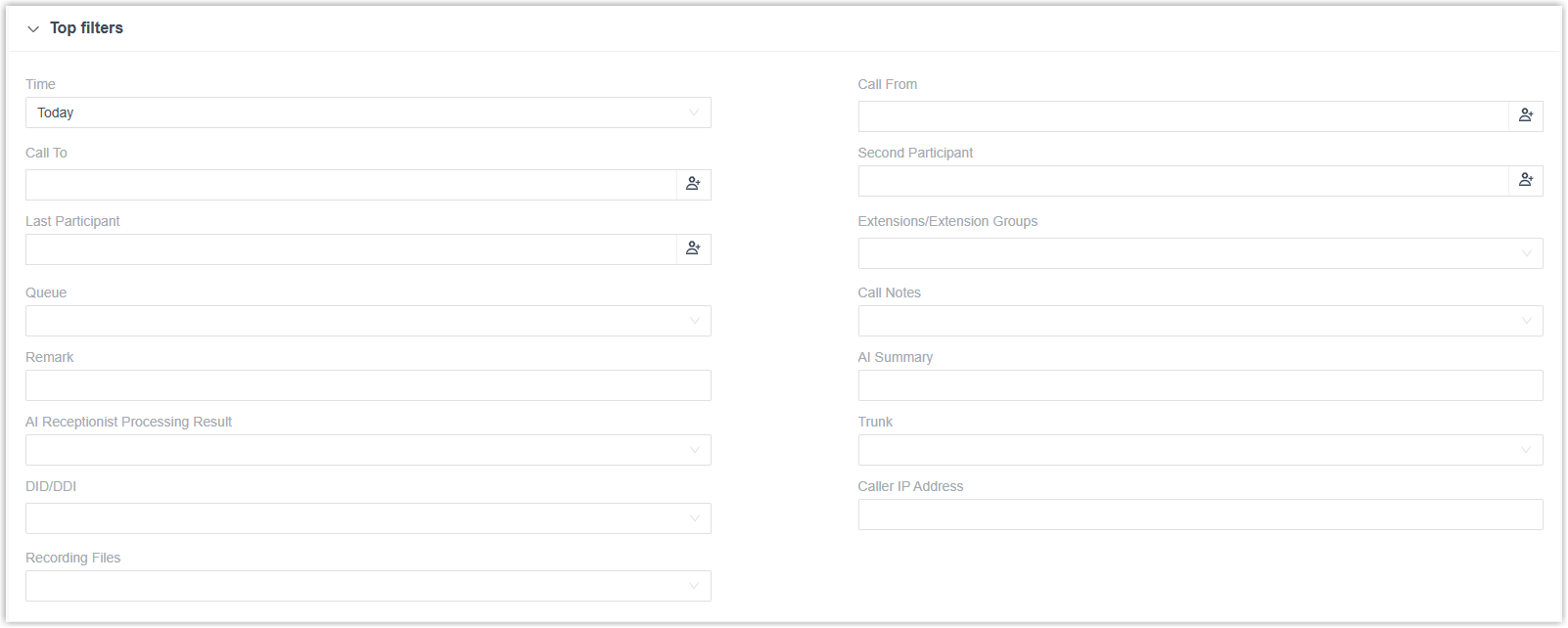
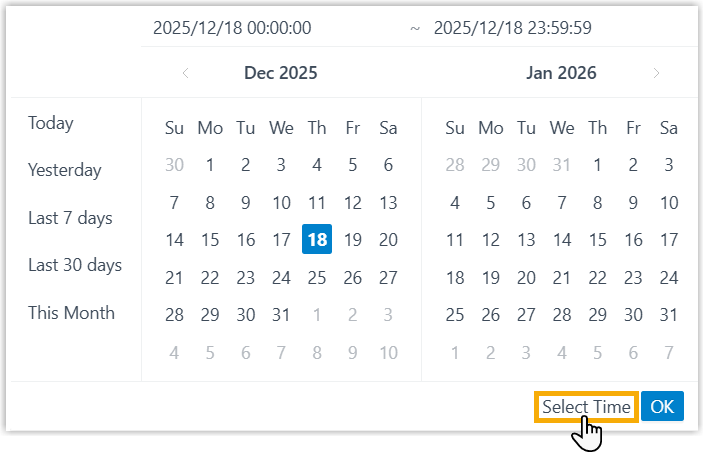
Setting Description Time A preset period, or click Custom to define your own range. In a custom range, click Select Time to pin an exact period. Call From The caller’s number or name, or use the add-contact icon to choose extensions, extension groups, or organizations. Call To The callee’s number or name, or choose extensions, extension groups, or organizations. Second Participant The callee’s number or name on the second call leg. Last Participant The callee’s number or name on the last call leg. Extensions/Extension Groups Selected extensions or extension groups. Organization Selected departments. Queue Selected queues. Call Notes Selected disposition codes. Remark The remark added on the last call leg. AI Summary Keywords from the AI summary content. AI Receptionist Processing Result The outcome of AI receptionist calls: Resolved (the issue was handled without a transfer), Transferred (the call was passed to another destination), Unresolved (neither resolved nor transferred), or No Processing Result (the call ended abnormally through an error or timeout). Trunk A selected trunk. DID/DDI Selected DID/DDI numbers. A DID (Direct Inward Dialing), also called DDI (Direct Dialing In), is a phone number that routes an outside caller straight to a specific extension or destination. Caller IP Address The caller’s IP address. SHAKEN Attestation The SHAKEN caller-ID authentication result. SHAKEN signs a call to show how strongly the originating carrier vouches for the caller’s number, which helps flag spoofed calls. Filter by attestation level or signature verification result: A, B, or C for calls signed at that level; Invalid for a bad signature; or Unknown for unsigned calls or calls whose level can’t be identified (Invalid and Unknown apply to inbound calls). Recording Files Whether to include all CDRs, only those with recordings, or only those without. When you set a custom time range, use Select Time to specify the exact window.
c. Under Schedule Information, set how and when the report is delivered.
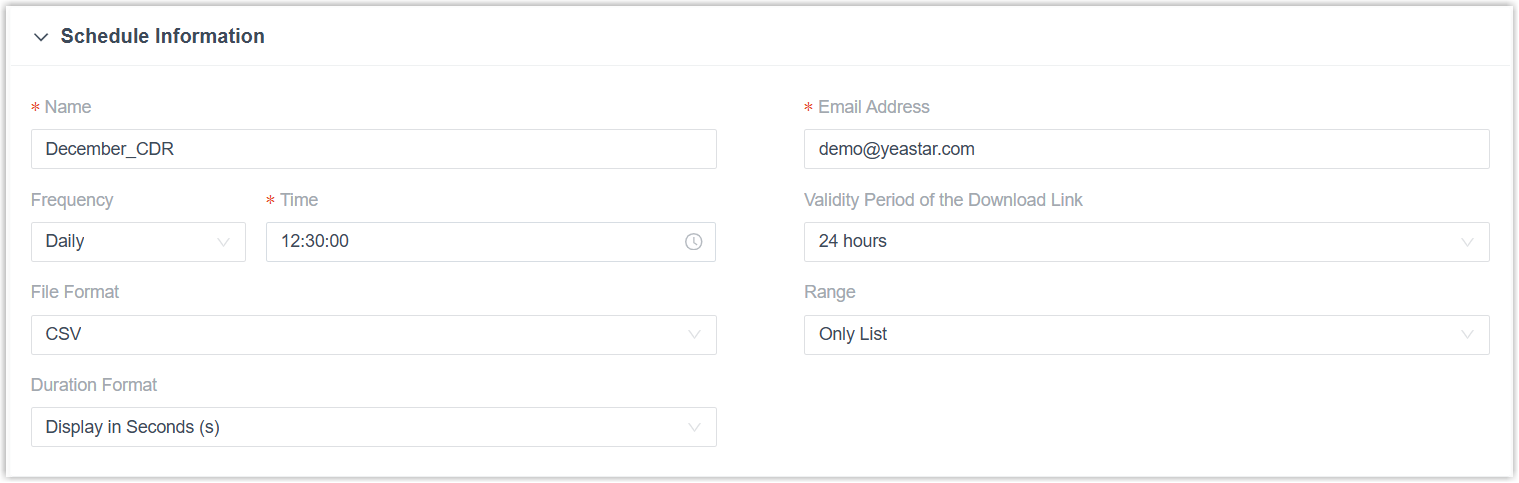
Setting Description Name A label that helps you recognize the task. Email Address The recipient addresses. You can enter up to 10, separated by a semicolon ( ;).Frequency How often the report is sent: Once (sent immediately when you save the task), Daily (at a time you pick each day), Weekly (at a day and time you pick each week), or Monthly (at a day and time you pick each month). Validity Period of the Download Link How long the download link stays active. Once it expires, recipients can no longer open or download the report. File Format The download format: CSV, XLS, PDF, or HTML. Range How much data to include: Only List, List & Call Legs Data, or List, Call Legs, and Timeline Data. Duration Format How duration fields are shown: Display in Second (s) or Display as HH:MM:SS. d. Click Save.
Result
Section titled “Result”The task appears in the Scheduled CDR list.
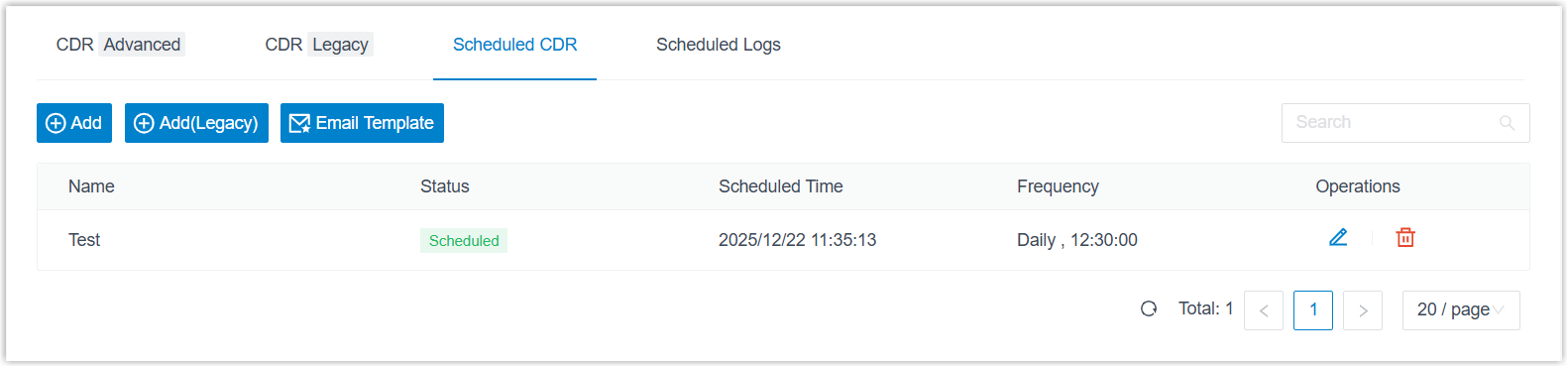
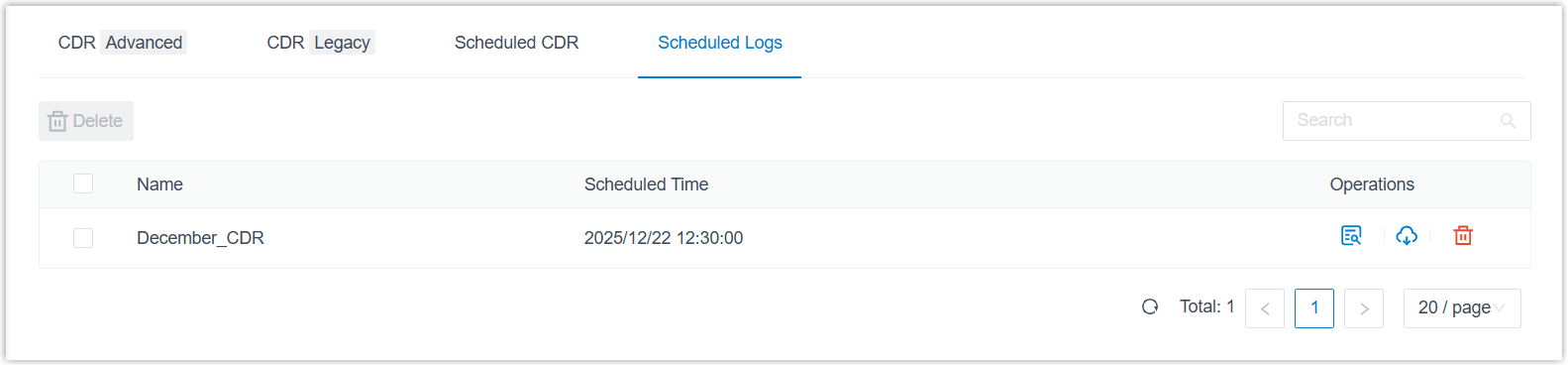
At each scheduled time, the report is sent automatically to the recipients’ mailboxes. You can also review deliveries on the Scheduled Logs tab, where the view icon previews a report online and the download icon saves it for offline use.
Question about this page?
Ask the AI assistant. It starts from this page, then searches the rest of the docs.
Ask Cloud Voice AI
Answers are AI-generated from the docs and may contain mistakes. Verify with the linked pages.