
Manage Logged-in Cloud Voice App Clients
The Cloud Voice App for desktop lists every client currently signed in to your extension, along with details about each associated device: its name, the type of client, and when it last logged in. From this same list you can label a device with a remark and remotely sign your extension out of any device you choose.
Requirements
Section titled “Requirements”Before you begin, make sure that:
- Your Cloud Voice system is running version 84.22.0.134 or later. (Your system administrator handles this upgrade.)
- Your Cloud Voice App desktop client is version 1.21.2 or later.
Add a remark for a device
Section titled “Add a remark for a device”Labelling a device makes it easy to tell your signed-in clients apart at a glance.
-
Sign in to the Cloud Voice App desktop client.
-
In the top-right corner, click your account.
-
In the drop-down menu, select Currently Logged-in Devices.
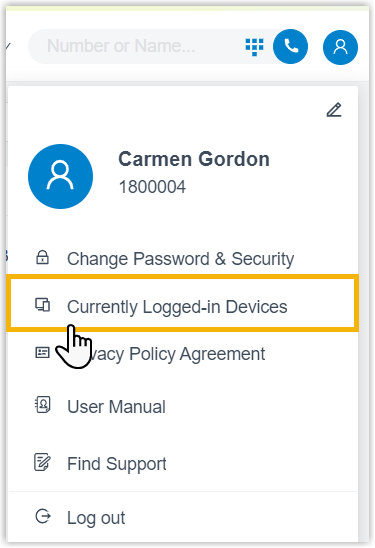
A window opens listing every device currently signed in.
-
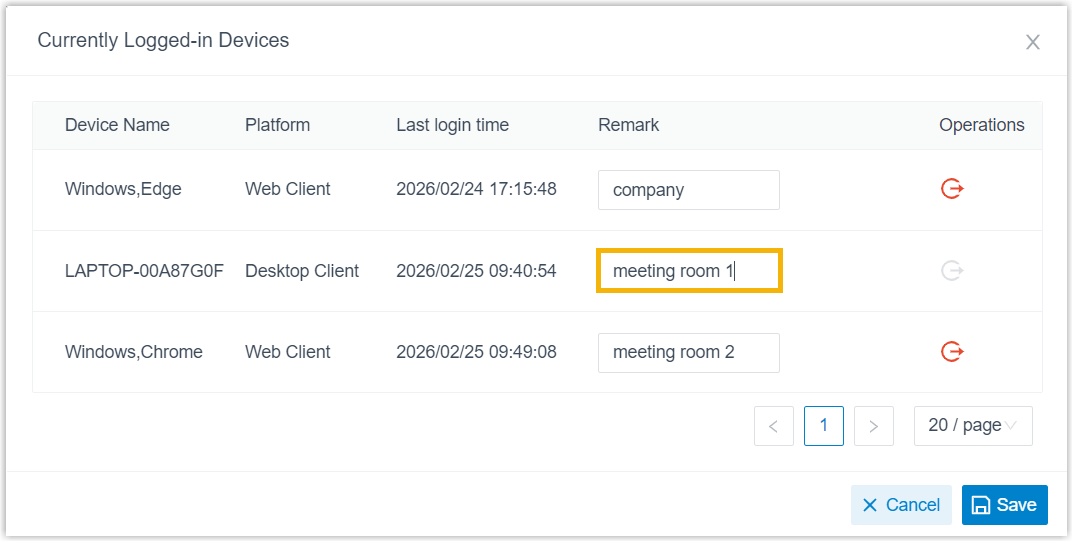
Find the device you want to label and type a note in its Remark column.
-
Click Save.
Your remark now appears against that device across all of your Cloud Voice App clients.
Log out of a device
Section titled “Log out of a device”You can remotely sign your extension out of any other Cloud Voice App client from your desktop.
-
Sign in to the Cloud Voice App desktop client.
-
In the top-right corner, click your account.
-
In the drop-down menu, select Currently Logged-in Devices.
A window opens listing every device currently signed in.
-
Click the log-out icon
 next to the device you want to sign out.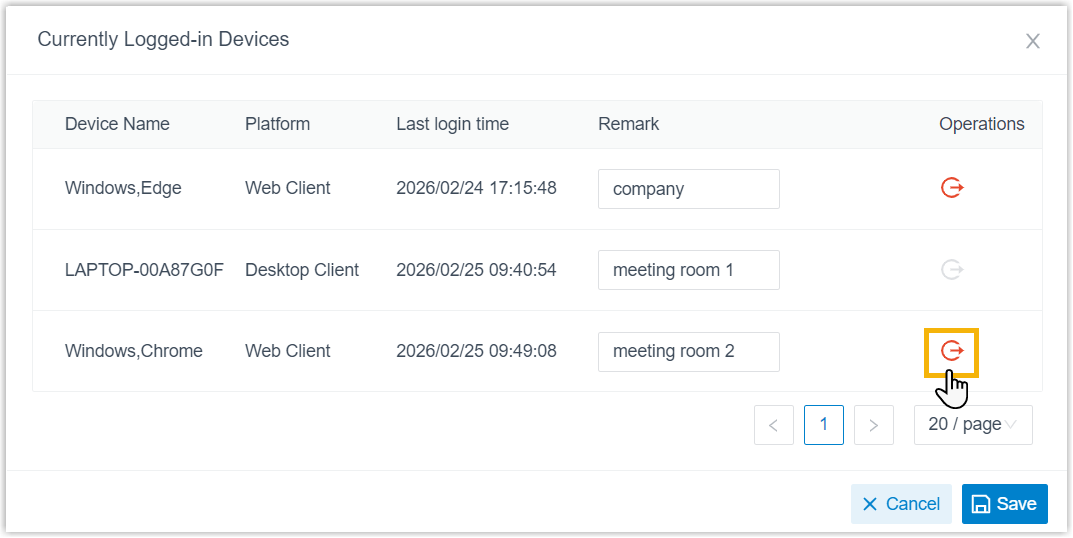
-
In the confirmation window, click OK.
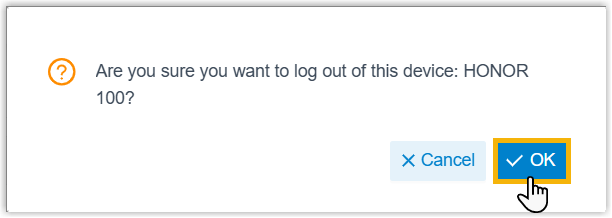
Your extension is signed out of that device, and the message “This device has been logged out by you or the administrator” appears on its screen.
Question about this page?
Ask the AI assistant. It starts from this page, then searches the rest of the docs.
Ask Cloud Voice AI
Answers are AI-generated from the docs and may contain mistakes. Verify with the linked pages.