
Enable or Disable Push Notifications
A push notification is an alert your phone shows even when the Cloud Voice App is not open on the screen. When the app is running in the background on your phone, Cloud Voice can wake it and push an alert whenever there is new activity on your extension, such as a missed call or a new voicemail message. This page explains how to turn those push notifications on or off, and how to set them separately for each of your presence states.
How push notifications work
Section titled “How push notifications work”Presence is your availability status in Cloud Voice (for example Available, Away, Lunch Break, or Do Not Disturb). Out of the box, you receive push notifications in every presence except Do Not Disturb (DND). Because the setting is tied to presence, you can decide for each state separately whether the mobile client should alert you. For example, you might keep notifications on while you are Away but silence them during Lunch Break.
Adjust your notification settings
Section titled “Adjust your notification settings”-
Sign in to the Cloud Voice App web client and go to Preferences > Presence.
-
On the status bar, select the presence you want to change.
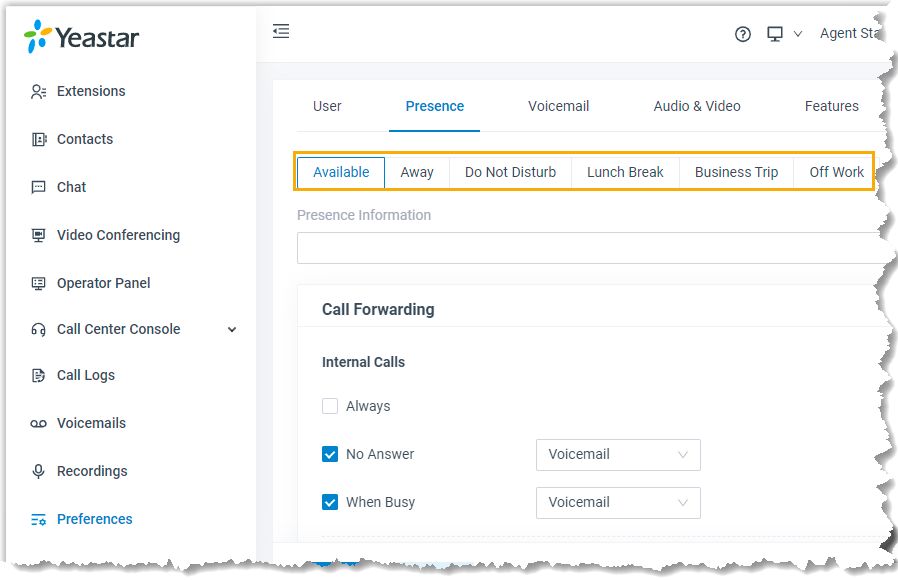
-
In the Options section, select or clear the Accept Push Notifications checkbox.
-
Repeat steps 2 and 3 for any other presence you want to adjust.
-
Select Save.
Question about this page?
Ask the AI assistant. It starts from this page, then searches the rest of the docs.
Ask Cloud Voice AI
Answers are AI-generated from the docs and may contain mistakes. Verify with the linked pages.