
Configure Chat Notifications
The Cloud Voice App for desktop lets you tune chat alerts at two levels: you can silence one conversation on its own, or you can turn message pop-ups and sounds on or off for every chat at once. This page covers both.
Mute or unmute a single chat
Section titled “Mute or unmute a single chat”Muting affects only the conversation you choose. Everything else keeps alerting you normally.
- Open the desktop app, select Chat, and open either the Internal Chat or External Chat tab.
- Right-click the conversation you want to change.
To mute the conversation, choose Mute notifications.
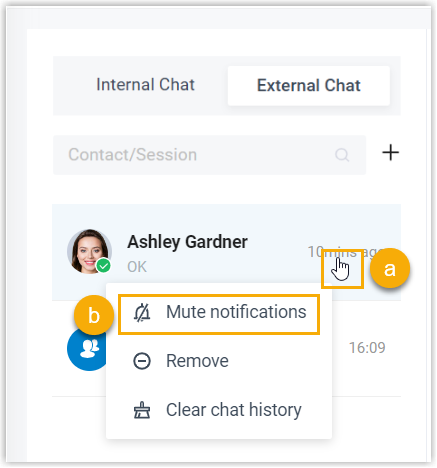
A mute marker ( ) appears beside the chat. You still receive every message sent to it, but no alert fires when new messages arrive. Unread activity shows as a small red dot rather than a running count of unread messages.
To turn alerts back on, right-click the muted conversation and choose New message notifications.
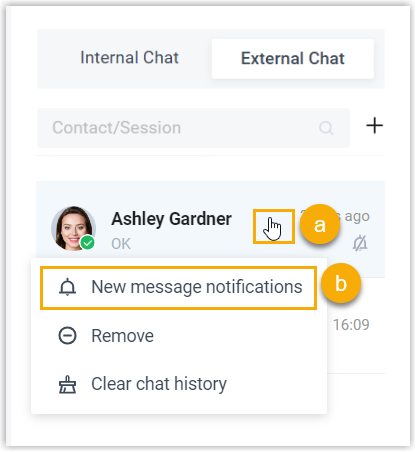
New messages in that chat will notify you again.
Set pop-up and sound alerts for all chats
Section titled “Set pop-up and sound alerts for all chats”These are global settings. Whatever you choose applies to both internal and external chats. Out of the box, the desktop app plays a sound and shows a pop-up for every new message; you can disable either one.
-
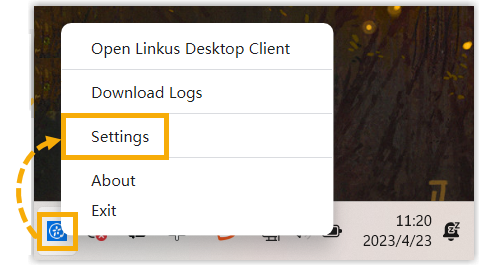
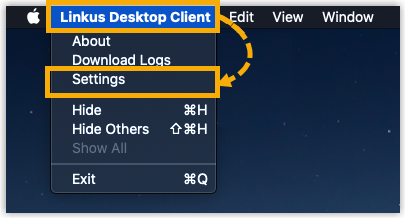
Open the app’s Settings, using the method for your operating system.
-
Windows: In the system tray, right-click the Cloud Voice App icon and choose Settings.
-
macOS: In the menu bar, click Cloud Voice App, then Settings.
-
-
In the Notifications section, adjust the settings you want.

-
New message notifications: When on, a pop-up appears in the bottom-right corner of your desktop as each message arrives.

-
Play sound for new messages: When on, the app plays a sound as each message arrives.
-
Question about this page?
Ask the AI assistant. It starts from this page, then searches the rest of the docs.
Ask Cloud Voice AI
Answers are AI-generated from the docs and may contain mistakes. Verify with the linked pages.