
How to set the Cloud Voice App as the default calling app?
When you make the Cloud Voice App Desktop Client your default calling app, Windows routes any tel: link you click, on a web page, in an email, or in another program, straight into the app so the call starts without extra steps.
The steps differ slightly between Windows versions. Follow the section that matches your machine.
Windows 11
Section titled “Windows 11”-
Click the Windows search bar and type
default apps. -
Open Default apps from the results.
-
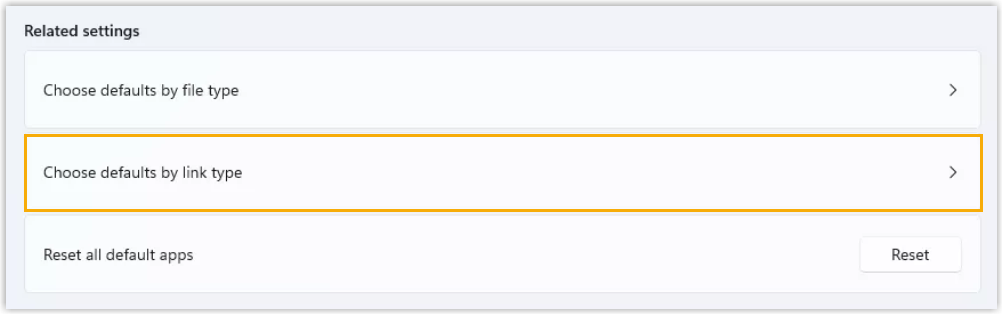
Under Related settings, select Choose defaults by link type.
-
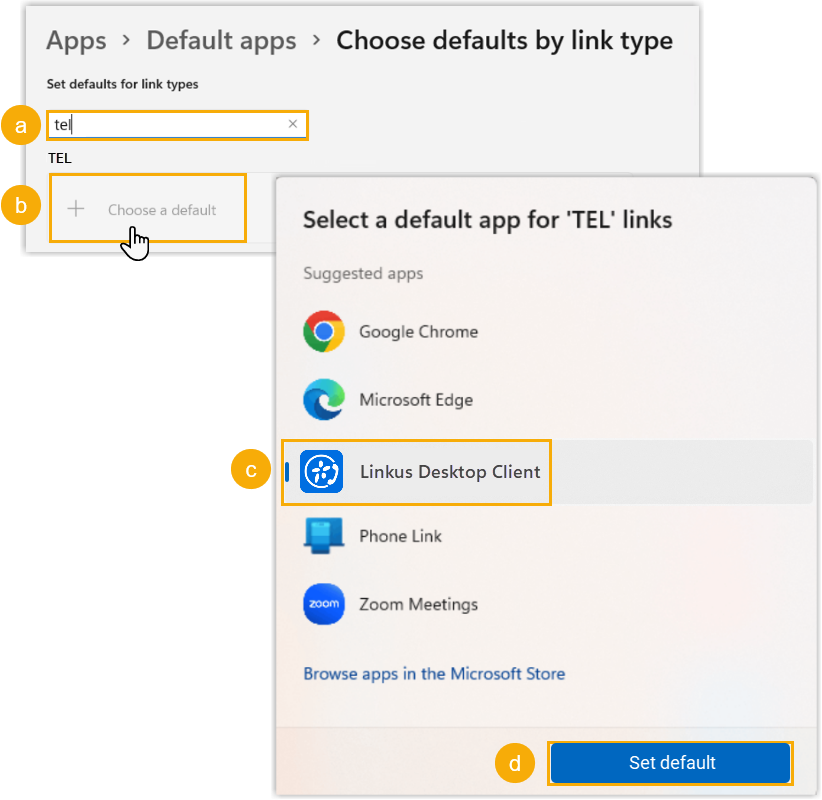
Assign the app to the TEL protocol:
-
In the Set defaults for link types search box, type
tel. -
In the TEL section, click Choose a default.
-
Choose Cloud Voice App Desktop Client.
-
Click Set default.
-
Windows 10
Section titled “Windows 10”-
Click the Windows search bar and type
default apps. -
Open Default Apps from the results.
-
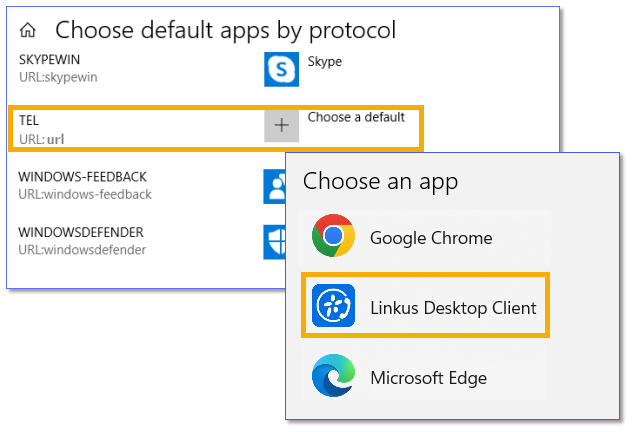
Scroll down and select Choose default apps by protocol.
-
Find TEL in the list, click Choose a default beside it, and select Cloud Voice App Desktop Client.
Question about this page?
Ask the AI assistant. It starts from this page, then searches the rest of the docs.
Ask Cloud Voice AI
Answers are AI-generated from the docs and may contain mistakes. Verify with the linked pages.