
Manage an Ongoing Conference Call
Once a conference call is underway in the Cloud Voice App, you can shape it on the fly: pull in more people, drop someone who no longer needs to be on the line, and control the microphones. Some of these controls are open to everyone on the call, while others are reserved for the host.
Add or remove participants
Section titled “Add or remove participants”Bring another participant into the call
Section titled “Bring another participant into the call”Anyone on the conference can invite additional people to join, so you do not have to be the host to expand the call.
-
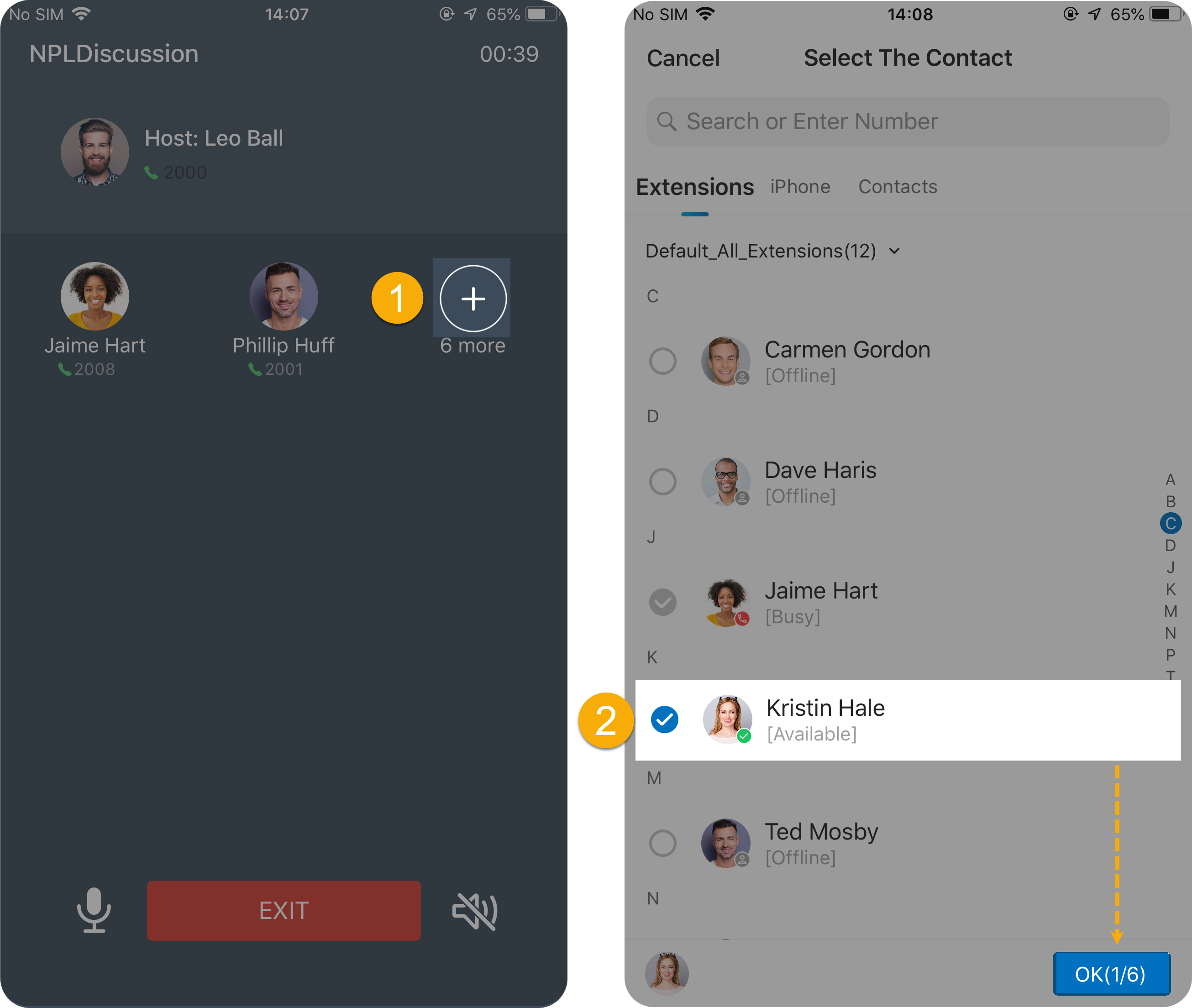
On the call screen, tap the add-participant button
 .
. -
Choose the person you want to add, then tap OK.
The person you selected is called immediately. As soon as they answer, they are joined into the conference.
Drop a participant from the call
Section titled “Drop a participant from the call”Removing someone is a host-only action.
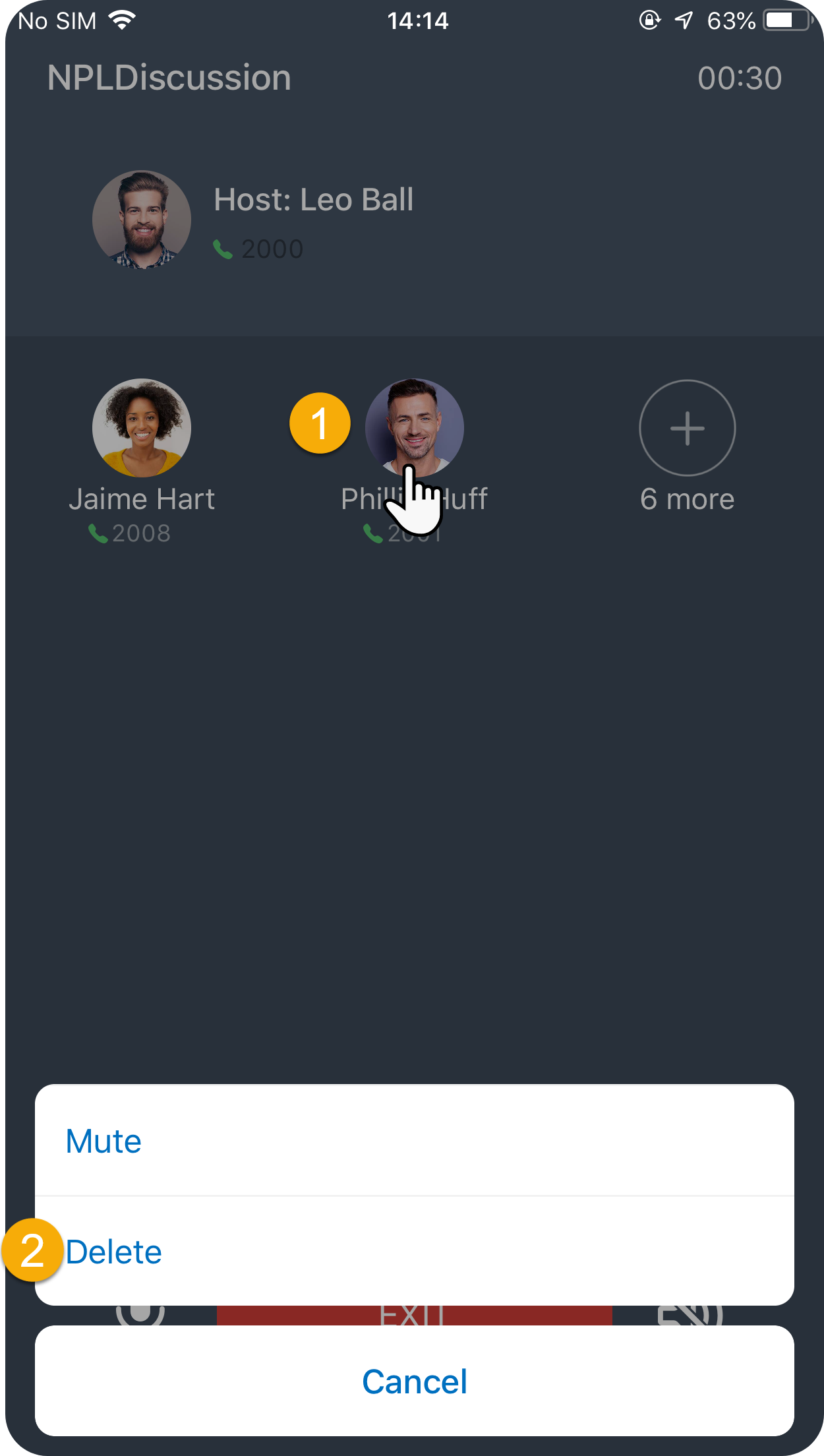
- Tap the participant you want to remove.
- In the window that opens, tap Delete.
The participant is disconnected from the conference right away.
Mute and unmute
Section titled “Mute and unmute”Control other participants’ microphones
Section titled “Control other participants’ microphones”Only the host can mute or unmute the other people on the call. If you do not see these options, you are not the host of this conference.
Everyone at once
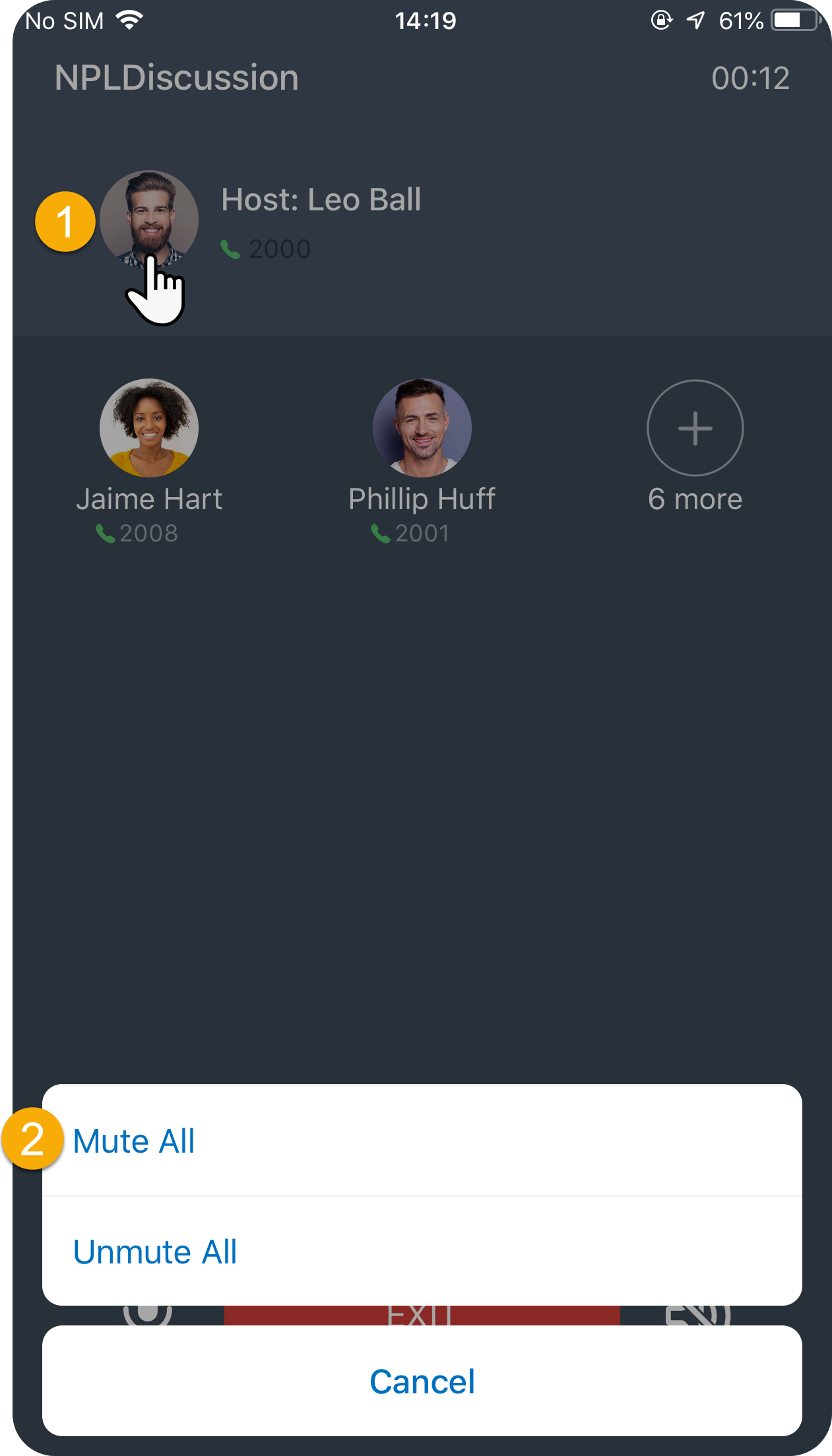
- Tap your own entry in the participant list.
- Choose Mute All or Unmute All.
A single person
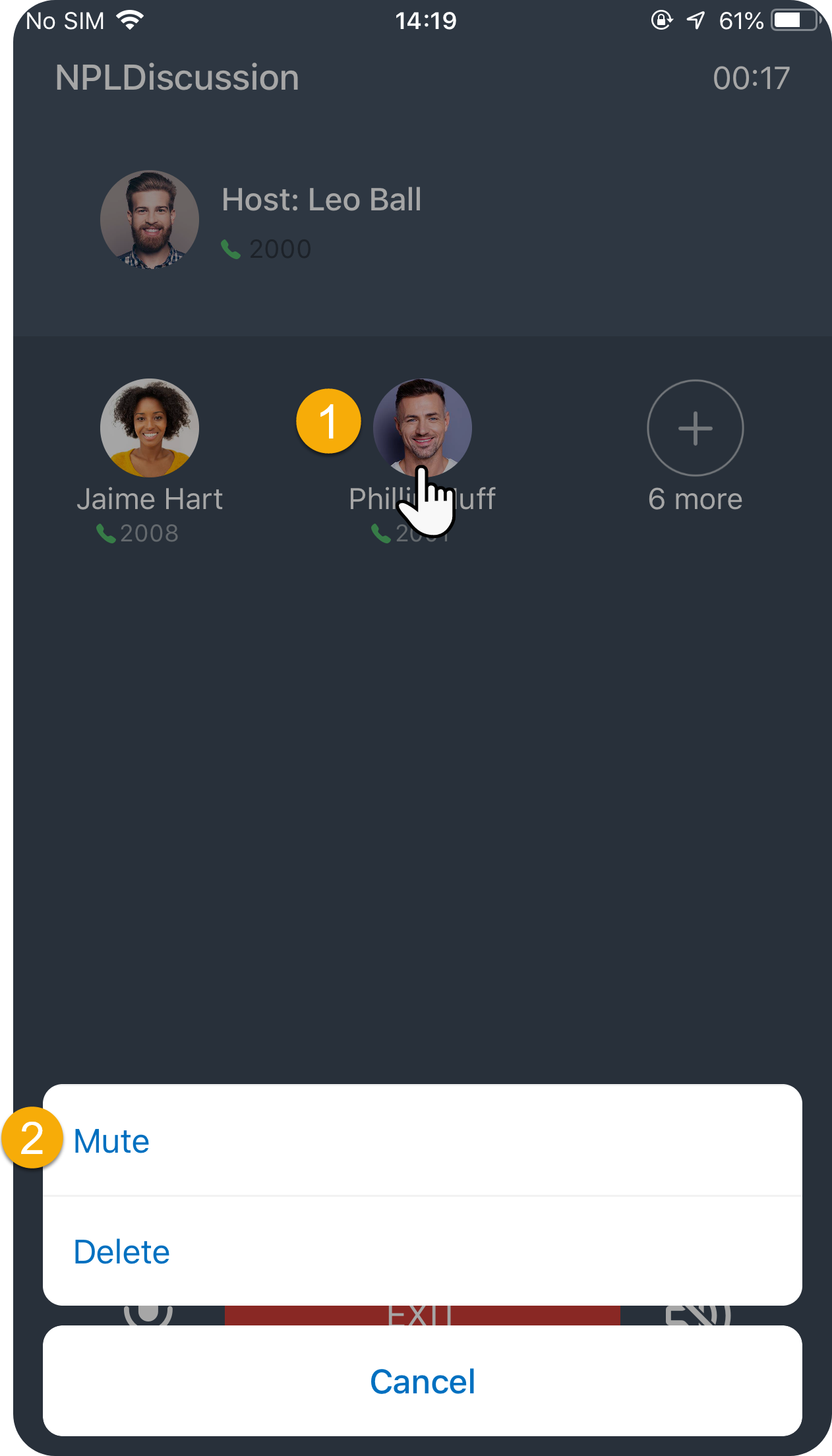
- Tap the participant you want to change.
- Choose Mute or Unmute.
Mute or unmute yourself
Section titled “Mute or unmute yourself”Every participant can silence or reopen their own microphone at any time, regardless of whether they are the host.
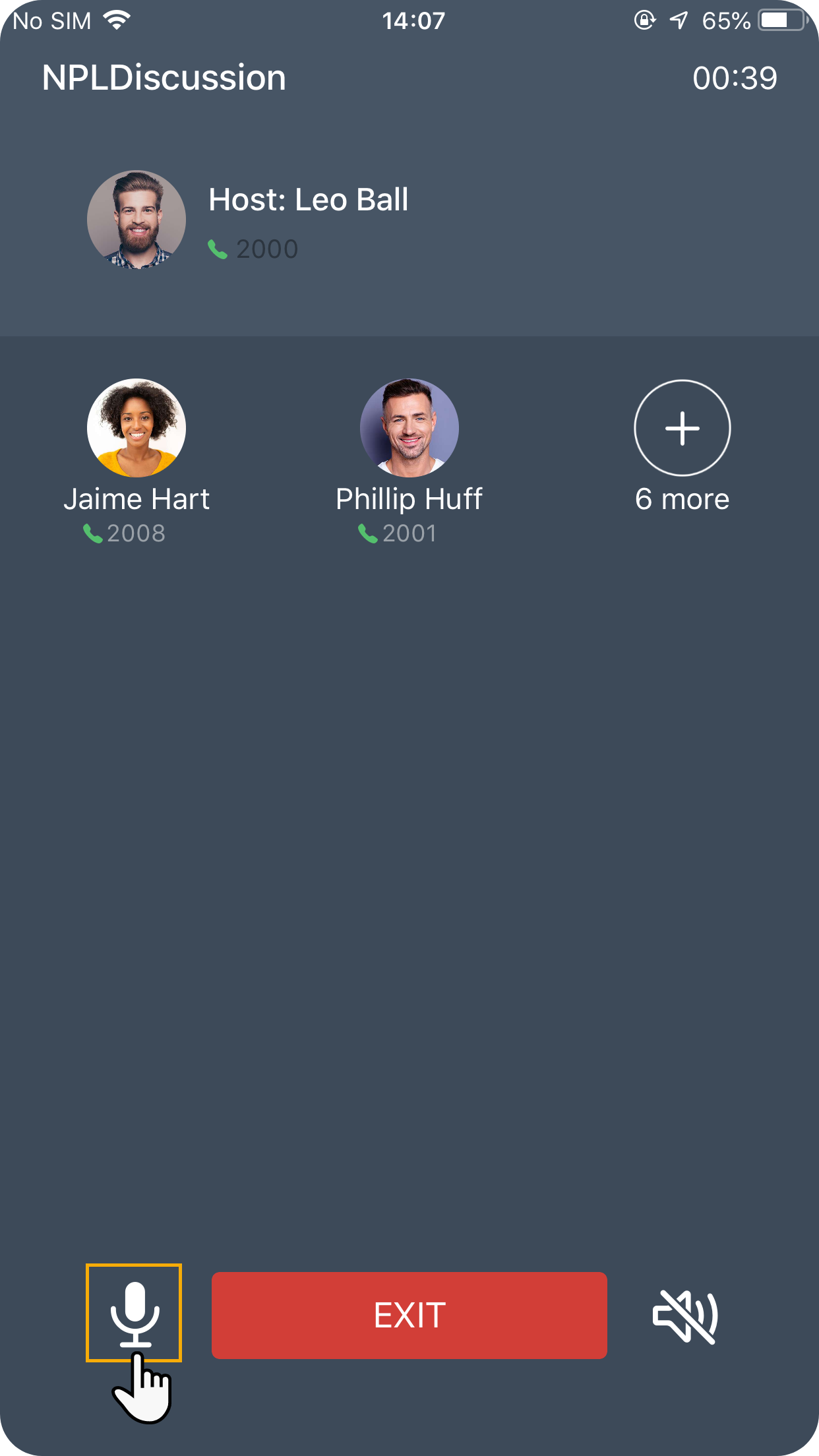
Tap the microphone button  in the bottom-left corner of the call screen to toggle your mic on or off.
Question about this page?
Ask the AI assistant. It starts from this page, then searches the rest of the docs.
Ask Cloud Voice AI
Answers are AI-generated from the docs and may contain mistakes. Verify with the linked pages.