
Download Fax Data
Every fax you send or receive in the Cloud Voice App is recorded as a log entry, and the fax document itself is kept on file. When you need a local copy, you can export a batch of logs together with their documents, or pull down a single fax on its own. Both options are covered below.
Export fax logs with their documents
Section titled “Export fax logs with their documents”Use this method when you want the log details and the fax pages for one or more entries in a single package.
-
Sign in to the Cloud Voice App and open Fax Management > Fax.
-
(Optional) Use the filters above the list to find the entries you want. The available filters are described below.
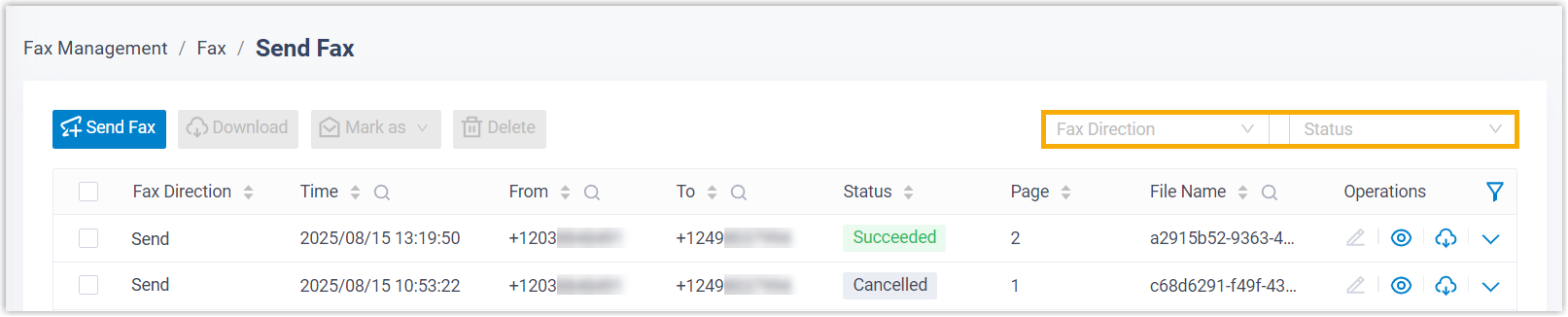
Filter What it does Fax Direction Choose Send to show only sent faxes or Receive to show only received faxes. Status Limit the list to faxes with a particular status. -
Select the fax entries to export by ticking their checkboxes, then click Download.

-
When prompted, choose where to save the file on your computer.
The export arrives as a
.ziparchive (a single compressed file that bundles everything together). Inside you’ll find a.csvfile listing the log details along with one.pdfper fax document.
Download a single fax document
Section titled “Download a single fax document”Use this method when you only need the pages of one fax and not the log data.
-
Sign in to the Cloud Voice App and open Fax Management > Fax.
-
(Optional) Use the filters above the list to locate the entry whose document you want. The filters work the same as above.
Filter What it does Fax Direction Choose Send to show only sent faxes or Receive to show only received faxes. Status Limit the list to faxes with a particular status. -
Click the download icon
 next to the fax entry you want.
-
When prompted, choose where to save the file on your computer.
The document is saved as a single
.pdffile.
Question about this page?
Ask the AI assistant. It starts from this page, then searches the rest of the docs.
Ask Cloud Voice AI
Answers are AI-generated from the docs and may contain mistakes. Verify with the linked pages.