
Enable or Disable Push Notifications
A push notification is an alert your phone shows even when the app is closed or minimized. When the Cloud Voice App is running in the background on your phone, push notifications are what tell you about activity on your extension, such as an incoming call or a new message. You can turn this behavior on or off directly from the app.
Before you begin
Section titled “Before you begin”Push notifications rely on both the platform and your app being up to date. Both conditions must be met, or notifications may not arrive.
- Cloud Voice platform: Push notification support requires server version 84.16.0.25 or later. If you are unsure of your platform version, check with your system administrator.
- Cloud Voice App: Your mobile app must be version 5.6.6 or later.
Turn push notifications on
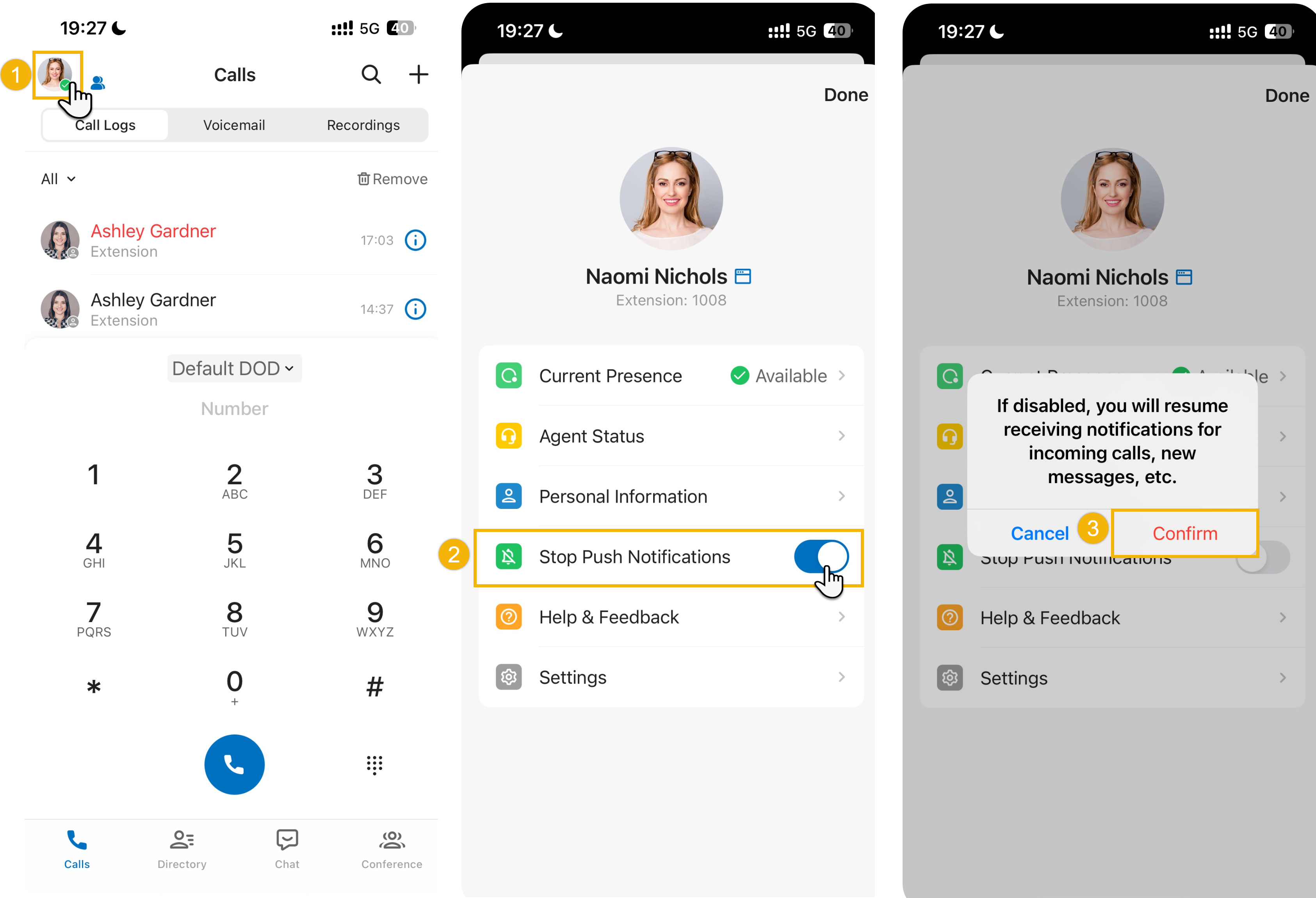
Section titled “Turn push notifications on”With notifications enabled, the app is woken in the background whenever your extension receives activity, such as an incoming call or a new message, so alerts reach you even when the app is not open. This is the recommended setting for anyone who needs to answer calls on their mobile phone.
- On the Calls page, tap your account in the top-left corner.
- Switch Stop Push Notifications off.
- Tap Confirm in the dialog that appears.
Turn push notifications off
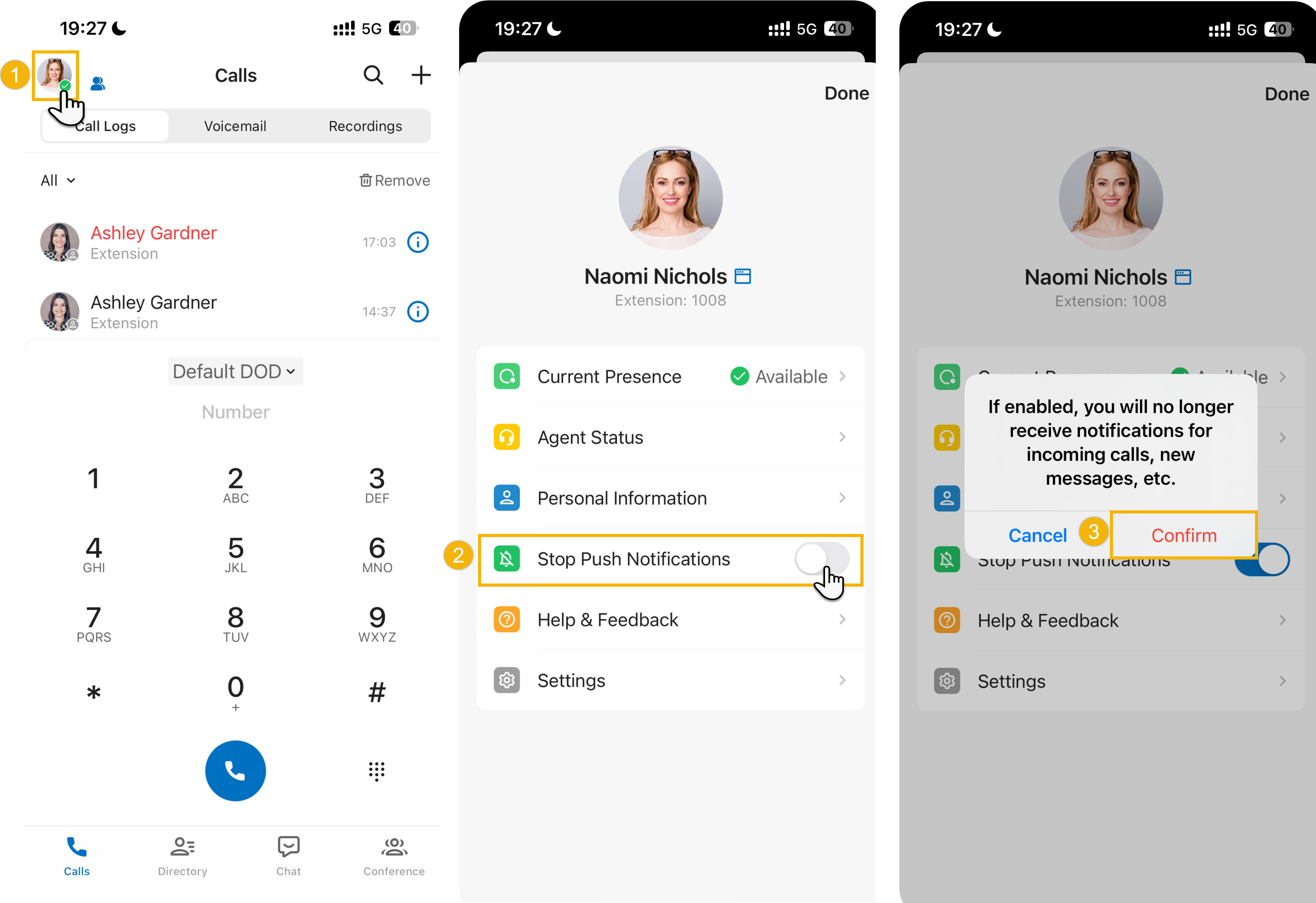
Section titled “Turn push notifications off”With notifications disabled, the app stays dormant in the background. Incoming calls, messages, and other activity will not wake the app, and you will not be alerted until you open it again.
- On the Calls page, tap your account in the top-left corner.
- Switch Stop Push Notifications on.
- Tap Confirm in the dialog that appears.
Question about this page?
Ask the AI assistant. It starts from this page, then searches the rest of the docs.
Ask Cloud Voice AI
Answers are AI-generated from the docs and may contain mistakes. Verify with the linked pages.