
Control the Web Client from the Desktop Client
The Cloud Voice App Desktop Client includes a CTI mode that links it to the Web Client running under the same extension. CTI stands for Computer Telephony Integration: it lets one program send call-control commands to another. Once connected, the Desktop Client becomes a control surface for placing, answering, and managing calls, while the audio itself flows through the Web Client. This page explains when that arrangement is useful, what you need in place, and how to turn it on.
When to use this
Section titled “When to use this”CTI mode helps when the computer running your Desktop Client is not the best place to carry the call audio.
Consider a CRM tool (Customer Relationship Management, the software that tracks your customer contacts) installed on your office computer that you dial from using click-to-dial through the Desktop Client. If that CRM can only be reached from inside the office network, you might connect to the office computer remotely from home to keep working. The catch: when you dial from the Desktop Client on that remote machine, the call audio travels across the office network rather than your home connection, and any instability in the remote session can degrade call quality.
By enabling CTI mode, you can sign in to the Web Client with the same extension on your home computer and let the Desktop Client on the office machine drive it. Calls are still initiated from the familiar Desktop Client interface, but the audio is carried locally by the Web Client on your home computer, sidestepping the unreliable remote link and keeping quality high.
Before you begin
Section titled “Before you begin”Confirm that your phone system and both clients meet these requirements.
| Item | Requirement |
|---|---|
| Phone system | Firmware version 84.15.0.74 or later, with the uaCSTA feature turned on (PBX Settings > SIP Settings > Advanced > Other Options > Enable uaCSTA Connection). |
| Desktop Client | Version 1.5.4 or later. |
| Web Client | Signed in with the same extension used by the Desktop Client. |
Turn on CTI mode
Section titled “Turn on CTI mode”-
Sign in to the Cloud Voice App Desktop Client.
-
In the top-right corner, click the CTI icon
 , then choose Web Client from the drop-down list.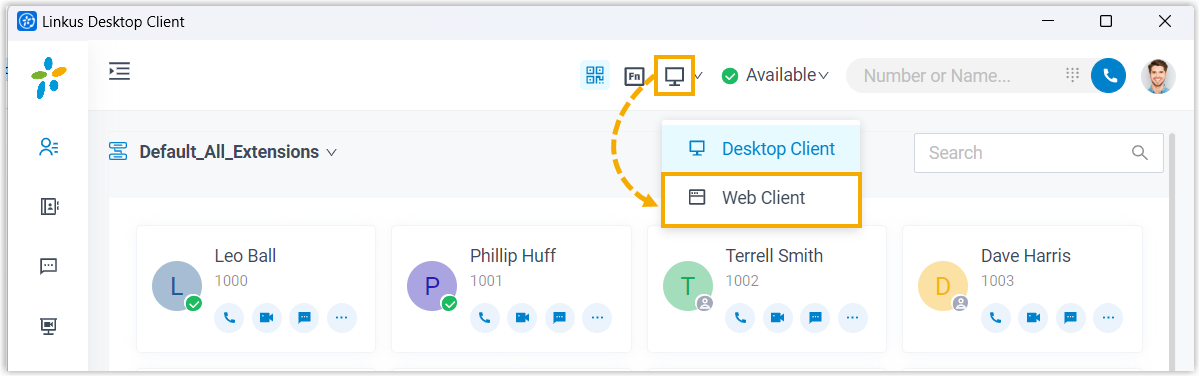
What you can do next
Section titled “What you can do next”With CTI mode active, the Desktop Client controls the following call operations while the Web Client handles the audio:
- Start and end a call
- Place a second call
- Answer or reject an incoming call
- Transfer a call, both attended and blind
- Record a call
- Hold and resume a call
- Swap between held calls
- Add a participant
- Merge calls
- Flip a call
- Transcribe a call
Question about this page?
Ask the AI assistant. It starts from this page, then searches the rest of the docs.
Ask Cloud Voice AI
Answers are AI-generated from the docs and may contain mistakes. Verify with the linked pages.