
Configure Function Keys
Function keys turn a single click into a shortcut. Depending on the type you assign, a key can show you the live status of an extension, mailbox, queue, or parking slot, or fire off a common action such as a speed dial or a presence change. This page explains how to set up function keys from the Cloud Voice App Desktop Client.
Where function keys apply
Section titled “Where function keys apply”Once you save your function keys, they follow your extension across every client you sign in to. The number you can assign depends on the endpoint.
| Endpoint | Maximum function keys |
|---|---|
| Cloud Voice App Desktop Client | 120 |
| Cloud Voice App Web Client | 120 |
| Cloud Voice App Mobile Client | 120 |
| Cloud Voice for Google | 120 |
| IP phones set up with Auto Provisioning | Limited by the number of line keys the phone supports |
Add or edit function keys
Section titled “Add or edit function keys”-
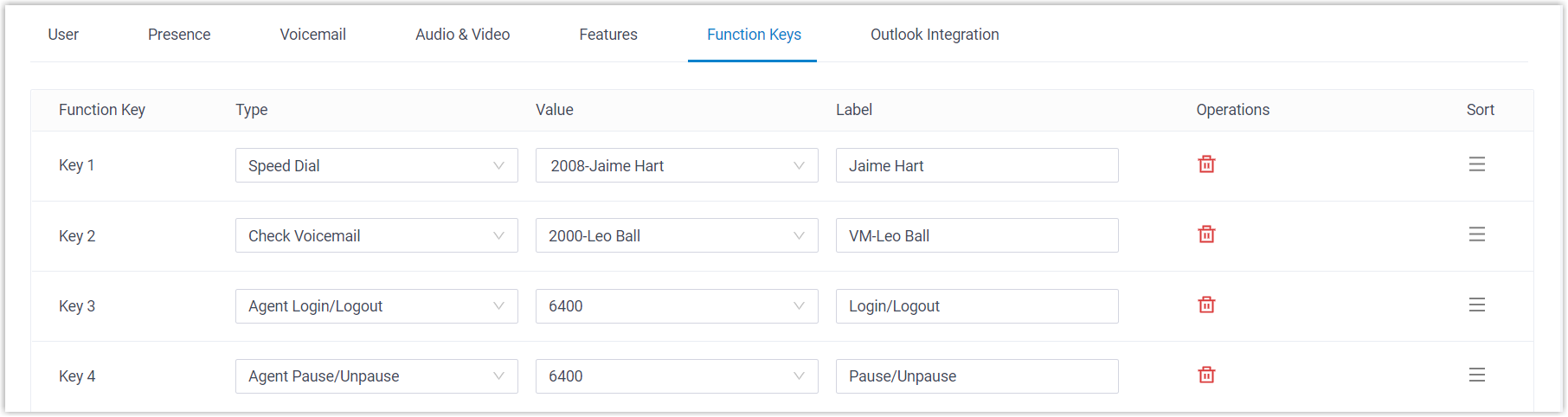
Sign in to the Cloud Voice App Desktop Client and open Preferences > Function Keys. Any keys your administrator has already assigned to your extension appear in the list.
-
Add or adjust keys to suit how you work:
- Type: Pick a key type. See Function key types for what each one does.
- Value: Enter the value that matches the key type, such as the extension, number, or queue the key acts on.
- Label: Optional. Give the key a name so it is easy to recognize.
-
Click Save.
What happens after you save
Section titled “What happens after you save”Your keys apply everywhere at once:
-
They appear across all Cloud Voice App clients and Cloud Voice for Google. Click the function-key icon
 in the top toolbar to open a mini panel where you can watch the objects you monitor and run their actions.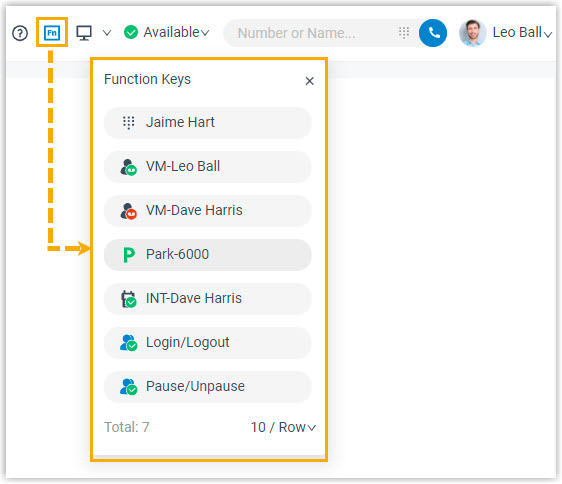
-
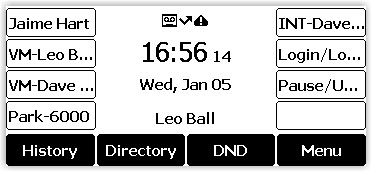
If your extension is registered on an IP phone through Auto Provisioning, the phone picks up the same changes automatically.
Function key types
Section titled “Function key types”Use the table below to choose a key type and to read the status each key can display. Icons marked as IP-phone only do not appear on the Cloud Voice App clients.
| Key type | What it does | Status indicators |
|---|---|---|
| N/A | No function assigned. |  The key does nothing until you assign a type. The key does nothing until you assign a type. |
| Line | Adds a line key. Available on IP phones only. |  IP phones only. IP phones only. |
| BLF (Busy Lamp Field) | Watch an extension or extension group and act on its calls. A BLF key works like a status lamp: it shows at a glance whether the object you monitor is idle, ringing, or busy. | Extension:  Unregistered. Unregistered.  Online and available, click to call the extension. Online and available, click to call the extension.  Away from desk. Away from desk.  Do Not Disturb, not accepting calls. Do Not Disturb, not accepting calls.  On lunch break. On lunch break.  On a business trip. On a business trip.  Off work. Off work.  Receiving a call, click to pick it up (on the Mobile Client, tap the key, then tap the incoming call). Receiving a call, click to pick it up (on the Mobile Client, tap the key, then tap the incoming call).  On a call. On a call.  Call on hold. Call on hold. Extension group:  No ringing calls (calls already in progress do not change this). No ringing calls (calls already in progress do not change this).  One ringing call to a group member. One ringing call to a group member.  Two ringing calls. Two ringing calls.  Three or more ringing calls, hover for details, then click a call to pick it up. Three or more ringing calls, hover for details, then click a call to pick it up.  The extension group no longer exists. The extension group no longer exists. This key has no effect during an audio conference call. |
| Speed Dial | Call a frequently used number or extension in one click. |  Click to dial the saved number or extension. Click to dial the saved number or extension. |
| Set Presence | Switch your own extension to a chosen presence state. | Set presence to Available. Set presence to Away. Set presence to Business Trip. Set presence to Do Not Disturb. Set presence to Lunch Break. Set presence to Off Work. |
| Check Voicemail | Monitor a mailbox and listen to its messages. |  The monitored extension has been deleted. The monitored extension has been deleted.  All messages have been read. All messages have been read.  Unread messages waiting, click the key, then enter the voicemail PIN when prompted. Unread messages waiting, click the key, then enter the voicemail PIN when prompted. |
| Check Group Voicemail | Monitor a shared-mode group mailbox and listen to its messages. |  The group voicemail has been deleted. The group voicemail has been deleted.  All messages have been read. All messages have been read.  Unread messages waiting, click the key, then enter the group voicemail PIN when prompted. Unread messages waiting, click the key, then enter the group voicemail PIN when prompted. |
| Park & Retrieve | Monitor a parking slot, park a call to it, or retrieve a parked call. |  The parking number is invalid. The parking number is invalid.  The slot is free, click to park your current call there. The slot is free, click to park your current call there.  A call is parked, click to retrieve it. A call is parked, click to retrieve it. This key has no effect during an audio conference call. |
| Intercom | Monitor an extension and place an intercom call to make an announcement. |  The extension is unregistered. The extension is unregistered.  The extension is available. The extension is available.  The extension is receiving a call. The extension is receiving a call.  The extension is on a call. The extension is on a call. |
| DTMF (Dual-Tone Multi-Frequency) | Send a preset DTMF string during a call instead of typing it each time. DTMF tones are the sounds the keypad makes when you press digits, used to navigate phone menus or enter a PIN. |  During a call, click to send the DTMF signals. During a call, click to send the DTMF signals. This key has no effect during an audio conference call. |
| Agent Login/Logout | Monitor and toggle your login status in a queue. |  You are not a member of the queue. You are not a member of the queue.  Logged in to the queue. Logged in to the queue. 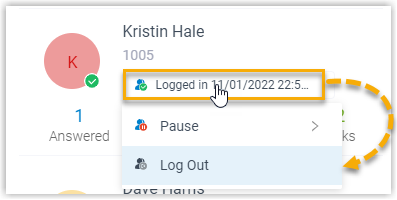 Logged out of the queue. Logged out of the queue. |
| Agent Pause/Unpause | Monitor and toggle your service status in a queue. | Serving the queue. 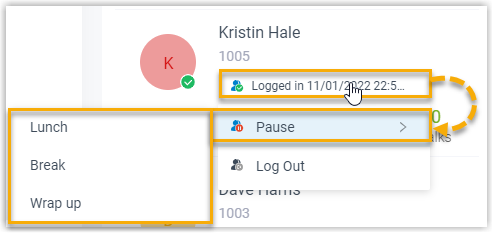 Paused in the queue. You are not a member of the queue. Not logged in to the queue. Paused in the queue. You are not a member of the queue. Not logged in to the queue. |
| LDAP Directory | Open the LDAP (Lightweight Directory Access Protocol) phonebook, a shared network directory, to look up contacts. Available on IP phones only. |  IP phones only. IP phones only. |
| Boss-Secretary Feature | Monitor the call status of your boss or secretary. | As a boss (watching your secretary):  Not handling any calls for you. Not handling any calls for you.  Answering calls for you. Answering calls for you.  Holding a call, waiting for you to answer. Holding a call, waiting for you to answer. As a secretary (watching your boss):  No calls on hold for you to resume. No calls on hold for you to resume.  Holding a call, waiting for you to resume. Holding a call, waiting for you to resume. |
| Call Forward | Turn call forwarding on or off. Available on IP phones only. |  IP phones only. IP phones only. |
| Action URL | Send an HTTP GET request to a set URL to report an event. Available on IP phones only. |  IP phones only. IP phones only. |
Question about this page?
Ask the AI assistant. It starts from this page, then searches the rest of the docs.
Ask Cloud Voice AI
Answers are AI-generated from the docs and may contain mistakes. Verify with the linked pages.