
Make an Audio Call
The Cloud Voice App Web Client gives you several starting points for placing an audio call, whether you are reaching a coworker or an outside number. Pick whichever entry point is most convenient: type a number on the dialpad, or call directly from a list you are already looking at, such as your extensions, contacts, call history, voicemails, or recordings.
Before you begin
Section titled “Before you begin”- Confirm that your setup meets the requirements for making web calls.
- Make sure your audio devices are configured and ready to use.
Call from the dialpad
Section titled “Call from the dialpad”Dial a number
Section titled “Dial a number”-
Enter the number using either method:
-
Type it into the search bar at the top of the window.
-
Click the keypad icon
 , then enter the number.
-
-
Press
Enter, or click the call icon , to dial out.
Redial the last number
Section titled “Redial the last number”-
With the search bar empty, click the call icon
.
The search bar fills in with the most recent number you dialed.

-
Click the call icon
again to dial out.
Call from the extension list
Section titled “Call from the extension list”-
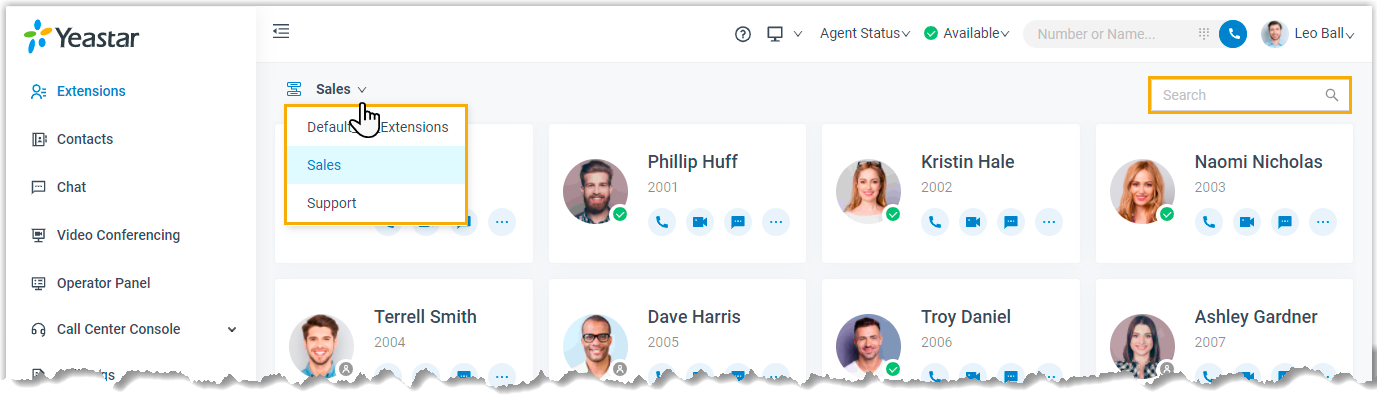
In the left navigation bar, click Extensions.
-
Locate the coworker you want to reach:
a. From the group selector
 , choose the group the coworker belongs to.
b. In the search bar, type a name, number, or email address.
-
Place the call:
- To call the extension, click the call icon .
- To call the coworker’s mobile number, click the more icon
 and select Call Mobile.
- To call the extension, click the call icon
Call from the contacts list
Section titled “Call from the contacts list”-
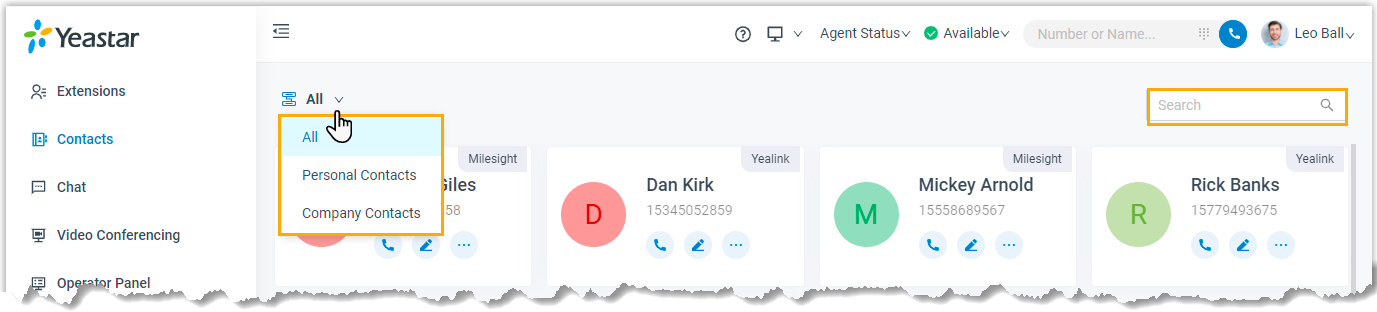
In the left navigation bar, click Contacts.
-
Locate the contact you want to reach:
a. From the directory selector
, choose the directory the contact belongs to.b. In the search bar, type a name, number, email address, or company name.
-
Click the call icon
to dial out.
Call from call history
Section titled “Call from call history”-
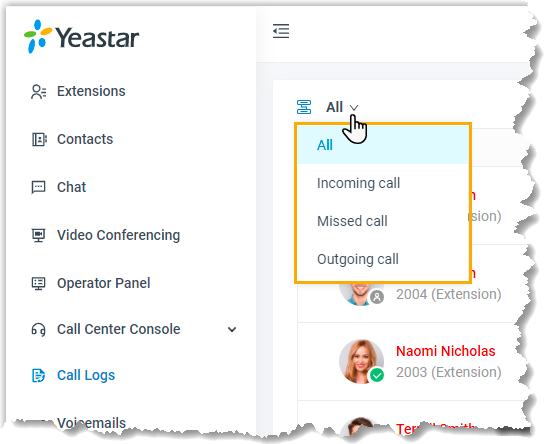
In the left navigation bar, click Call Logs.
-
Optional: To narrow the list, pick a communication type from the type selector
.
-
Double-click a record, or click the call icon
 , to dial out.
Call from voicemails
Section titled “Call from voicemails”-
In the left navigation bar, click Voicemails.
-
Optional: To narrow the list, do either of the following:
a. Choose which message status you want to view.
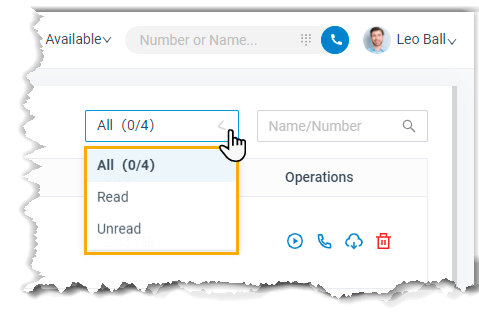
b. In the search bar, type the caller’s name or number.
-
Double-click a record, or click the call icon
, to dial out.
Call from recordings
Section titled “Call from recordings”- In the left navigation bar, click Recordings.
- Optional: In the search bar, type a name or number to filter the recordings.
- Double-click a record, or click the call icon , to dial out.
Question about this page?
Ask the AI assistant. It starts from this page, then searches the rest of the docs.
Ask Cloud Voice AI
Answers are AI-generated from the docs and may contain mistakes. Verify with the linked pages.