
Invite Participants to an Audio Conference Call
When a conversation needs another person, you can dial them into the call directly instead of hanging up and starting over. The moment your invitation goes out, the one-to-one call becomes an audio conference that everyone can join.
Before you start
Section titled “Before you start”Adding participants only works when the Cloud Voice App is running in Desktop Client mode.
Add someone to the call
Section titled “Add someone to the call”-
While the call is active, select Add Participant in the lower-left corner of the call screen.
-
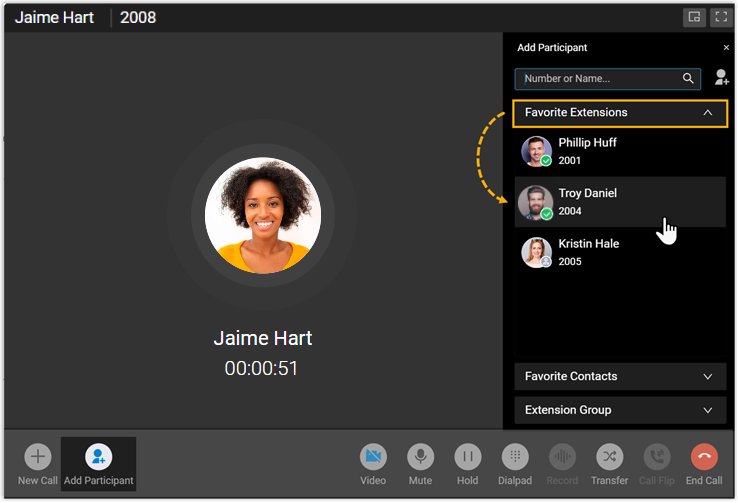
Use the panel on the right to bring in a participant. You can either pick someone from a list or search for a specific person.
To choose from a list, open the list you want and click the extension user or contact you want to add.
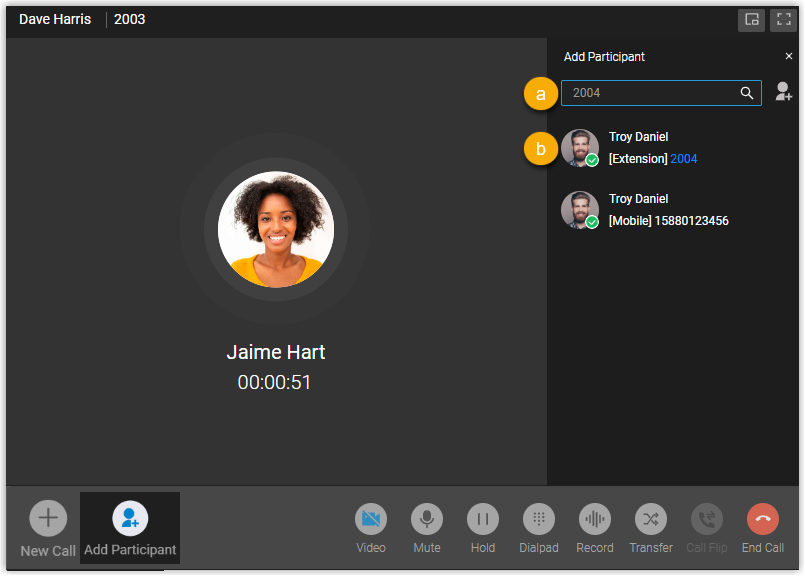
To find a specific person, use the search bar instead:
-
Type into the search bar. You can look up extension users and native contacts by the filters below, or reach someone outside your system by entering their phone number.
Invitee Search by Extension users Extension name, extension number, email address, or mobile number Native contacts Contact name, company name, email address, or mobile number External users External phone number -
Click the person you want in the results.
-
What happens next
Section titled “What happens next”-
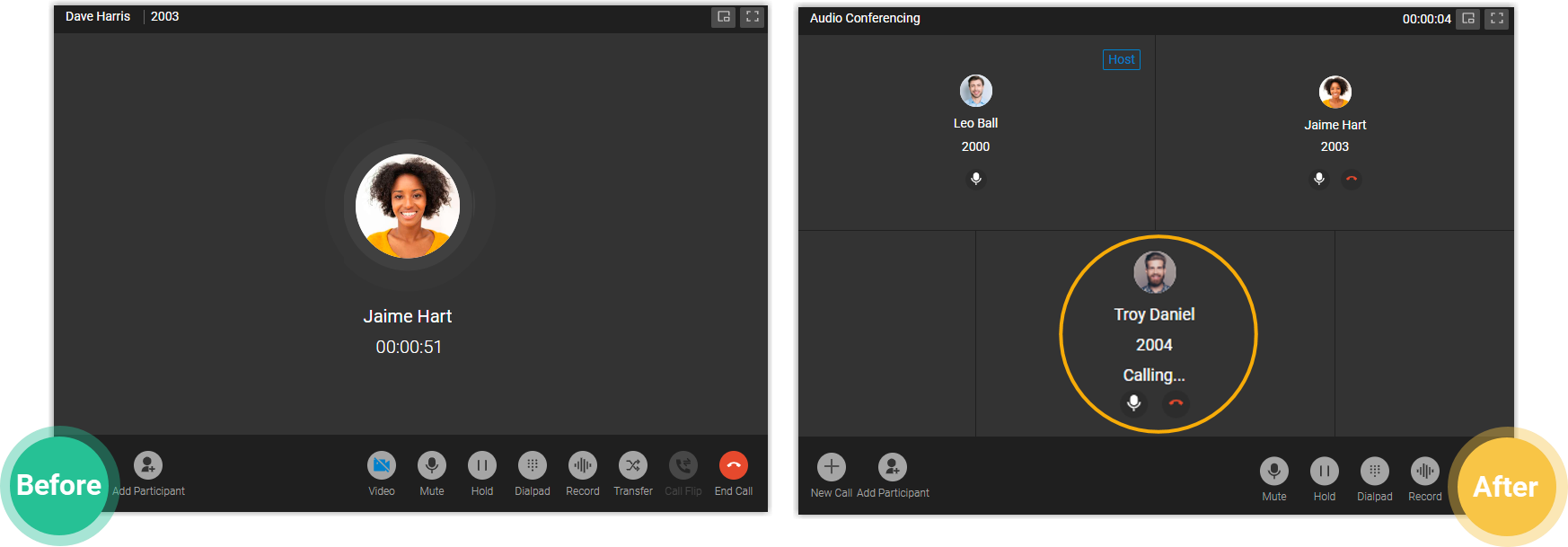
The call becomes an audio conference. Your existing conversation keeps going while the app places a call to the invitee.
-
Whoever sends the first invitation becomes the conference Host and can manage the conference. See Control an In-progress Audio Conference for details.

Question about this page?
Ask the AI assistant. It starts from this page, then searches the rest of the docs.
Ask Cloud Voice AI
Answers are AI-generated from the docs and may contain mistakes. Verify with the linked pages.