
Park a Call
Parking puts a call on hold at a numbered slot instead of on a single device, so you or anyone on your team can retrieve it elsewhere. During any active call, open the call window controls and park the call on a slot the system assigns for you or on one you choose.
How parked calls behave
Section titled “How parked calls behave”When you park a call, it stays on the parking number for a limited time, 60 seconds by default. If no one retrieves it before that window closes, the call returns to whoever parked it or moves on to a fallback destination, such as another number or a voicemail box.
There are two ways to park:
- System Park: Let Cloud Voice assign an available parking number automatically. Use this when you want to switch devices mid-call or hand a call to whoever is free. Once it’s parked, dial the assigned number from another device, or pass it to a teammate for a fast handoff.
- Selected Park Number: Park onto a specific number that a team or person already owns. If a department shares a dedicated parking slot, drop the call there directly. For example, hand a caller to Sales by parking on the Sales slot, and anyone in that department can pick it up and keep the conversation going.
Park on a system-assigned number
Section titled “Park on a system-assigned number”Use this when you don’t care which slot the call lands on, only that it’s easy to retrieve from somewhere else.
Before you start: Your administrator must have enabled the Call Parking feature code on the Cloud Voice server.
Example: You take a call in a shared area but need to move to a conference room. Park the call, walk over, and dial the parking number on the room’s IP phone to continue.
To park the call, on the active call window select More > Park, then choose System Park.
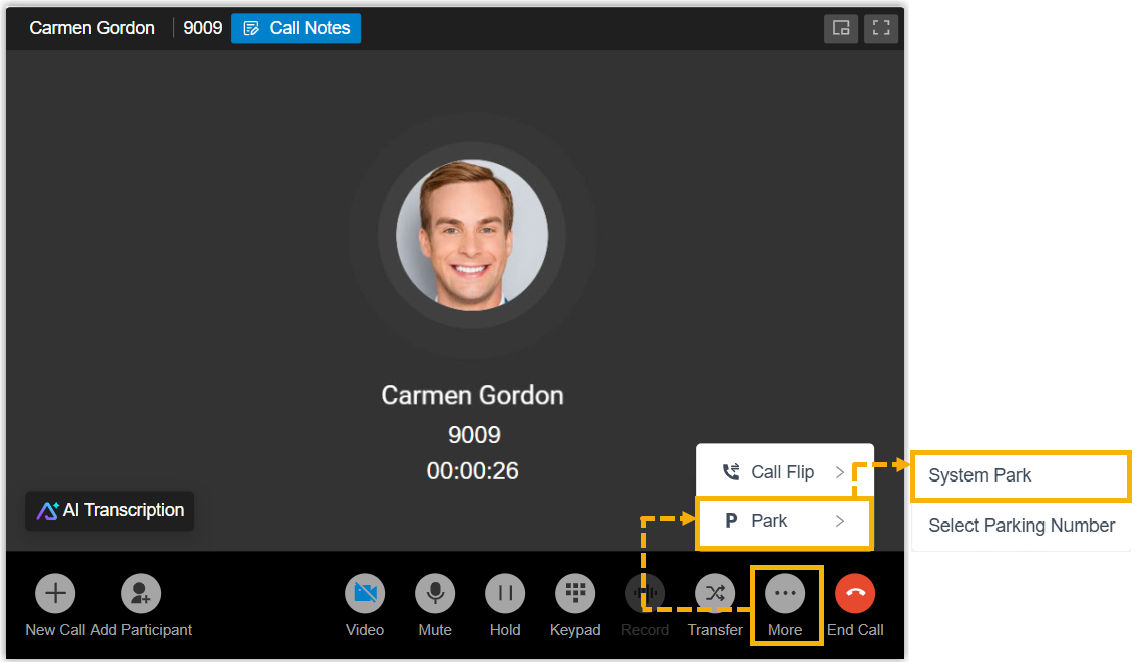
What happens next:
- Cloud Voice parks the call on an available number and shows a toast confirming where, for example “The call has been parked at 6000.”
- To retrieve it, dial that parking number from any device registered to a Cloud Voice extension, such as the phone in the conference room.
Park on a specific number
Section titled “Park on a specific number”Use this when a particular team or person has a known parking number you want the call routed to.
Before you start: Your administrator must have enabled the Directed Call Parking feature code on the Cloud Voice server.
Example: Each department keeps its own parking number, say 6004 for Sales. When a caller needs Sales, park the call on 6004 so any salesperson can grab it and help right away.
-
On the active call window, select More > Park, then choose Selected Park Number.
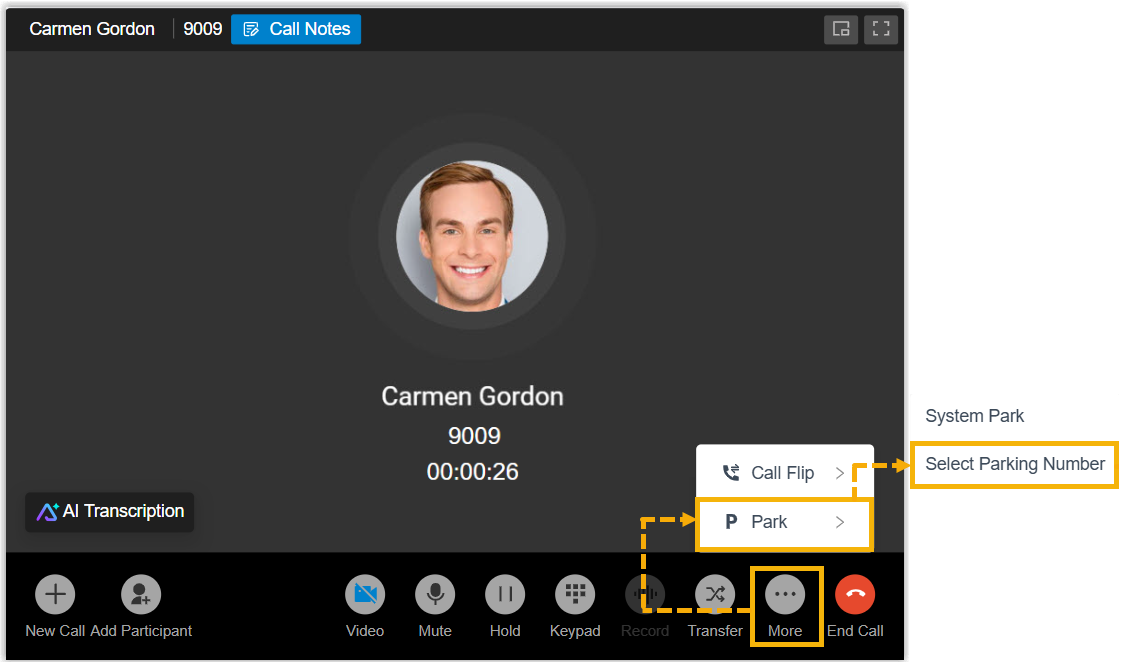
The call goes on hold and the currently available parking numbers appear in the right panel.
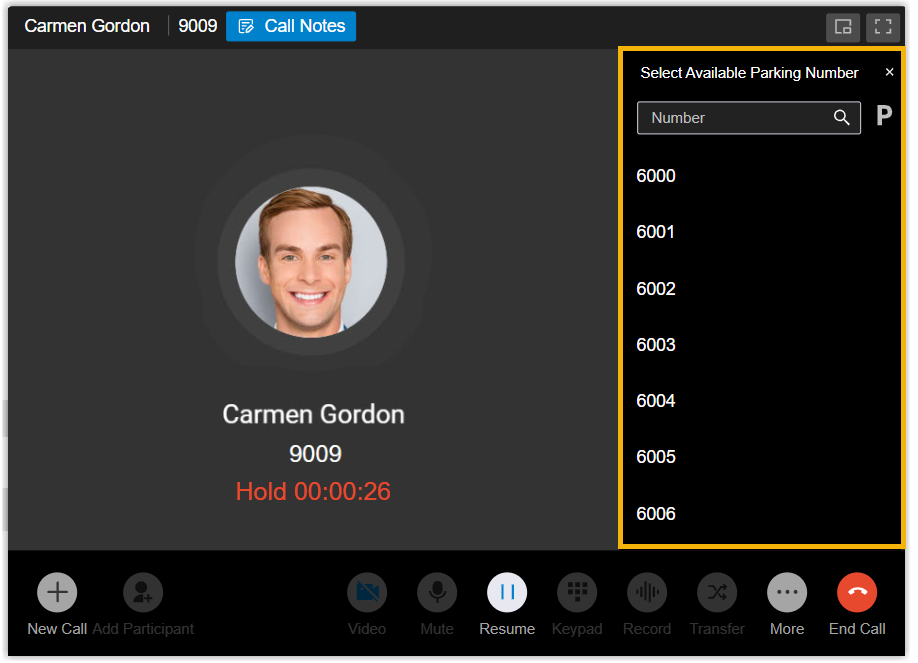
-
Pick the parking number in the right panel, either way works:
-
Browse or filter the list and select the number you want.
-
Type the number in the search bar, then click the park icon
 next to it.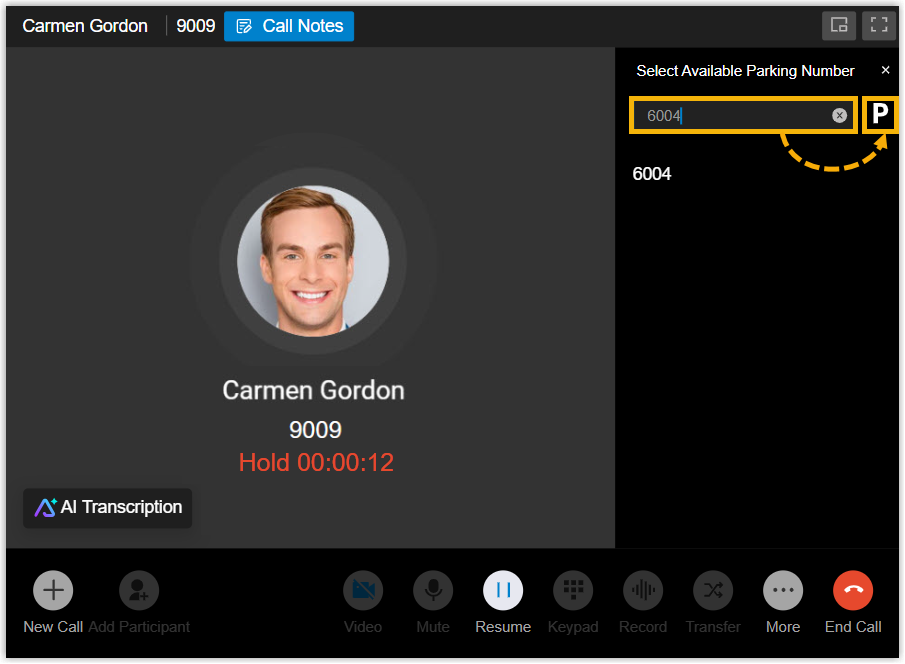
-
What happens next:
- The call is parked on the number you chose, and a toast confirms it, for example “The call has been parked at 6004.”
- Anyone on the receiving team retrieves the call by dialing the parking number or by pressing the Park & Retrieve function key set up on their device.
Question about this page?
Ask the AI assistant. It starts from this page, then searches the rest of the docs.
Ask Cloud Voice AI
Answers are AI-generated from the docs and may contain mistakes. Verify with the linked pages.