
Add a Tool via File Upload
Rather than building a tool field by field, you can supply its entire configuration as a JSON (JavaScript Object Notation) file and let Cloud Voice create the tool from it. This is the fastest way to reuse a tool you already have or to bring in one of the ready-made examples.
Before you begin
Section titled “Before you begin”Have a JSON file ready that holds the full configuration of the tool you want to create. Keep the following in mind:
- The file cannot be larger than 1 MB.
- There are two easy ways to get a valid file:
- Export an existing tool from your system and reuse its file.
- Take the configuration from one of the demo tools and save it with a
.jsonextension, or download the demo file directly.
- Every upload is checked automatically. Confirm the file is well-formed and that the tool name does not already exist, or the upload will be rejected.
Upload the file
Section titled “Upload the file”-
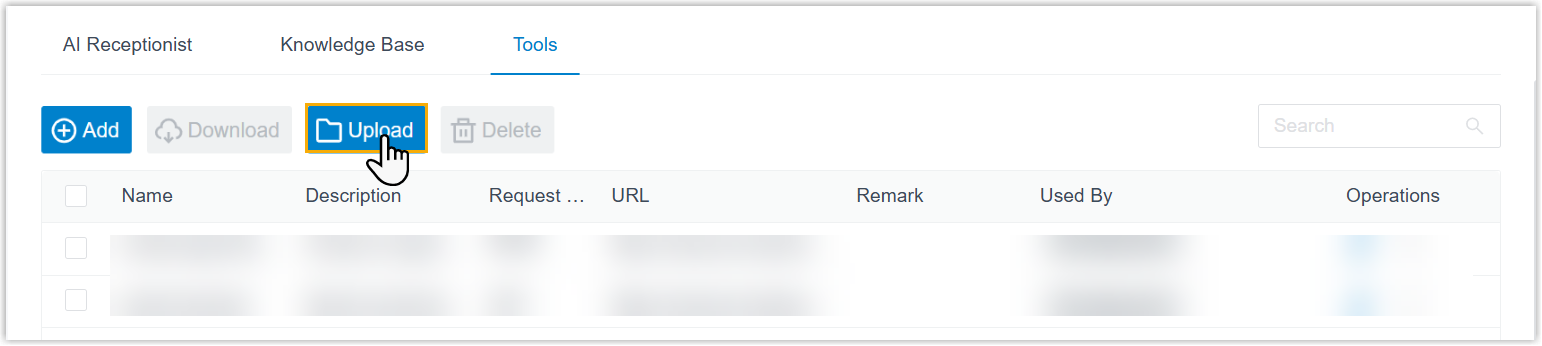
Sign in to the PBX (Private Branch Exchange) web portal and go to AI > AI Receptionist > Tools.
-
Click Upload.
-
Choose the JSON file on your computer and click Open.
Result
Section titled “Result”Cloud Voice reads each file, builds the corresponding tool, and adds it to the Tools list. Once the upload succeeds, the new tools appear there ready to use.
Next steps
Section titled “Next steps”Put the tool to work: assign it to an AI receptionist, then try it out in a test conversation.
Question about this page?
Ask the AI assistant. It starts from this page, then searches the rest of the docs.
Ask Cloud Voice AI
Answers are AI-generated from the docs and may contain mistakes. Verify with the linked pages.