
Access AI Receptionist Call Activity Report
The AI Receptionist Call Activity report summarizes how your AI receptionists are performing: how many calls they answer, how those calls end, and how much talk time each outcome represents. This page walks through opening the report, tailoring what it shows, and reading each of its metrics.
Open the report
Section titled “Open the report”-
Sign in to the PBX (Private Branch Exchange, your phone system) web portal and go to Reports and Recordings > Call Reports.
-
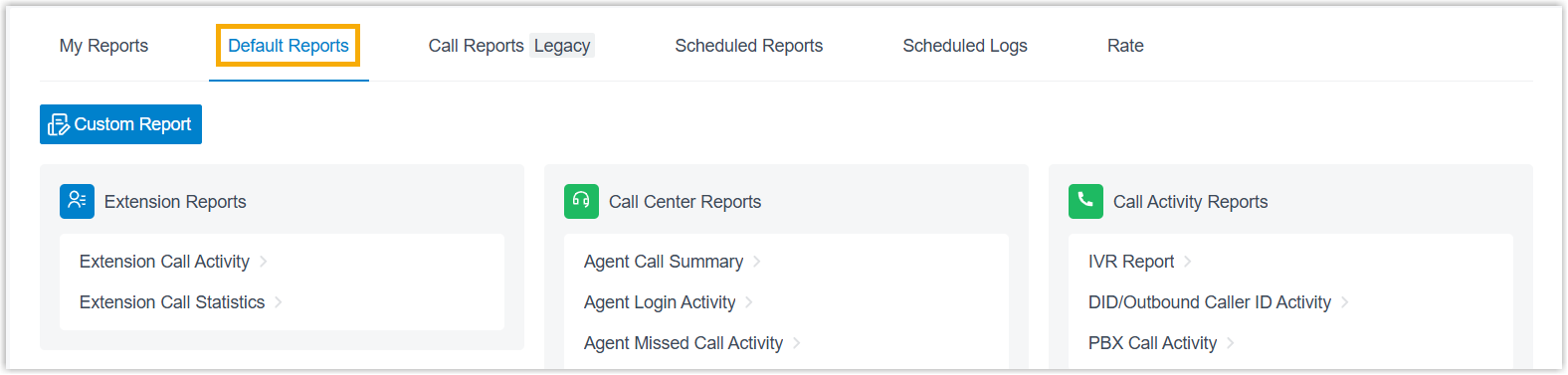
Open the Default Reports tab.
-
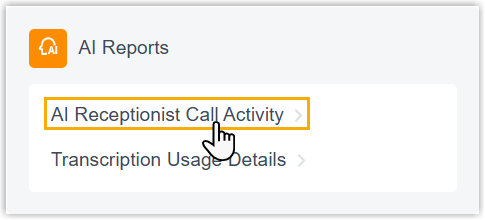
In the AI Reports pane, select AI Receptionist Call Activity.
-
Choose which calls the report covers.

a. Use the Time Range and Select Date fields to set the period you want to analyze.
b. From the Receptionist drop-down list, pick one or more AI receptionists to include.
The report refreshes to show the calls that match your filters.
Save, schedule, or download the report
Section titled “Save, schedule, or download the report”Once the report is generated, you can keep it handy, have it emailed on a recurring basis, or export a copy. These actions are all available at the bottom of the report page.
Add it to My Reports
Section titled “Add it to My Reports”To keep the report for quick access later:
- Click Add to My Reports.
- Give the report a name you’ll recognize, and adjust the filters or metrics if needed.
- Click Save.
Send it on a schedule
Section titled “Send it on a schedule”To have the report delivered by email automatically, click Add to Scheduled Reports, then complete the scheduled task settings.
Download a copy
Section titled “Download a copy”To export the report for offline review, use the download option. Before exporting, you can click the settings icon  to control how the file is produced, then save your choices:
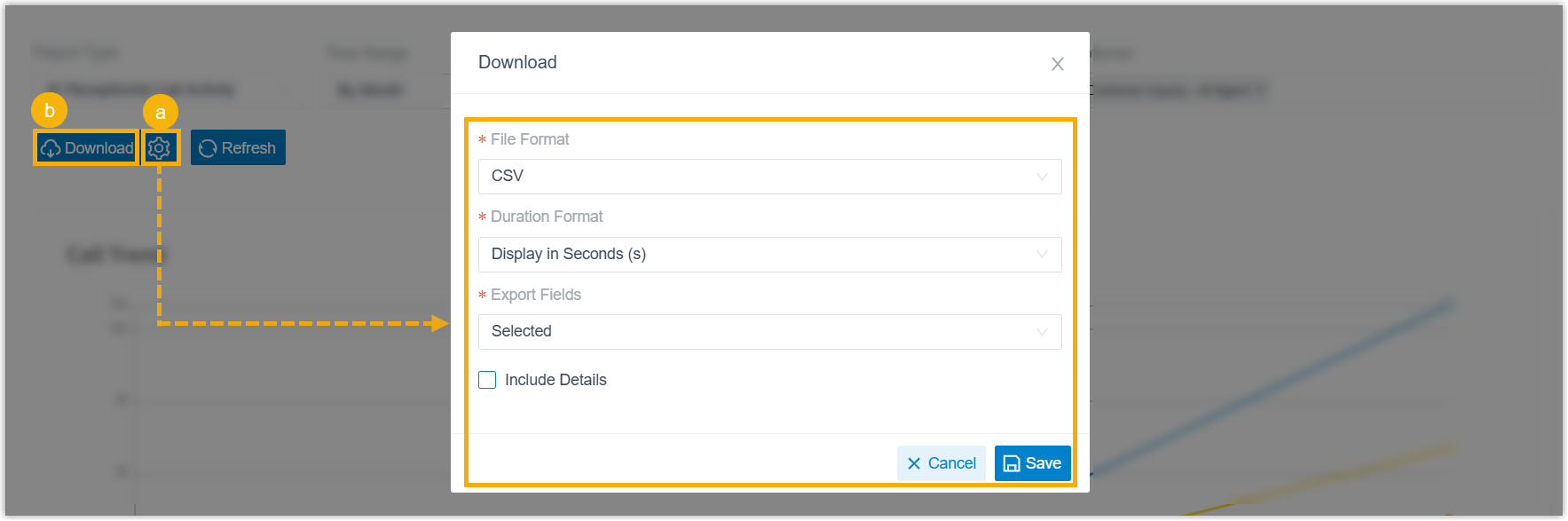
- File Format: the format of the exported file: CSV, XLS, HTML, or PDF.
- Duration Format: how every duration field is shown: Display in Second (s) or Display as HH:MM:SS.
- Export Fields: whether to include All fields or only the Selected ones.
- Include Details: whether to export the summary list only or add the per-call records. When you include details, choose how they appear: Download data as multiple files/sheets, or Details are displayed as indented, offset rows within the same list.
When the settings are set, click Download.
Understand the report
Section titled “Understand the report”Every call an AI receptionist handles falls into one of three processing results, and most of the report’s metrics are broken out along these lines:
- Resolved: the AI receptionist handled the caller’s request on its own, without transferring the call.
- Transferred: the AI receptionist passed the caller to another destination.
- Unresolved: the AI receptionist neither handled the request nor transferred the call.
Visual analytics
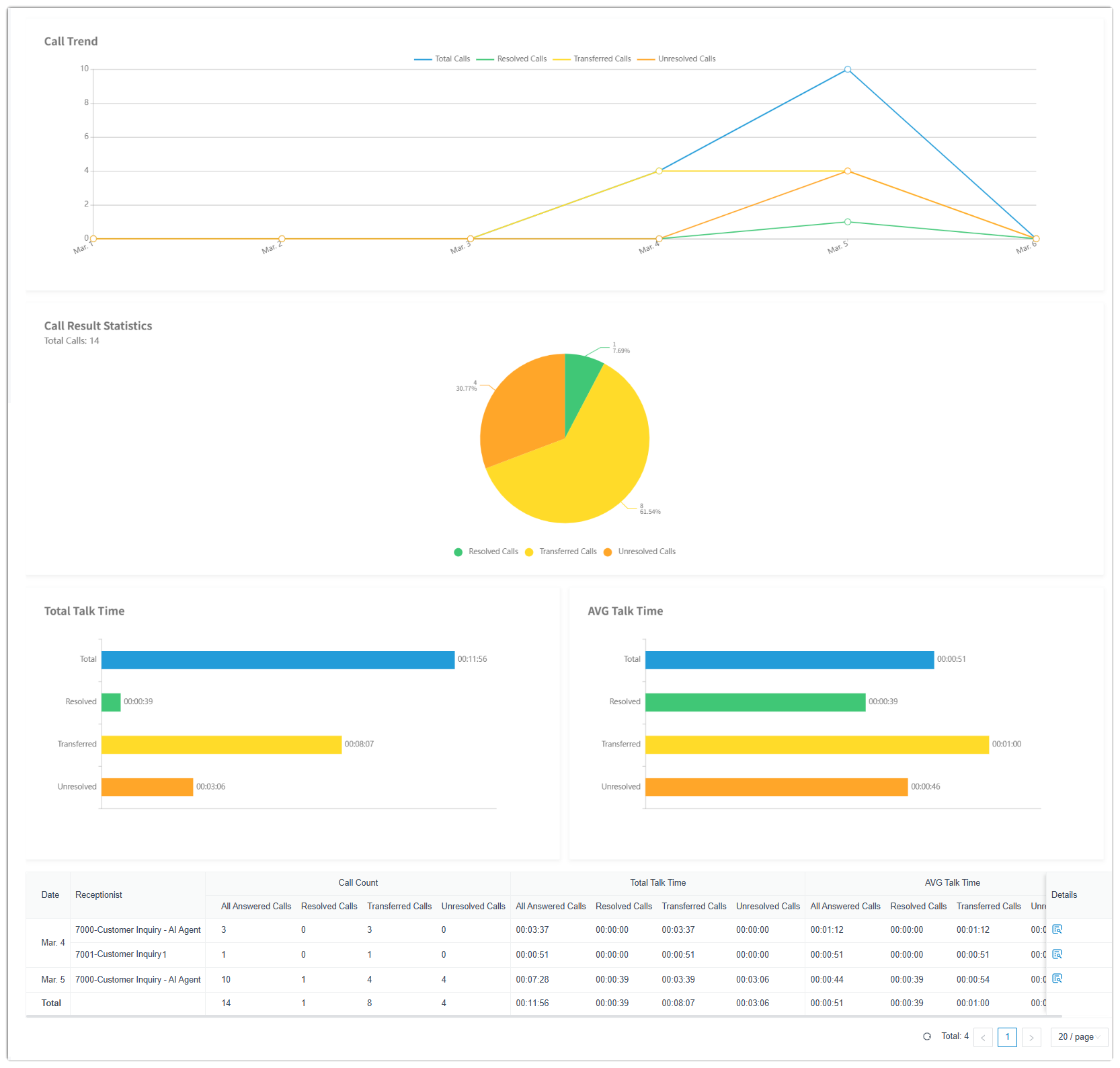
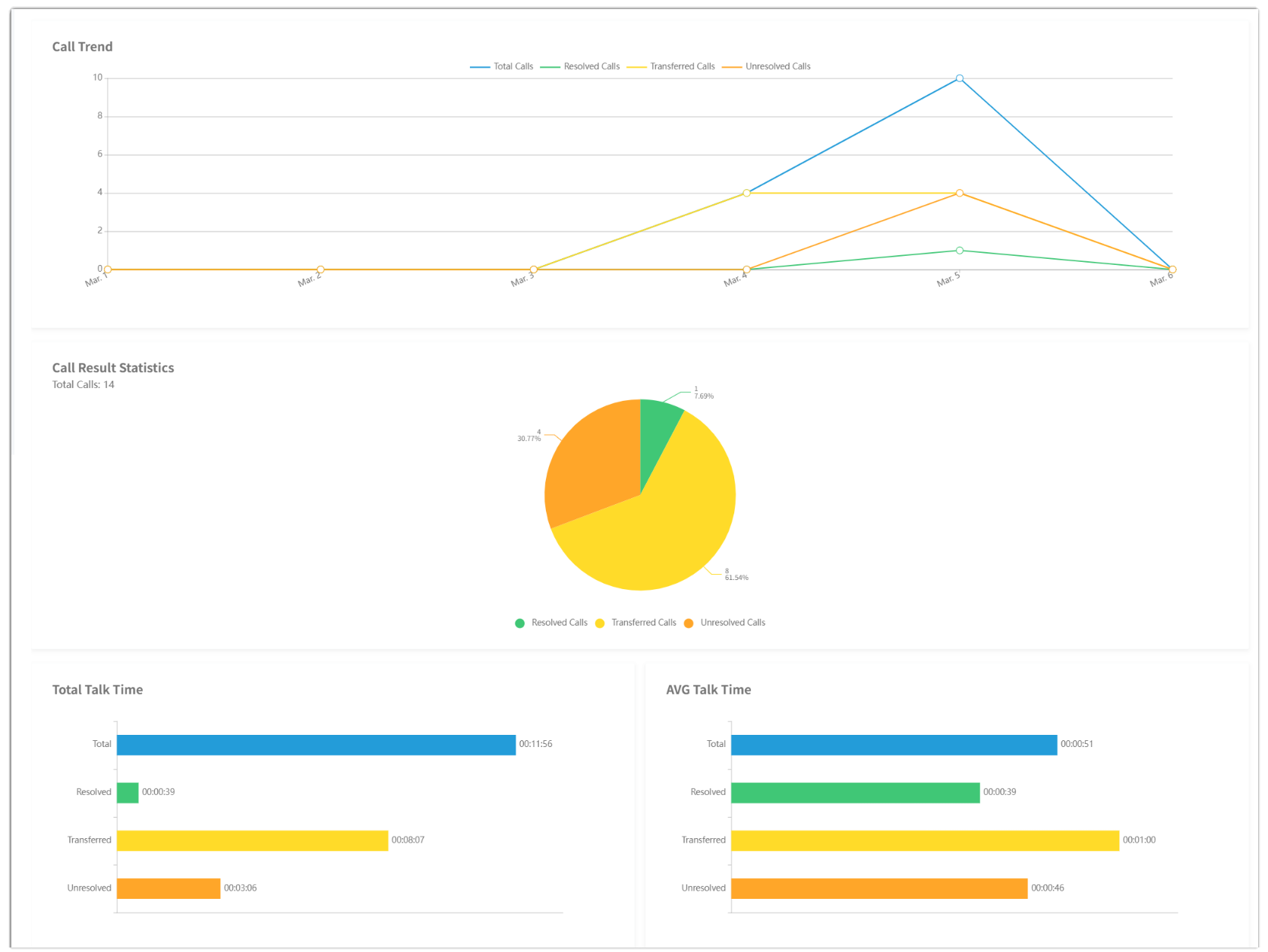
Section titled “Visual analytics”The charts across the top of the report plot call trends and the mix of outcomes over the period you selected, giving you an at-a-glance view before you dig into the numbers.
Call statistics
Section titled “Call statistics”The statistics section groups its figures into call counts and talk-time totals and averages.

| Metric | Description |
|---|---|
| Call Count | |
| All Answered Calls | Total calls the AI receptionist answered. |
| Resolved Calls | Total calls that were resolved. |
| Transferred Calls | Total calls that were transferred. |
| Unresolved Calls | Total calls that went unresolved. |
| Total Talk Time | |
| All Answered Calls | Combined time the AI receptionist spent talking to callers across all answered calls. |
| Resolved Calls | Combined talk time across resolved calls. |
| Transferred Calls | Combined talk time across transferred calls. |
| Unresolved Calls | Combined talk time across unresolved calls. |
| AVG Talk Time | |
| All Answered Calls | Average talk time per answered call. |
| Resolved Calls | Average talk time per resolved call. |
| Transferred Calls | Average talk time per transferred call. |
| Unresolved Calls | Average talk time per unresolved call. |
Call details
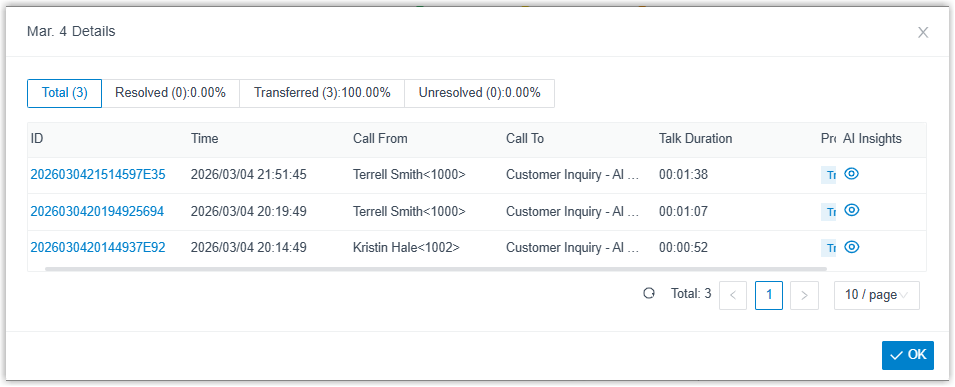
Section titled “Call details”The details section lists each individual call the AI receptionist handled.
| Metric | Description |
|---|---|
| ID | A unique identifier for the call. Click the ID to open the matching Call Detail Record (CDR), the log entry with the full technical detail of that call. |
| Time | When the call came in. |
| Call From | The caller’s name and number. |
| Call To | The name and number of the AI receptionist that answered. |
| Talk Duration | The elapsed time between the call being answered and ending. |
| Processing Result | How the call was handled: Resolved, Transferred, or Unresolved. |
| AI Insights | The AI transcript and summary of the call. Click the eye icon  to read them. to read them. |
Question about this page?
Ask the AI assistant. It starts from this page, then searches the rest of the docs.
Ask Cloud Voice AI
Answers are AI-generated from the docs and may contain mistakes. Verify with the linked pages.