
Receive Inbound Calls through the Extended E1/T1/PRI Trunk
Once your Cloud Voice TE100 gateway is linked to Cloud Voice, incoming calls arriving on the extended E1/T1/PRI trunk still need somewhere to go. An E1, T1, or PRI trunk is a digital phone line from your carrier that carries many voice channels at once (E1 carries 30 channels, T1 carries up to 23, and PRI, short for Primary Rate Interface, is the ISDN signaling that runs over either). This page walks through the two inbound routes that carry those calls from the gateway into Cloud Voice and on to the correct extension.
Scenario
Section titled “Scenario”Suppose your E1 provider has assigned you two Direct Inward Dialing (DID) numbers, 505525301 and 505525302. A DID is a public phone number that routes straight to a specific internal extension. You want each one to reach a dedicated extension: 505525301 to extension 2001, and 505525302 to extension 2002. With the routes in place, a caller who dials a DID number lands directly on the matching extension.
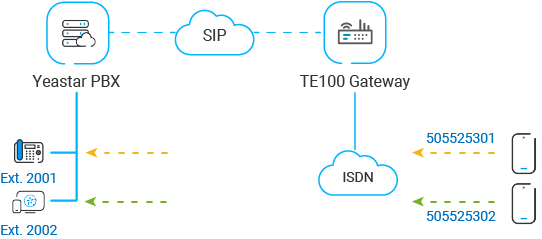
You will build this in three parts: an inbound route on the gateway, a matching inbound route on Cloud Voice, and a test call to confirm the path works.
Step 1: Add an inbound route on the TE100 gateway
Section titled “Step 1: Add an inbound route on the TE100 gateway”Start on the gateway, where you tell it to forward calls arriving on the E1/T1/PRI trunk over to Cloud Voice.
-
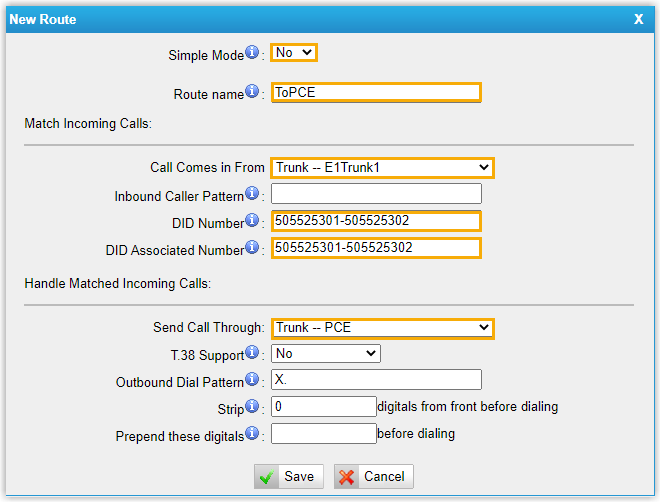
Sign in to the gateway web interface and go to Gateway > Route Settings > Route List, then click Add New Route.
-
Fill in the route in the dialog that appears:
- Simple Mode: Choose No. Simple Mode hides the DID matching fields, and you need those fields to map the DID numbers, so leave it off.
- Route Name: Give the route a recognizable name.
- Call Comes in From: Pick the E1/T1/PRI trunk that receives the calls. This example uses Trunk—E1Trunk1.
- DID Number: The number the gateway matches against incoming calls. Enter
505525301-505525302here. - DID Associated Number: Set this to the same range,
505525301-505525302in this example. - Send Call Through: Select the SIP trunk that connects to Cloud Voice. This example uses Trunk - PCE.
-
Click Save, then Apply Changes.
Step 2: Add an inbound route on Cloud Voice
Section titled “Step 2: Add an inbound route on Cloud Voice”Next, create a matching route in Cloud Voice so the system accepts the calls handed off by the gateway.
- Sign in to the Cloud Voice portal and go to Call Control > Inbound Route, then click Add.
- Configure the following, and leave everything else at its default value:
-
Name: Enter a name that identifies the route.
-
DID Pattern:
-
DID Matching Mode: Select Match DID Range to Extension Range.
-
DID Range: Enter the first and last numbers of the range. In this example, enter
505525301and505525302.
-
-
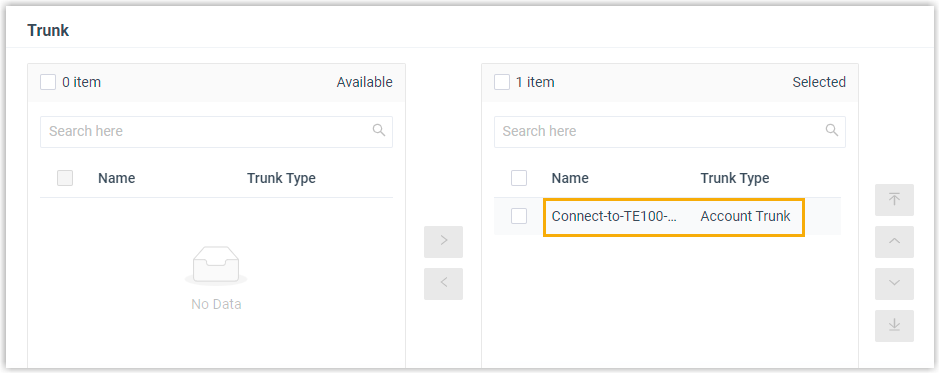
Trunk: Choose the SIP trunk that connects to the TE100 gateway. This example uses Connect-to-TE100-Gateway.
-
Default Destination: Select Match Extension Range and enter the range
2001-2002.
-
- Click Save, then Apply.
Step 3: Place a test call
Section titled “Step 3: Place a test call”Confirm the routing end to end. For example, call 505525301, extension 2001 should ring.
Question about this page?
Ask the AI assistant. It starts from this page, then searches the rest of the docs.
Ask Cloud Voice AI
Answers are AI-generated from the docs and may contain mistakes. Verify with the linked pages.