
Disable Microsoft Entra ID Integration
When you need to pause directory synchronization, for example while a fix or an investigation is underway, you can suspend the Microsoft Entra ID (Azure Active Directory) integration rather than removing it. Disabling keeps every setting you have already configured, so you can turn the integration back on later without rebuilding it.
Entra ID is Microsoft’s cloud directory service (its older name was Azure Active Directory). When the integration is connected, your PBX (Private Branch Exchange, the phone system) keeps its extensions and extension groups in sync with the users and groups in that directory.
Suspend the integration
Section titled “Suspend the integration”-
Sign in to the Cloud Voice management portal and open Integrations > Collaboration.
-
At the top of the integration page, switch the toggle off.
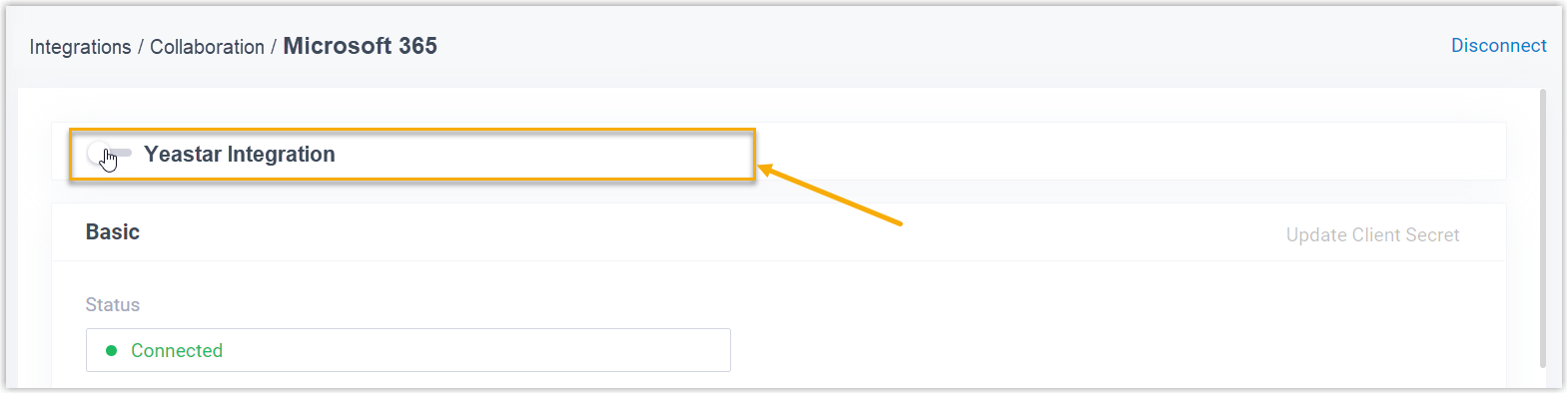
-
Click Save.
-
In the confirmation dialog, choose how synced data should be handled, then click Confirm.
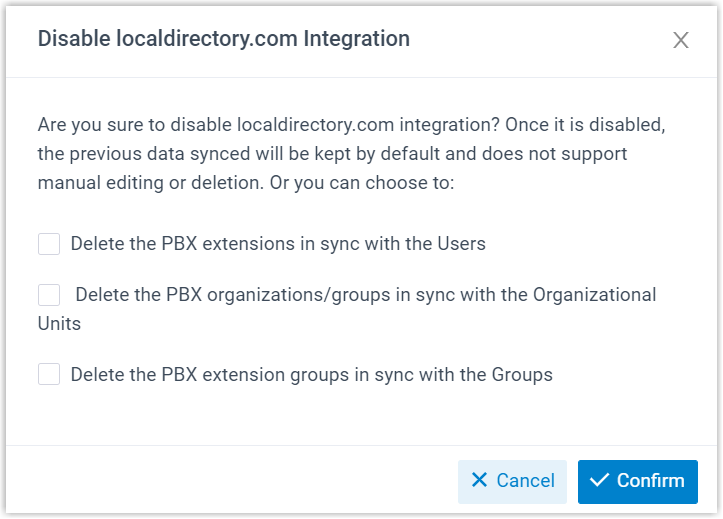
Option What it does Delete the PBX extensions in sync with the Users Select it to remove the extensions that were created from synced users. Leave it cleared to keep those extensions, but note that you will no longer be able to edit their user details or delete them. Delete the PBX extension groups in sync with the Groups Select it to remove the extension groups that were created from synced groups. Leave it cleared to keep those groups, but note that you will no longer be able to rename them, change their members, or delete them.
Result
Section titled “Result”-
The Status field shows Disable, confirming that the whole integration is suspended.

-
Your integration settings are preserved but become read-only until you re-enable it.
-
Synced users can no longer sign in to the Cloud Voice App with their Microsoft accounts while the integration is off.
Question about this page?
Ask the AI assistant. It starts from this page, then searches the rest of the docs.
Ask Cloud Voice AI
Answers are AI-generated from the docs and may contain mistakes. Verify with the linked pages.