
Set up Contact Synchronization from Zoho CRM
Once Zoho CRM (your Customer Relationship Management system) is connected to Cloud Voice, you can turn on automatic contact synchronization. This copies your Zoho CRM contacts into a dedicated Cloud Voice phonebook in a single direction, so incoming and outgoing calls can be matched to the right person without maintaining a separate address book.
Before you begin
Section titled “Before you begin”Finish connecting Cloud Voice to Zoho CRM. Synchronization is only available after the integration is in place.
Turn on contact synchronization
Section titled “Turn on contact synchronization”-
Sign in to the Cloud Voice management portal and open Integrations > CRM.
-
On the CRM integration page, enable Synchronize Contacts Automatically.
-
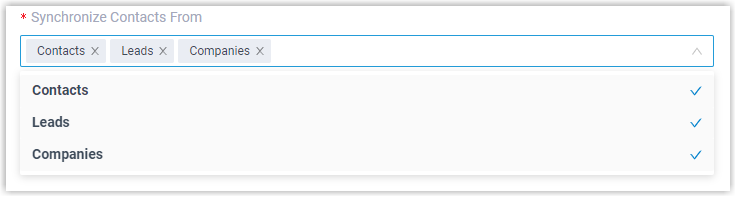
Open the Synchronize Contacts From drop-down and choose which Zoho CRM contact types you want to bring across.
-
Use the Synchronize to Phonebook drop-down to pick the destination. Select an existing empty phonebook, or create a new one to hold the contacts coming from Zoho CRM.

-
Set Always Query CRM to control whether Cloud Voice looks up contacts in the CRM in real time.

- Enabled: Cloud Voice queries the CRM live for contact details and lets the associated extension users search Zoho CRM contacts as they dial in the Cloud Voice App.
- Disabled: Cloud Voice only queries the CRM when no match is found in your company contacts.
-
Click Save.
What happens next
Section titled “What happens next”Go to Contacts > Phonebooks and you will see a CRM label on the phonebook you selected.


When someone receives an inbound call from one of the selected Zoho CRM contact types, or dials out to such a contact, Cloud Voice looks up the caller and copies the matched details from the CRM into the linked phonebook automatically.
If your existing Zoho CRM contacts do not appear after saving, review the CRM integration troubleshooting steps for why a sync can fail.
Question about this page?
Ask the AI assistant. It starts from this page, then searches the rest of the docs.
Ask Cloud Voice AI
Answers are AI-generated from the docs and may contain mistakes. Verify with the linked pages.