
Set up Chat Journal to Zendesk
Chat Journal writes the complete transcript of an external messaging conversation back to Zendesk once the session closes, so agents keep every exchange with a contact on file for follow-up and reporting. This page shows you how to enable it and choose how each synced record is labeled.
Before you start
Section titled “Before you start”Your Cloud Voice system must be running firmware 84.23.0.83 or later.
You also need the following in place:
- Cloud Voice is integrated with Zendesk.
- At least one messaging channel is set up on the system.
- A Zendesk user whose extension lives on Cloud Voice has already opened an external chat session with a Zendesk contact through a messaging channel in the Cloud Voice App.
Enable Chat Journal
Section titled “Enable Chat Journal”-
Sign in to the system management portal and open Integrations > Helpdesk.
-
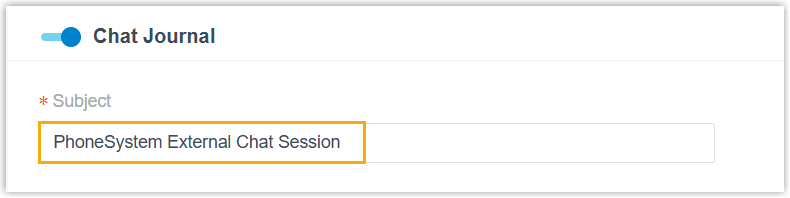
On the Helpdesk integration page, switch Chat Journal on.
-
In the Subject field, enter the title you want each synced record to carry. You can build the subject from variables so it reflects details of the specific conversation.
-
Click Save.
What gets synced
Section titled “What gets synced”When an external chat session with a Zendesk contact closes, whether the user ends it or the system does, Cloud Voice copies the whole conversation to that contact’s details page in Zendesk.
Question about this page?
Ask the AI assistant. It starts from this page, then searches the rest of the docs.
Ask Cloud Voice AI
Answers are AI-generated from the docs and may contain mistakes. Verify with the linked pages.