
Manage Knowledge Base Contents
Once you have added content to a knowledge base, you can keep it tidy by renaming entries or removing the ones you no longer need. Both actions are done from the same place in the PBX (Private Branch Exchange) web portal.
Edit a content entry
Section titled “Edit a content entry”Editing lets you give an entry a clearer, more descriptive name so it is easier to recognize in the list.
-
Sign in to the PBX web portal and go to AI > AI Receptionist > Knowledge Base.
-
Find the entry you want to rename, click the
 icon beside it, and choose Edit.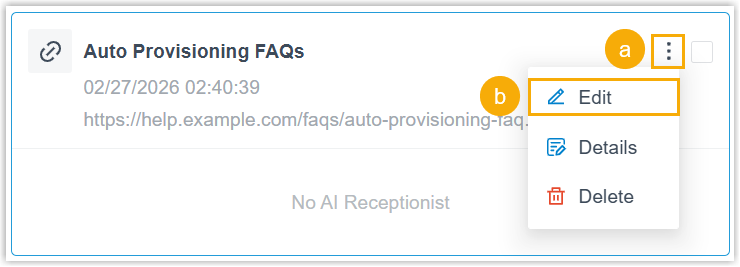
-
In the dialog that opens, type the new name and click Save.
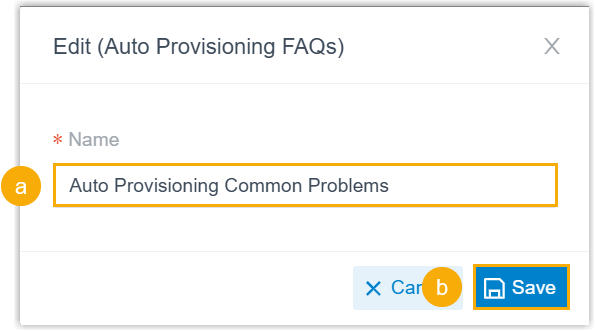
The entry name is updated right away.
Delete content entries
Section titled “Delete content entries”Remove entries that are outdated or no longer useful.
Sign in to the PBX web portal and go to AI > AI Receptionist > Knowledge Base, then use one of the methods below.
Delete a single entry
Section titled “Delete a single entry”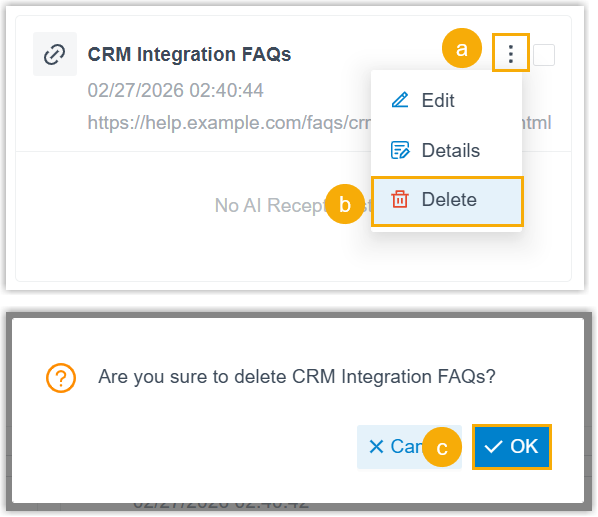
- Click the icon on the entry you want to remove.
- Select Delete from the drop-down.
- Click OK to confirm.
Delete several entries at once
Section titled “Delete several entries at once”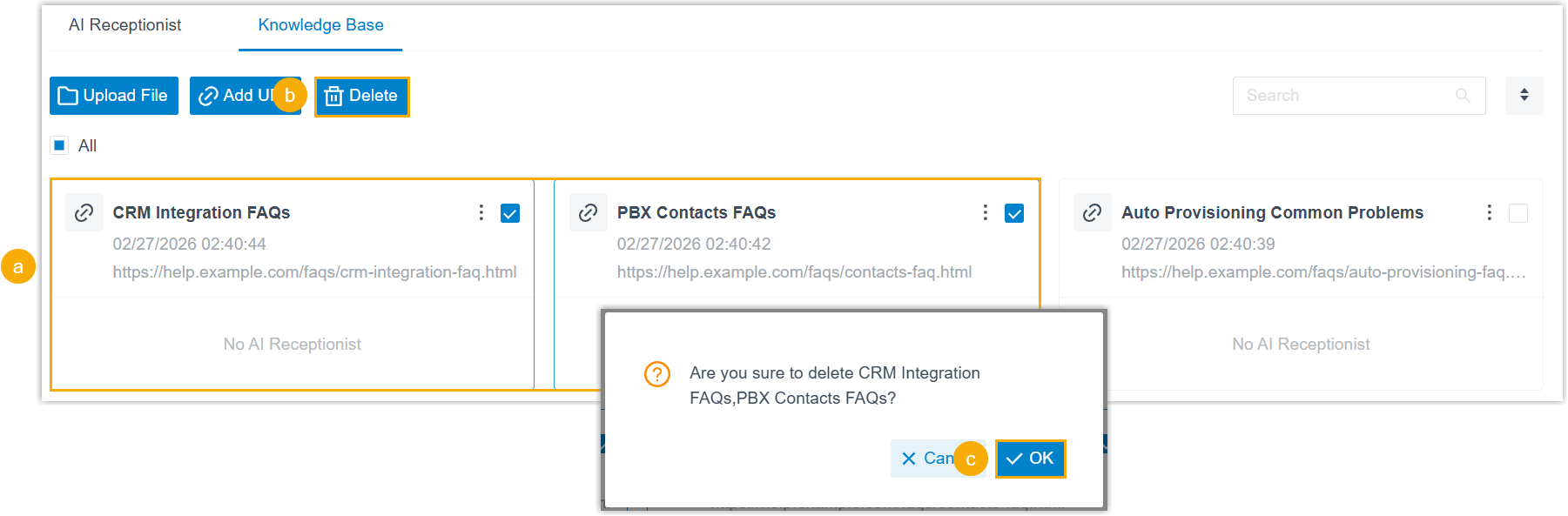
- Select the checkbox for each entry you want to remove.
- Click Delete at the top of the list.
- Click OK to confirm.
Delete every entry
Section titled “Delete every entry”Use this when you want to clear the whole list in one step. It removes every entry you are allowed to delete at once (entries still assigned to an AI receptionist stay in place).
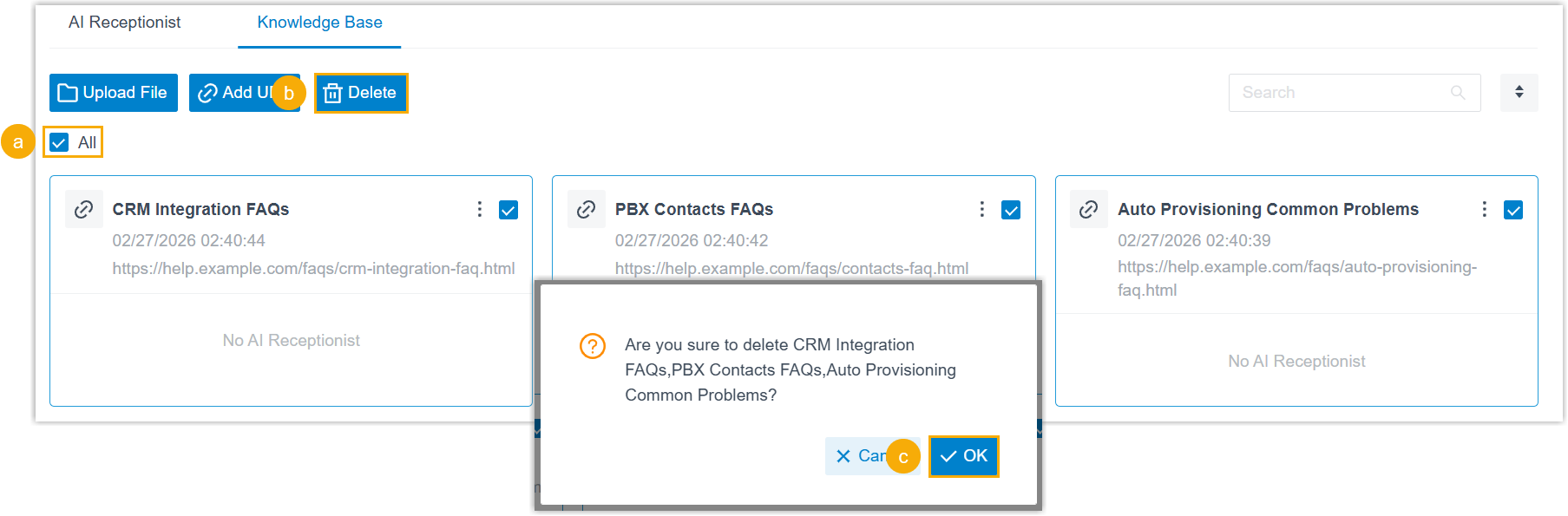
- Select the All checkbox to select every entry in the list.
- Click Delete at the top of the list.
- Click OK to confirm.
Question about this page?
Ask the AI assistant. It starts from this page, then searches the rest of the docs.
Ask Cloud Voice AI
Answers are AI-generated from the docs and may contain mistakes. Verify with the linked pages.