
Allow Users to Log in to the Cloud Voice App with Google SSO
Once your Google Workspace users have been synced into Cloud Voice, you can switch on Single Sign-on (SSO). With SSO enabled, those users sign in to the Cloud Voice App with their existing Google account rather than an extension username and password. This page covers enabling the feature and getting each app version ready.
Before you begin
Section titled “Before you begin”- You have connected Cloud Voice to Google Workspace.
- You have synced your Google Workspace users into Cloud Voice.
Turn on Single Sign-on
Section titled “Turn on Single Sign-on”-
Sign in to the phone system management portal and go to Integrations > Collaboration.
-
Find the Single Sign-on (SSO) section and switch it on.

The Client SSO Redirect URI field then shows the URL that users go through when signing in to the Cloud Voice App with their Google account.

-
Optional: Use the Login Method drop-down list to control how Google users are allowed to sign in.
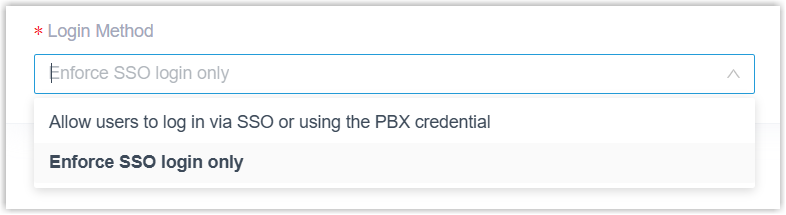
- Allow users to log in via SSO or using the PBX credential: Users can sign in either through Google SSO or with the username and password of their linked extension.
- Enforce SSO login only: Users can sign in through Google SSO only.
-
Click Save.
Synced users can now open the Cloud Voice App by signing in with their Google credentials.
Get each app ready
Section titled “Get each app ready”Let your users know how to sign in with Google on the app version they use. The steps differ slightly across mobile, desktop, and web.
Mobile app
Section titled “Mobile app”-
Update the Cloud Voice App to a supported release:
- iOS: version 5.21.3 or later
- Android: version 5.21.7 or later
-
In the SN/Domain field, enter the phone system address that is enabled for Google SSO.
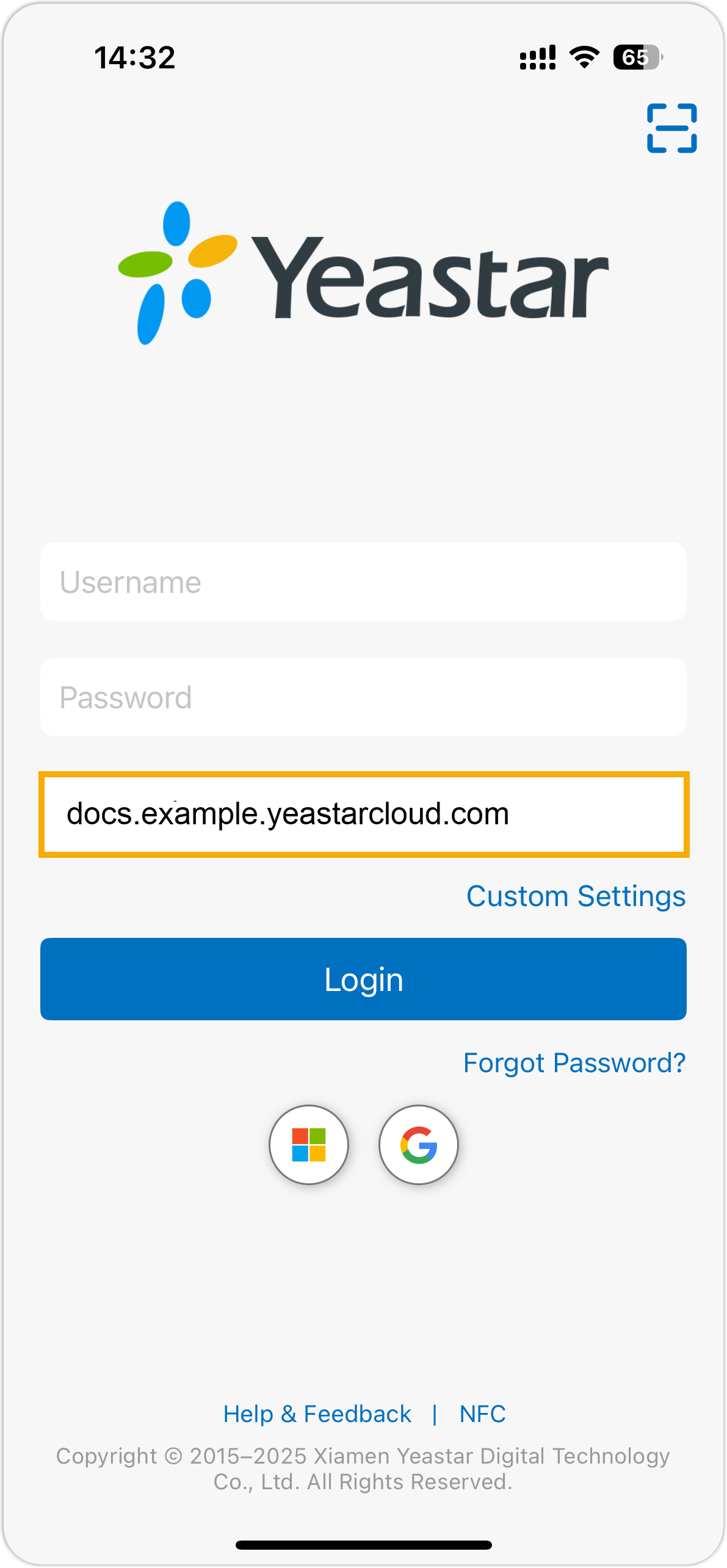
-
Tap the Google icon
 and sign in with your Google credentials.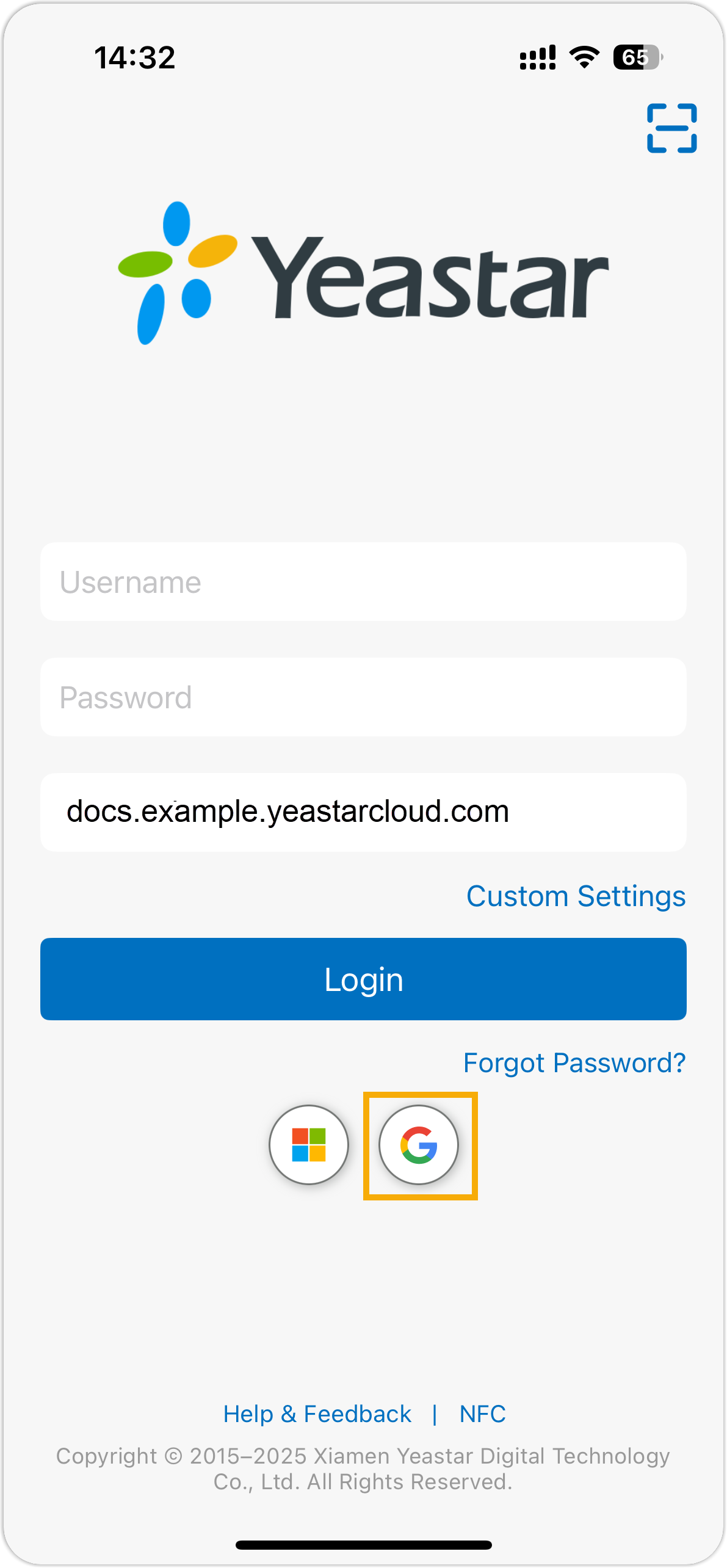
Desktop app
Section titled “Desktop app”-
Update the Cloud Voice App to version 1.18.5 or later.
-
In the Domain field, enter the phone system address that is enabled for Google SSO.
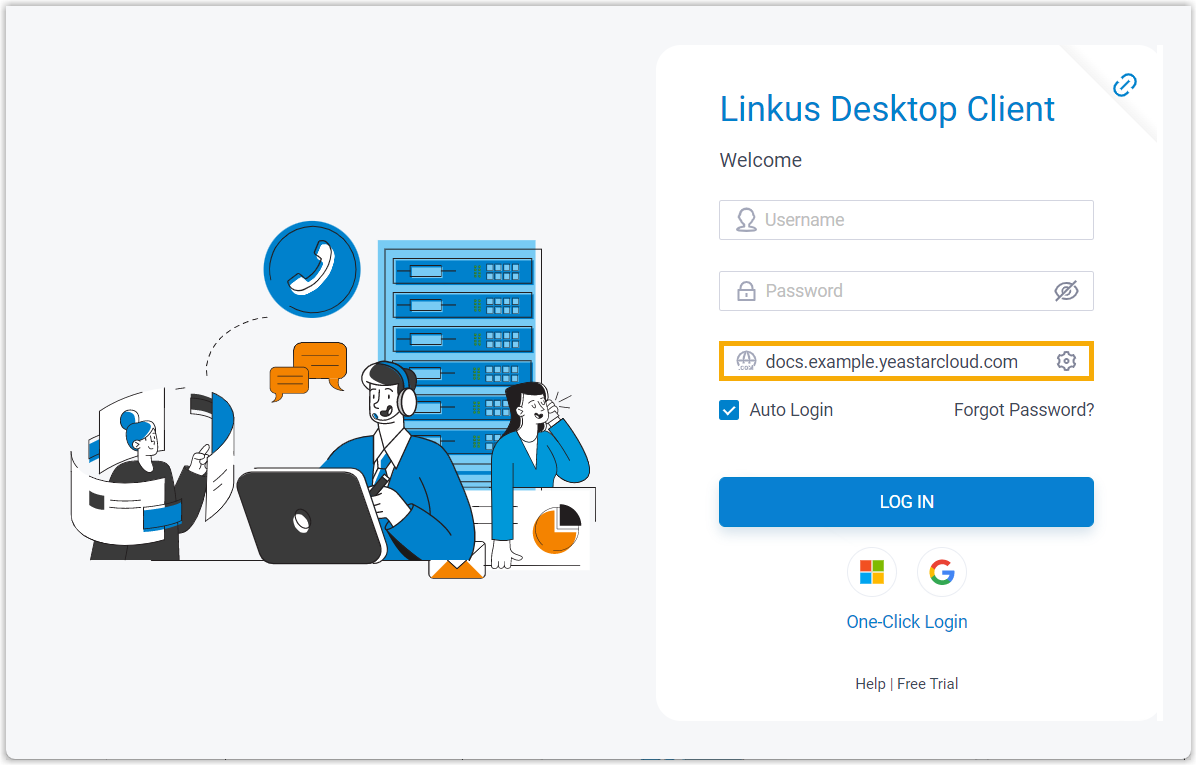
-
Click the Google icon
and sign in with your Google credentials.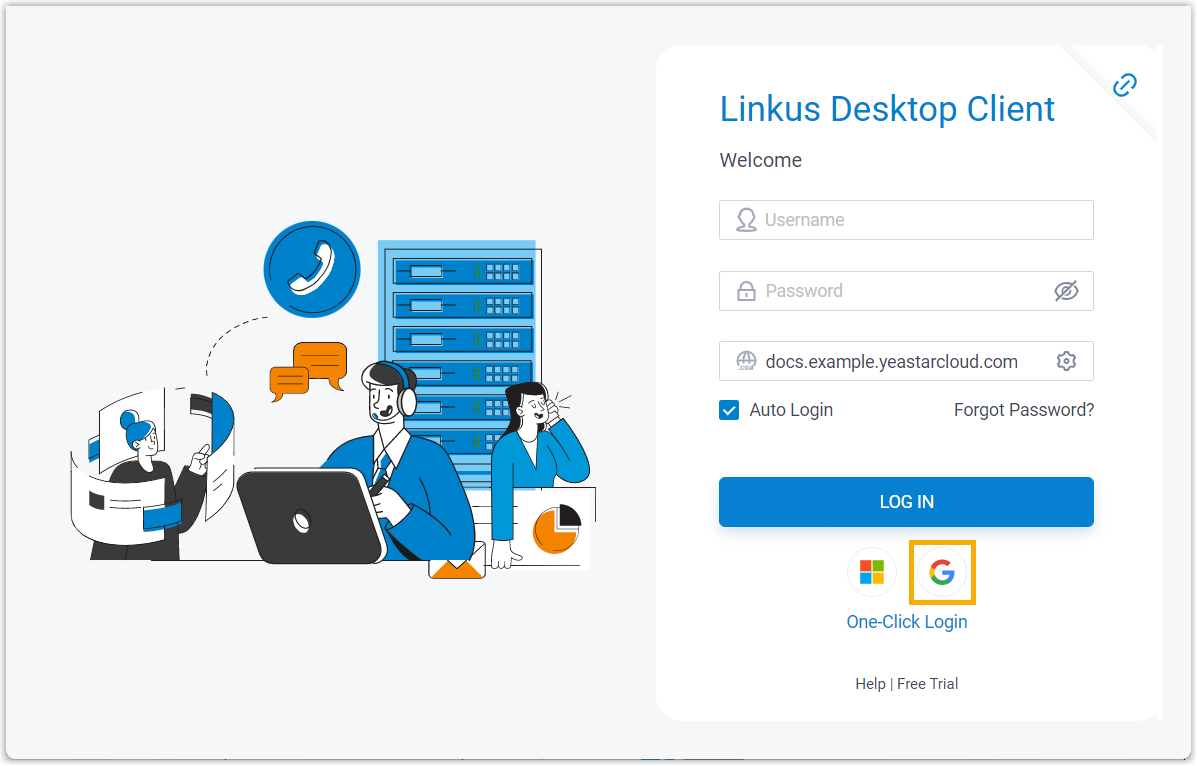
Web app
Section titled “Web app”-
Open the Cloud Voice App in your browser using the phone system address that is enabled for Google SSO.
-
Click the Google icon
and sign in with your Google credentials.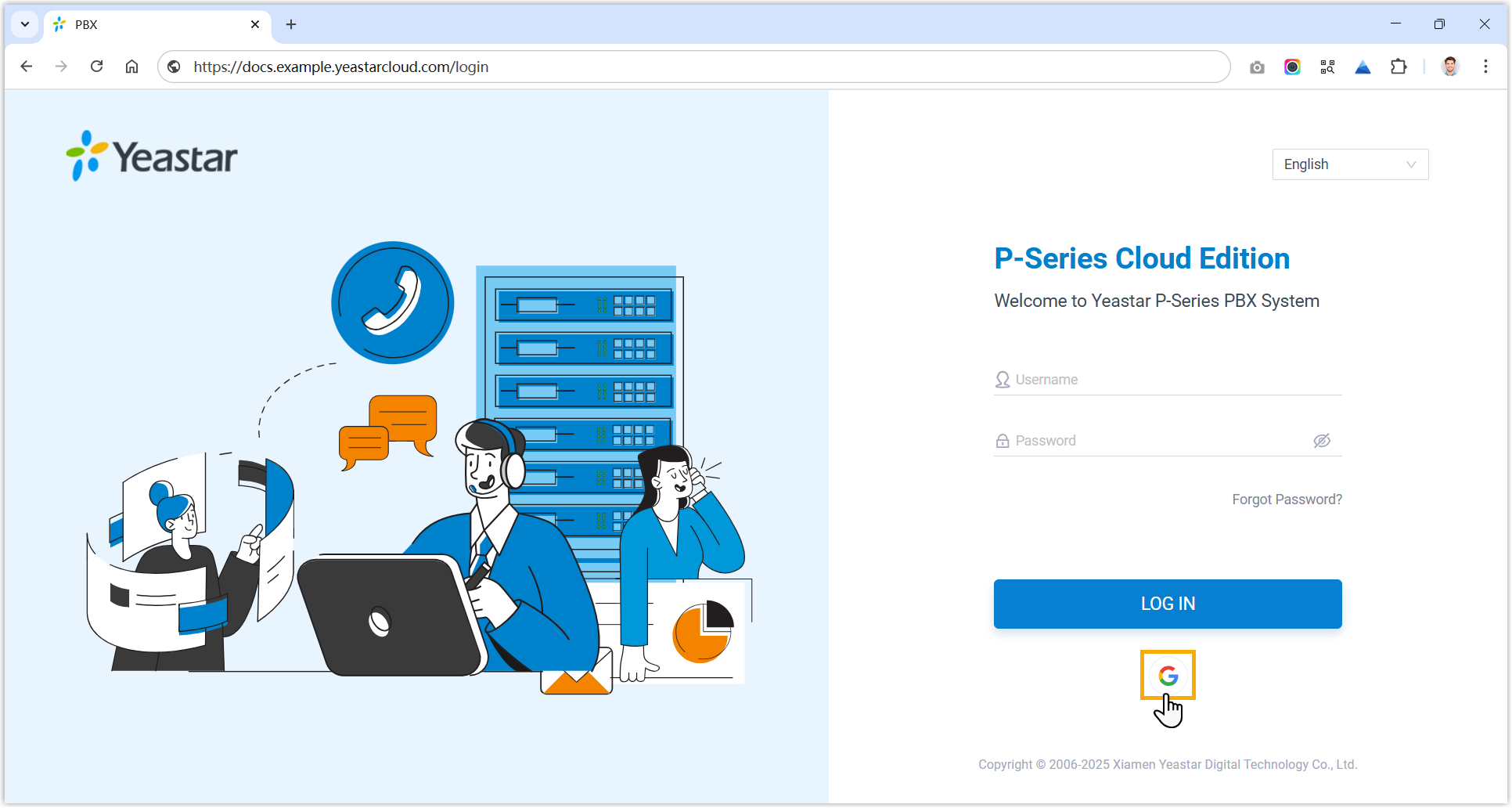
Question about this page?
Ask the AI assistant. It starts from this page, then searches the rest of the docs.
Ask Cloud Voice AI
Answers are AI-generated from the docs and may contain mistakes. Verify with the linked pages.