
Route Calls from Different Carriers to Different Destinations
When several 4G carriers connect to your phone system through a TG400 gateway, you can steer the calls that arrive on each carrier’s trunk to a different place inside Cloud Voice. This page uses a worked example to show how to keep two carriers separate and land their calls on two different extensions.
Scenario
Section titled “Scenario”The steps below follow this setup. Each carrier has its own 4G trunk on the gateway, and each trunk should reach a specific extension.
| Carrier | 4G trunk | Destination |
|---|---|---|
| Carrier A | Trunk 1: 9218273 | Extension 2000 |
| Carrier B | Trunk 2: 1019238 | Extension 2001 |
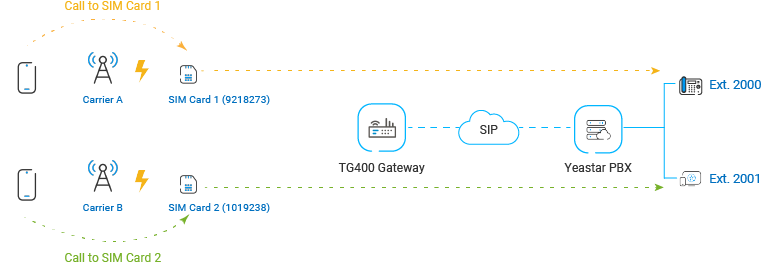
The configuration has three parts:
- Add a Mobile to IP route on the gateway for each carrier.
- Add an inbound route in Cloud Voice for each carrier.
- Place test calls to confirm the routing.
Step 1. Add two Mobile to IP routes on the gateway
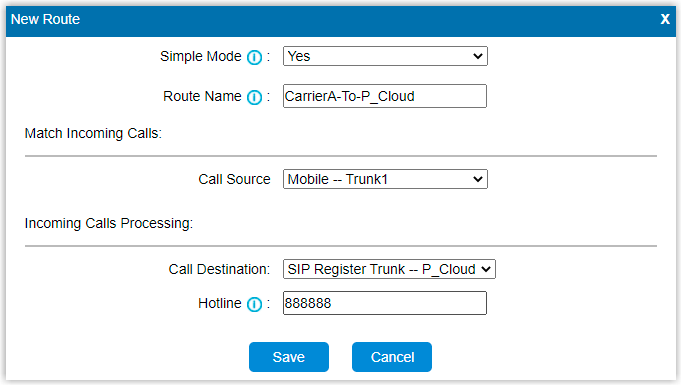
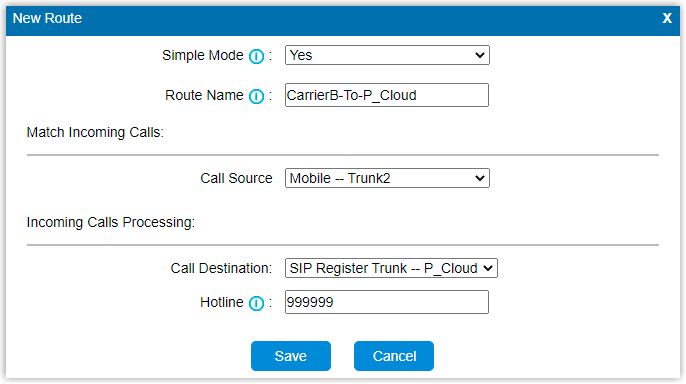
Section titled “Step 1. Add two Mobile to IP routes on the gateway”Create one Mobile to IP route for carrier A and another for carrier B so that incoming calls are forwarded to Cloud Voice.
- Sign in to the gateway’s web interface and go to Gateway > Route Settings > Mobile to IP, then click Add Mobile to IP Route.
- Complete the route in the dialog, then click Save followed by Apply Changes.
Use these values for each carrier:
| Setting | What it does | Carrier A | Carrier B |
|---|---|---|---|
| Simple Mode | Keep the basic fields, or expand to reveal advanced options. | Yes | Yes |
| Route Name | A label that helps you recognize the route. | CarrierA-To-CloudVoice | CarrierB-To-CloudVoice |
| Call Source | The trunk the call arrives on. | Mobile — Trunk 1 | Mobile — Trunk 2 |
| Call Destination | The SIP (Session Initiation Protocol) trunk that links the gateway to Cloud Voice. | SIP Register Trunk - CloudVoice | SIP Register Trunk - CloudVoice |
| Hotline | A hotline number that skips two-stage dialing, so the caller reaches Cloud Voice directly instead of hearing a second dial tone and having to dial again. | 888888 | 999999 |
Step 2. Add two inbound routes in Cloud Voice
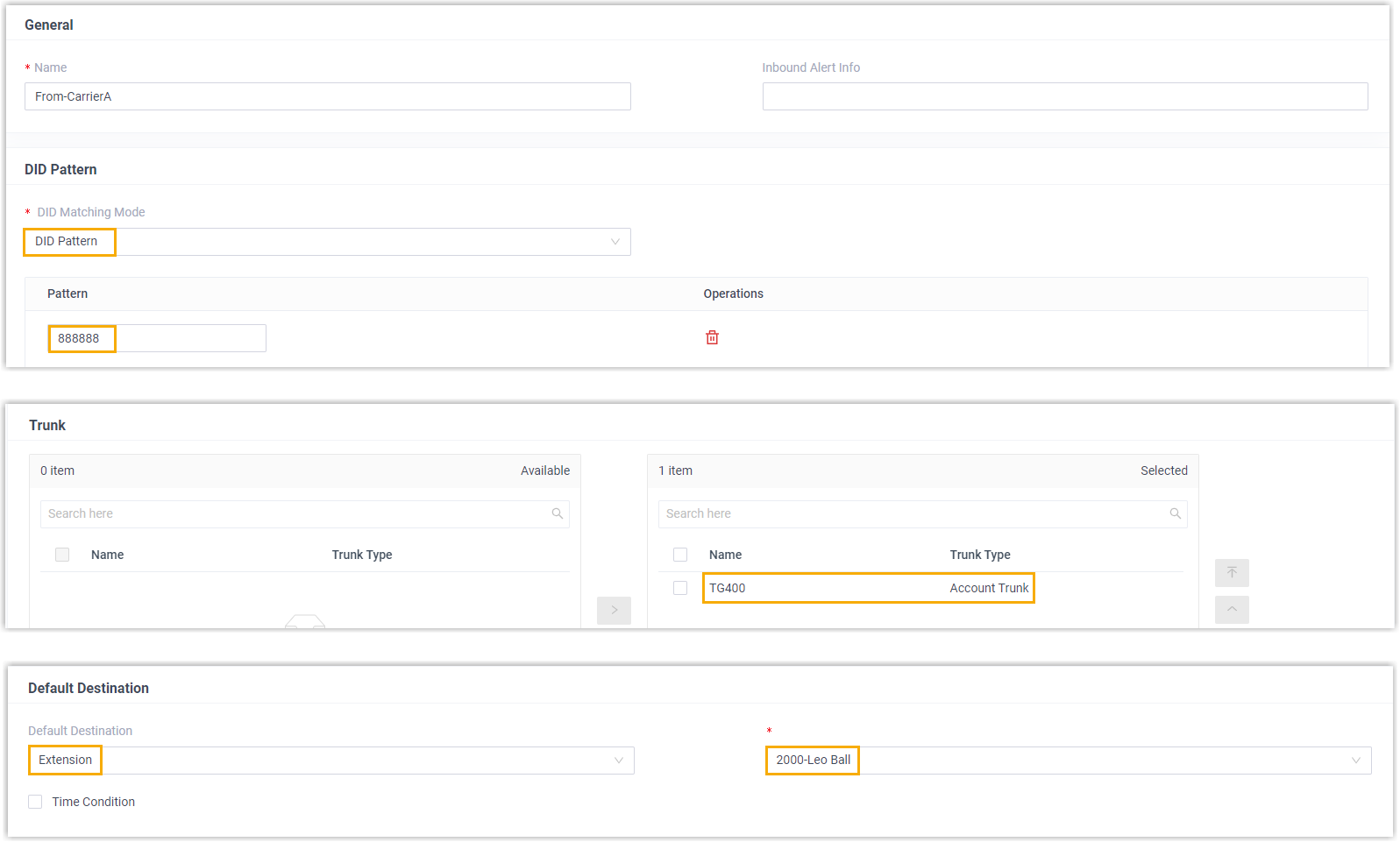
Section titled “Step 2. Add two inbound routes in Cloud Voice”Create two inbound routes so Cloud Voice can separate carrier A’s calls from carrier B’s and send each to the right destination.
- Sign in to the Cloud Voice portal and go to Call Control > Inbound Route, then click Add.
- Set the following fields, leave everything else at its default, then click Save and Apply.
Use these values for each carrier:
| Setting | What it does | Carrier A | Carrier B |
|---|---|---|---|
| Name | A label that helps you recognize the route. | From-CarrierA | From-CarrierB |
| DID Matching Mode | Choose the mode that fits your DID numbering. | DID Pattern | DID Pattern |
| Pattern | The DID number the route matches against. | 888888 | 999999 |
| Trunk | The SIP account trunk connected to the gateway. | TG400 | TG400 |
| Default Destination | Where matching calls are delivered. | Extension 2000 | Extension 2001 |
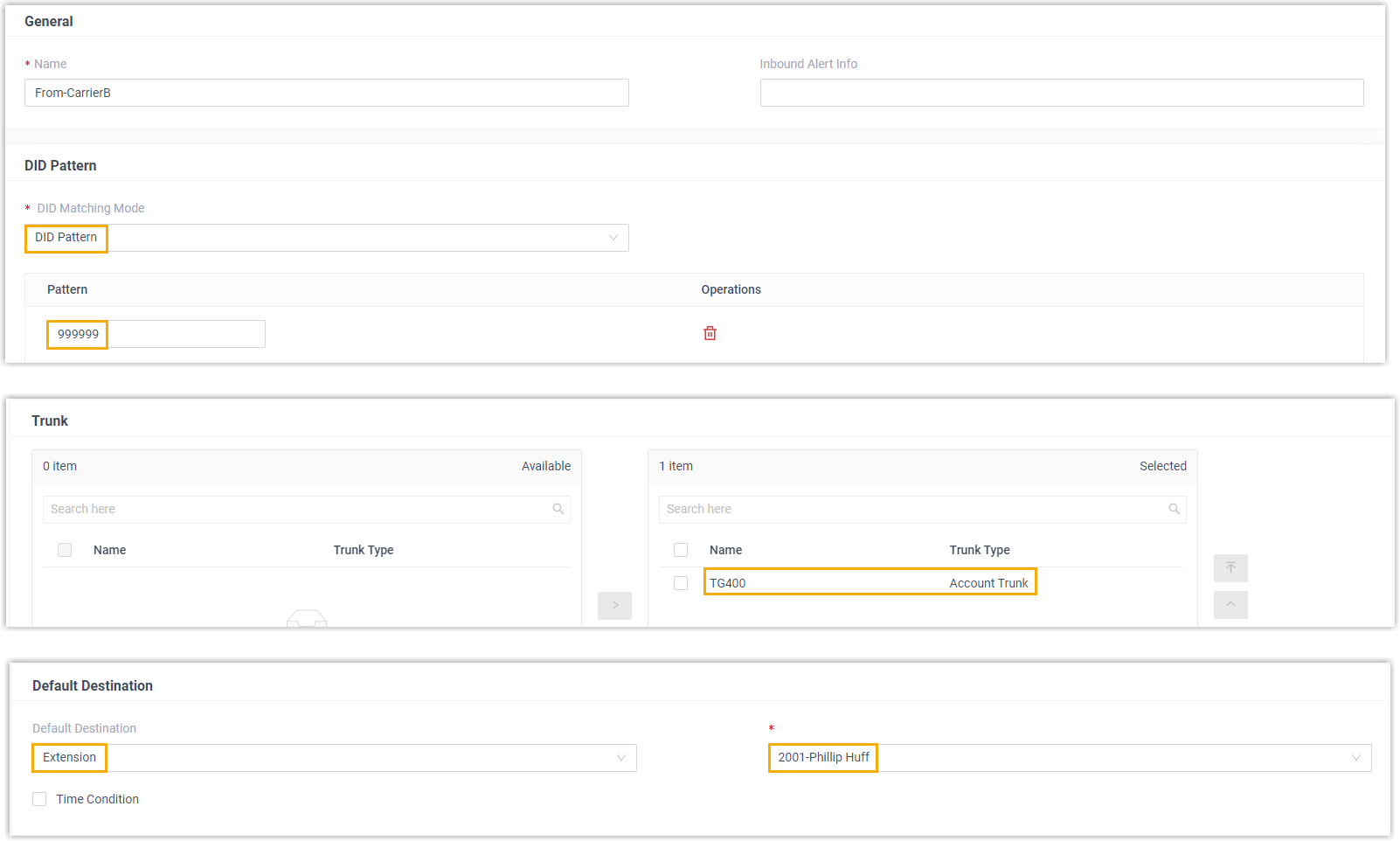
Step 3. Place test calls
Section titled “Step 3. Place test calls”Dial each 4G trunk number and confirm the call lands on the expected extension:
- Calling trunk 1 (9218273) rings extension 2000.
- Calling trunk 2 (1019238) rings extension 2001.
Question about this page?
Ask the AI assistant. It starts from this page, then searches the rest of the docs.
Ask Cloud Voice AI
Answers are AI-generated from the docs and may contain mistakes. Verify with the linked pages.