
Integrate Cloud Voice with HubSpot CRM
Linking Cloud Voice to HubSpot CRM (Customer Relationship Management, the system your team uses to track contacts and deals) lets your team place and take calls straight from their extensions while HubSpot stays in the loop. This page walks you through authorizing the connection and matching your HubSpot users to Cloud Voice extensions.
Prerequisites
Section titled “Prerequisites”- You have created a CRM application on HubSpot with a developer account and configured its authorization settings.
- You are signed in to a standard HubSpot account that has Super Admin privileges. This is the account you will use to authorize the integration.
Step 1. Request authorization from HubSpot CRM
Section titled “Step 1. Request authorization from HubSpot CRM”-
Sign in to the Cloud Voice management portal and go to Integrations > CRM.
-
Select HubSpot.
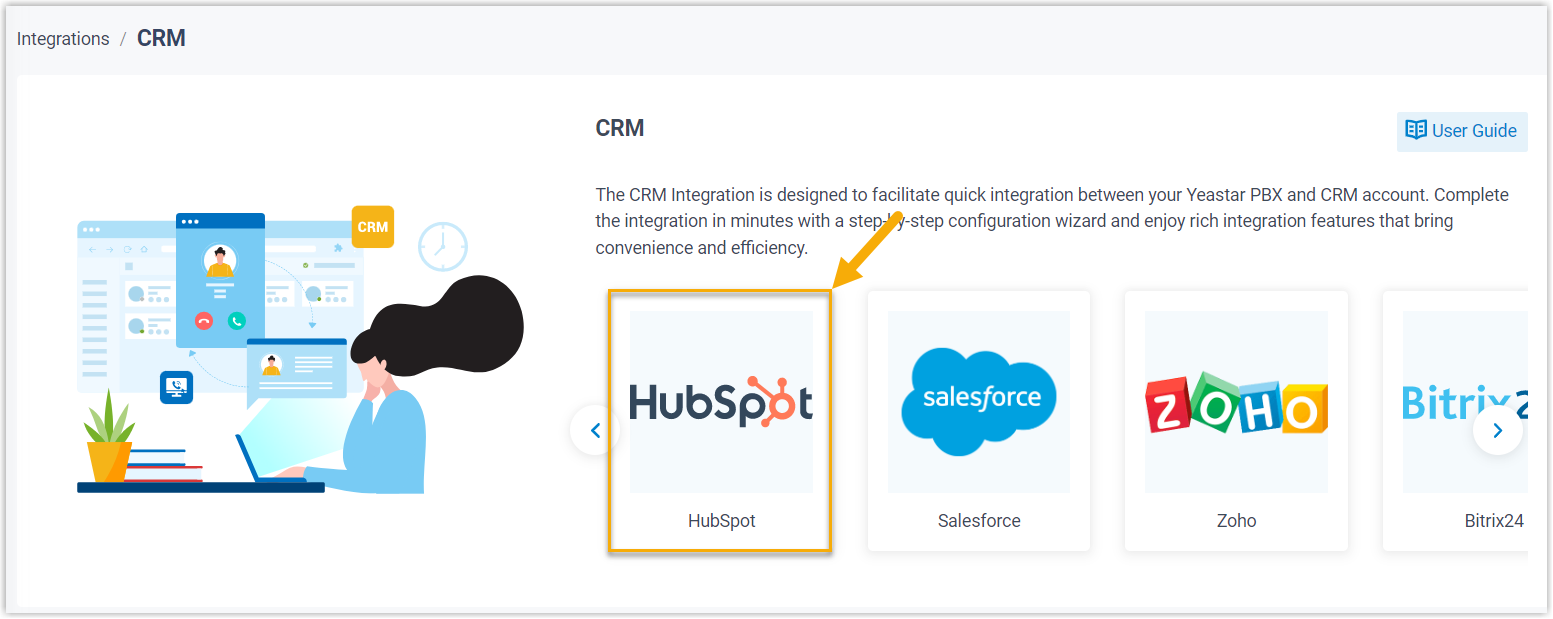
-
In the Authorization section, enter the credentials from your HubSpot application:

- Client ID: Paste the Client ID from your HubSpot application.
- Client Secret: Paste the Client Secret from your HubSpot application.
-
Click Save. A new browser tab opens and asks you to pick the account to use for the integration.
-
Choose a standard HubSpot account with Super Admin privileges, then click Choose Account.
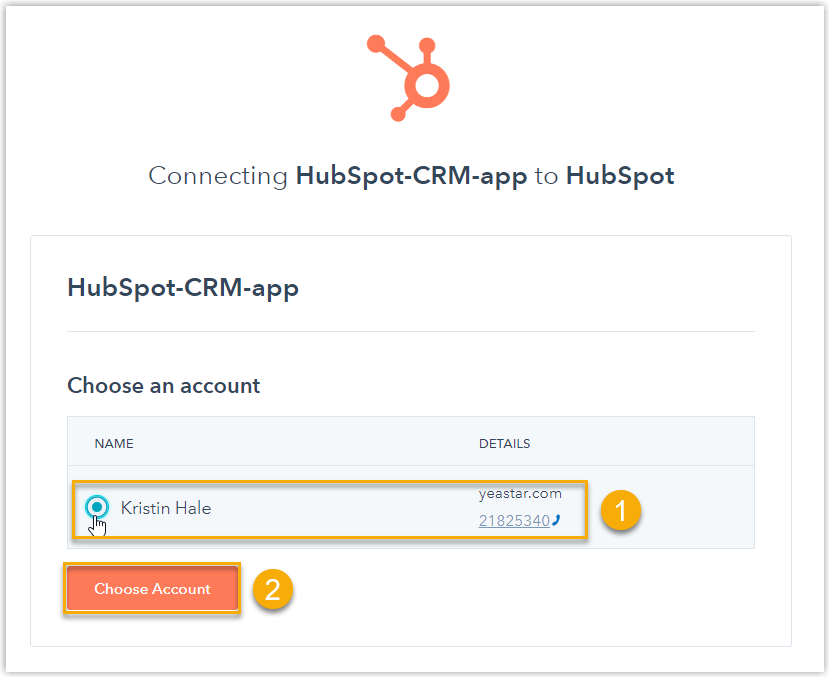
The page then shows the permissions the application is requesting.
-
Review the permissions, select the disclaimer checkbox, and click Connect app to grant access.
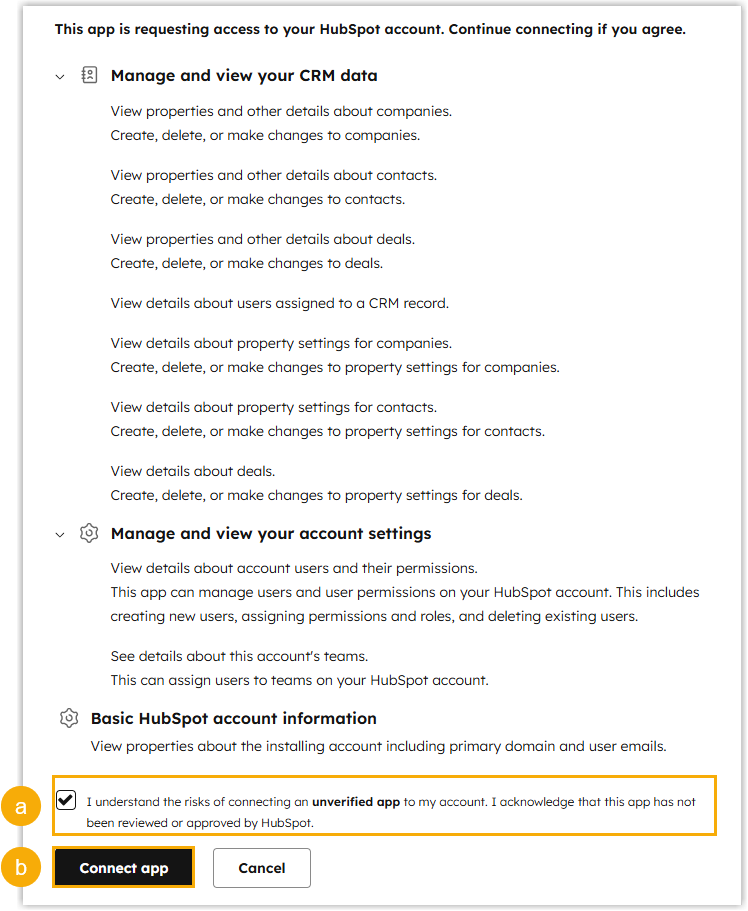
You are sent back to the Cloud Voice management portal, where a pop-up reports the result of the authorization.
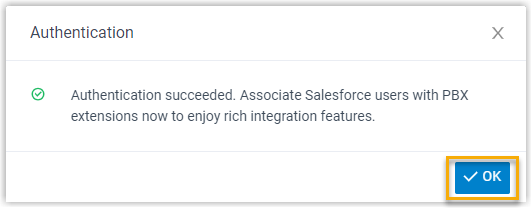
-
Click OK. When the Status field reads Connected, the HubSpot CRM integration is in place.
Step 2. Match HubSpot users to extensions
Section titled “Step 2. Match HubSpot users to extensions”-
On the CRM integration page, click the refresh icon
 next to HubSpot User to pull in the current list of HubSpot users.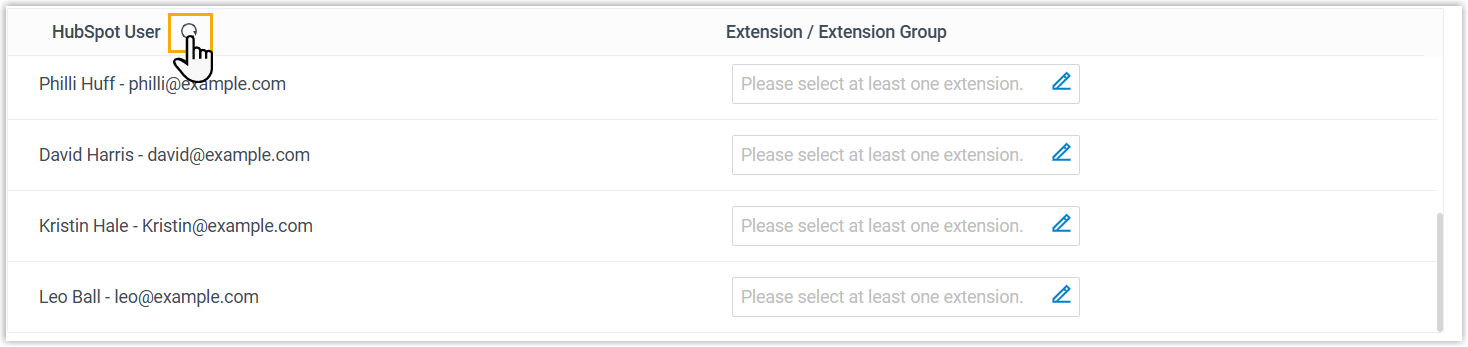
-
Pair each HubSpot user with a Cloud Voice extension, either automatically or by hand.
Match automatically
Use this when a user’s HubSpot account and their Cloud Voice extension share the same email address.
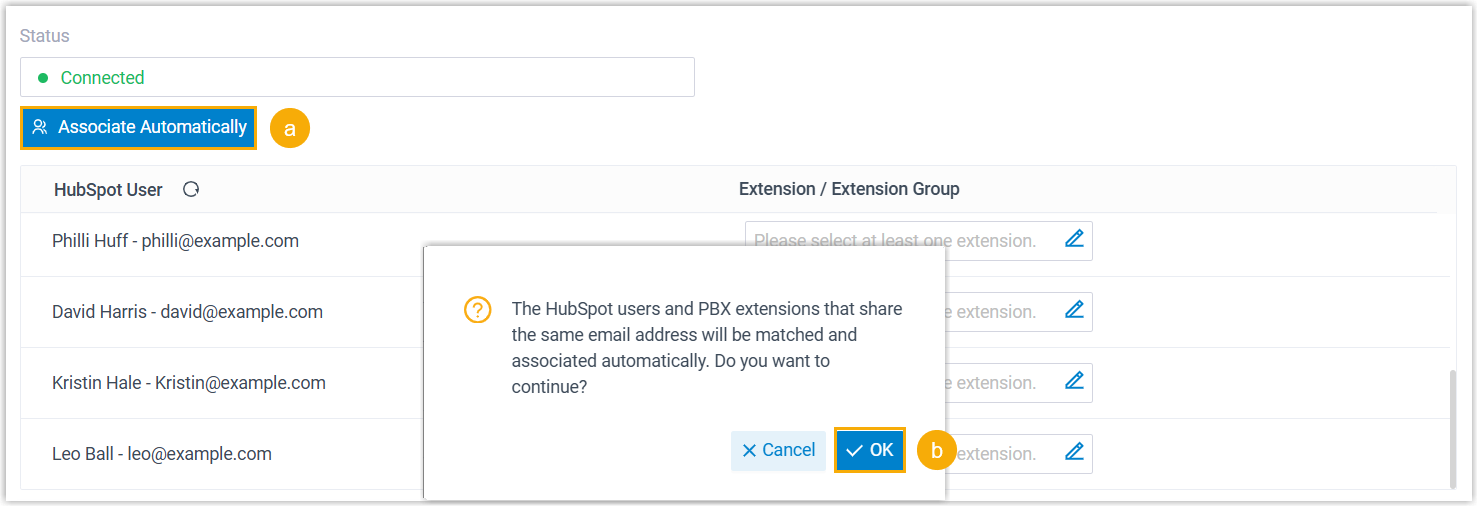
a. Click Associate Automatically.
b. In the pop-up window, click OK.
Match manually
Use this when a user’s HubSpot account and their extension have different email addresses.
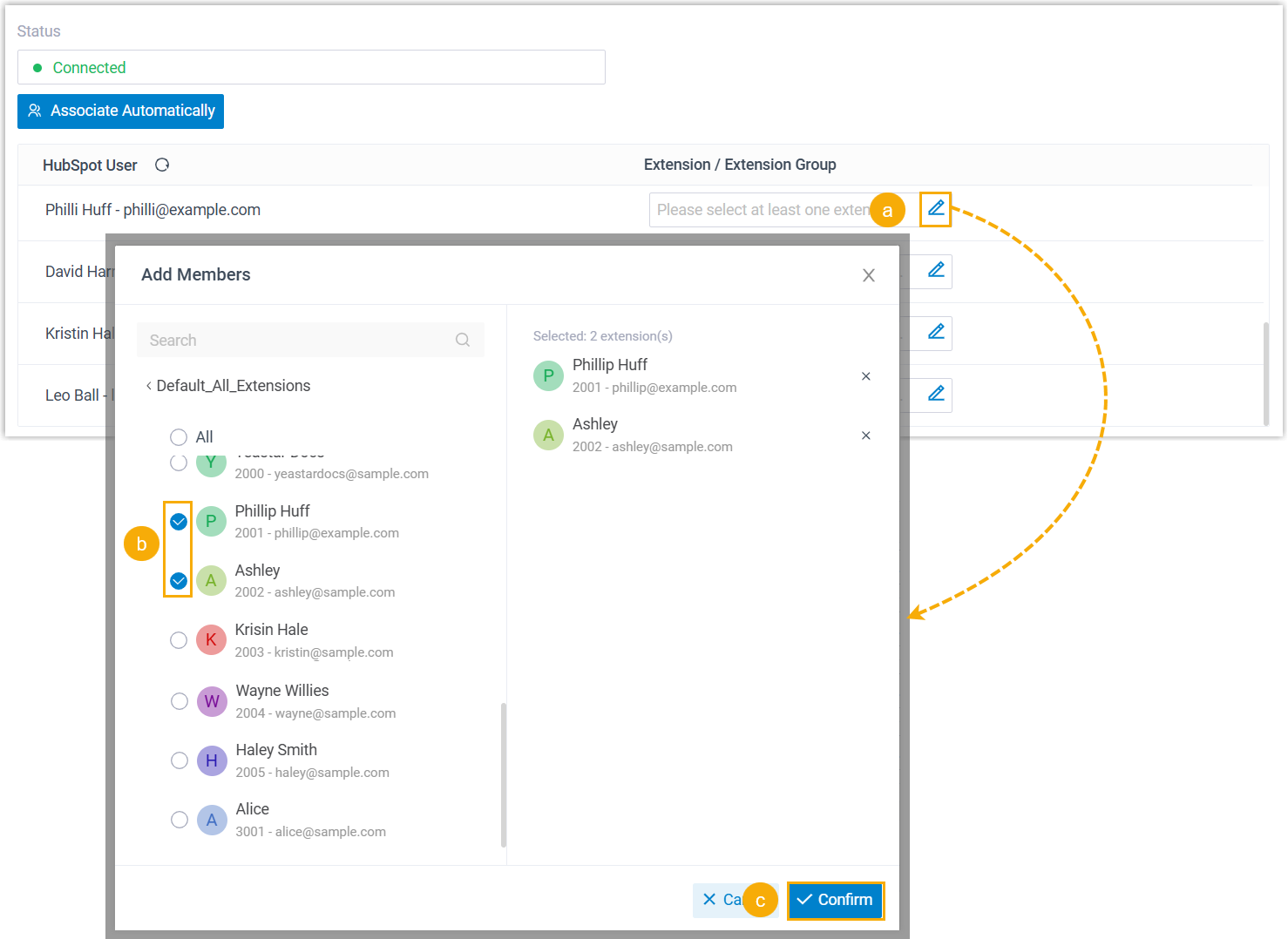
a. In the Extension drop-down next to the HubSpot user, click the edit icon
 .
.b. In the pop-up window, select the extension(s) for that user.
c. Click Confirm.
-
Click Save.
Result
Section titled “Result”- Cloud Voice and HubSpot CRM are now integrated.
- HubSpot users can place and receive calls using their Cloud Voice extensions.
What to do next
Section titled “What to do next”Question about this page?
Ask the AI assistant. It starts from this page, then searches the rest of the docs.
Ask Cloud Voice AI
Answers are AI-generated from the docs and may contain mistakes. Verify with the linked pages.