
Disconnect Microsoft SQL Integration
Only one external contact database can be connected at a time. Before you link Cloud Voice to a different database, first disconnect the Microsoft SQL integration that is already in place. During removal you can decide whether to keep or discard the contacts and phonebook that the sync created.
Open the Microsoft SQL configuration
Section titled “Open the Microsoft SQL configuration”Why you would do this: the integration settings, including the Disconnect control, live on the contact synchronization screen rather than on a separate integrations page.
-
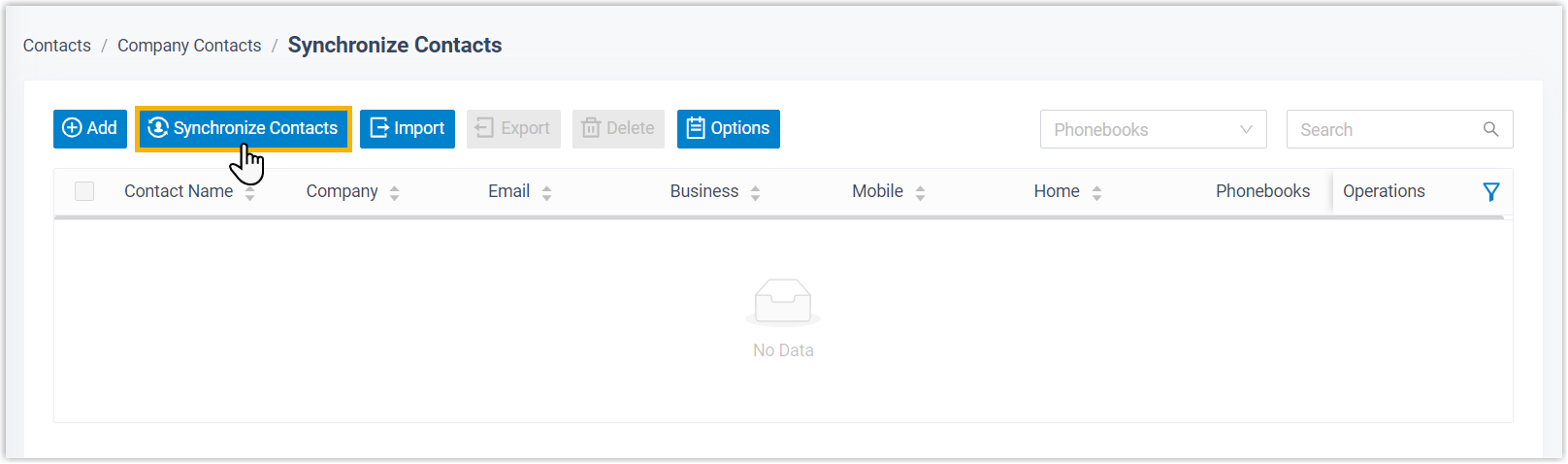
Sign in to the Cloud Voice management portal and navigate to Contacts > Company Contacts.
-
At the top of the page, select Synchronize Contacts.
Disconnect the integration
Section titled “Disconnect the integration”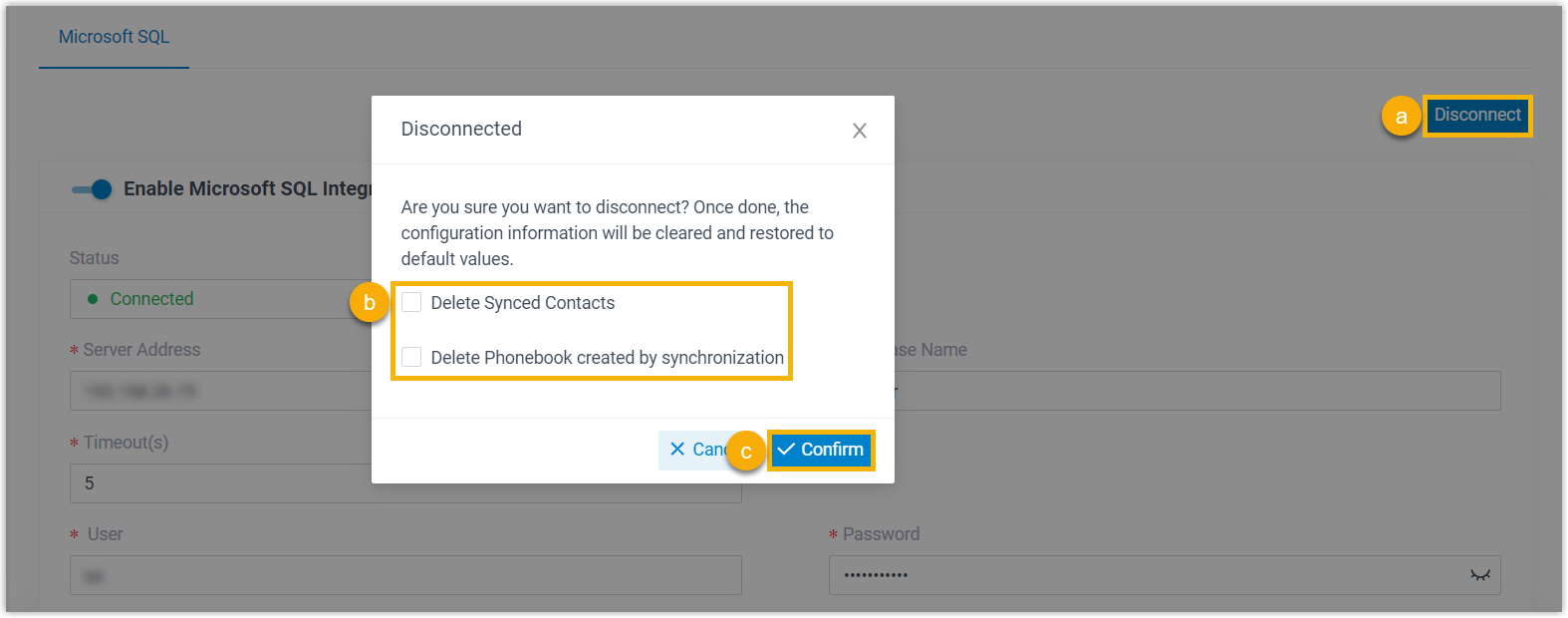
- In the top-right corner, click Disconnect.
- Optional: To remove the data that synchronization brought in, select Delete Synced Contacts and Delete Phonebook created by synchronization.
- Click Confirm.
The Microsoft SQL integration is now disconnected, and you are free to set up a connection to another database.
Question about this page?
Ask the AI assistant. It starts from this page, then searches the rest of the docs.
Ask Cloud Voice AI
Answers are AI-generated from the docs and may contain mistakes. Verify with the linked pages.