
Allow Users to Query Contacts on IP Phones
You can deliver company and personal contacts to your users’ Yealink IP (Internet Protocol) phones so that they can search for a person and place the call without keying in the full number. The contacts reach each phone through Auto Provisioning (the feature that pushes settings from the server to each phone automatically, so you do not configure phones one by one) and appear as remote phonebooks on the device. This page explains how to set that up.
Requirements
Section titled “Requirements”Contact lookup on the phone works only with supported Yealink hardware:
- Use a Yealink phone of a model and firmware version that Cloud Voice supports. For the current list, see supported Yealink devices.
Procedure
Section titled “Procedure”-
Give users access to the company contacts you want them to see. For the steps, see Set up Contact Visibility.
-
Sync the contact data to each user’s phone through Auto Provisioning. How you do this depends on whether the extension is already tied to a phone:
-
Extension not yet associated with a phone: register the extension to the phone first. Use one of these methods:
-
Extension already associated with a phone: reprovision the phone so the contacts take effect:
- Go to Auto Provisioning > Phones.
- Select the checkbox for each phone you want to update, then click Reprovision.
-
Result
Section titled “Result”The contact data is written to each phone as a remote phonebook. From there, users can search for a contact and dial them directly.
Two remote phonebooks from the server appear on the phone:
- Company_Contacts: holds every shared company contact the user is permitted to view.
- Personal_Contacts_{extension_number}: holds that user’s own personal contacts.
Example: Query contacts on a Yealink T56A
Section titled “Example: Query contacts on a Yealink T56A”-
Tap the account icon
 , then tap Remote Phonebook. The directories the user is allowed to view are listed.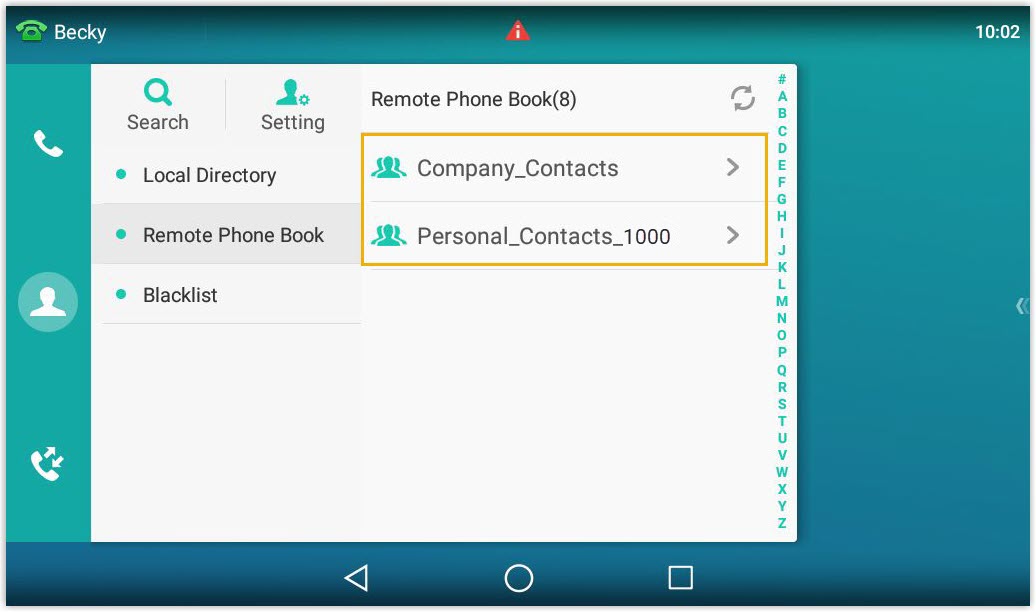
-
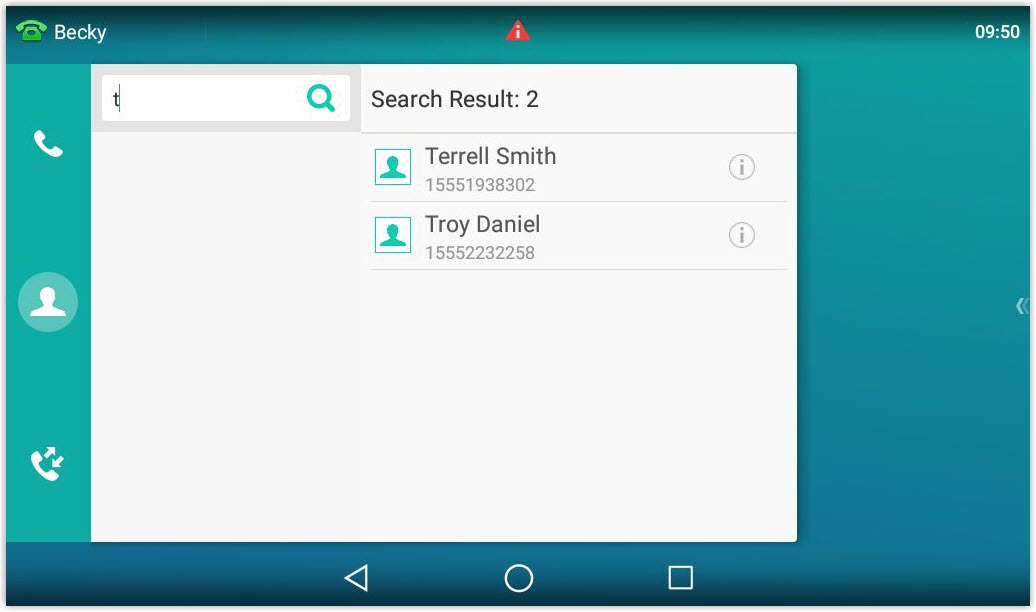
Tap Search.
-
In the search box, type a contact name or number. The phone looks the contact up in your Contacts.
-
Select the contact, then tap the number to dial it.
Question about this page?
Ask the AI assistant. It starts from this page, then searches the rest of the docs.
Ask Cloud Voice AI
Answers are AI-generated from the docs and may contain mistakes. Verify with the linked pages.