
Create a Custom Call Report
Cloud Voice ships with a library of built-in call reports that summarize and break down your call activity, including reports focused on call center performance. When a built-in report doesn’t line up exactly with what you need to track, you can build your own by starting from an existing report (a general call report or a call center report) and adjusting its criteria. This page walks through creating a custom report from scratch.
Before you begin
Section titled “Before you begin”- Your system must be running firmware 84.22.0.138 or later.
- You can keep up to 2000 custom reports on the system.
Create the report
Section titled “Create the report”-
Sign in to the PBX web portal and open Reports and Recordings > Call Reports.
-
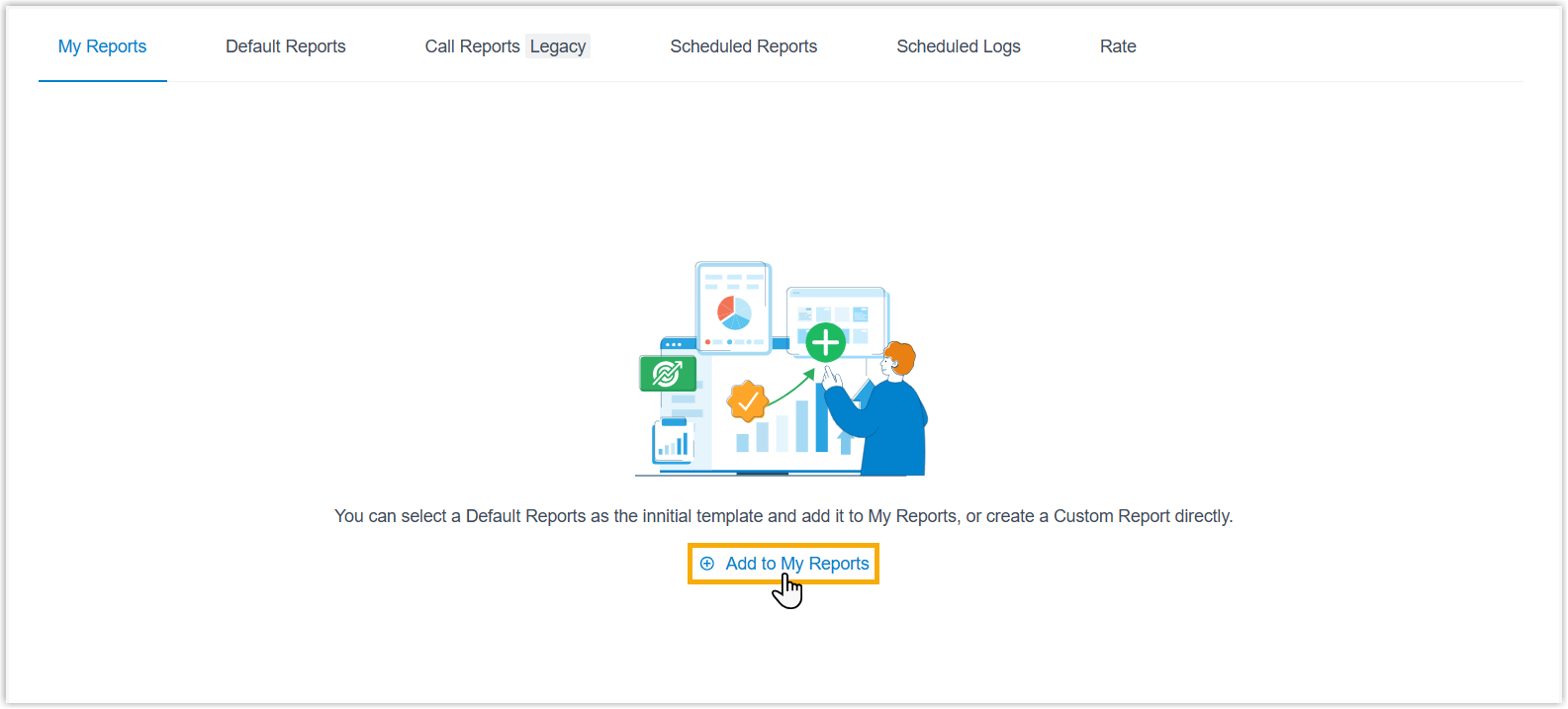
On the My Reports tab, click Add to My Reports.
-
Complete the report details.
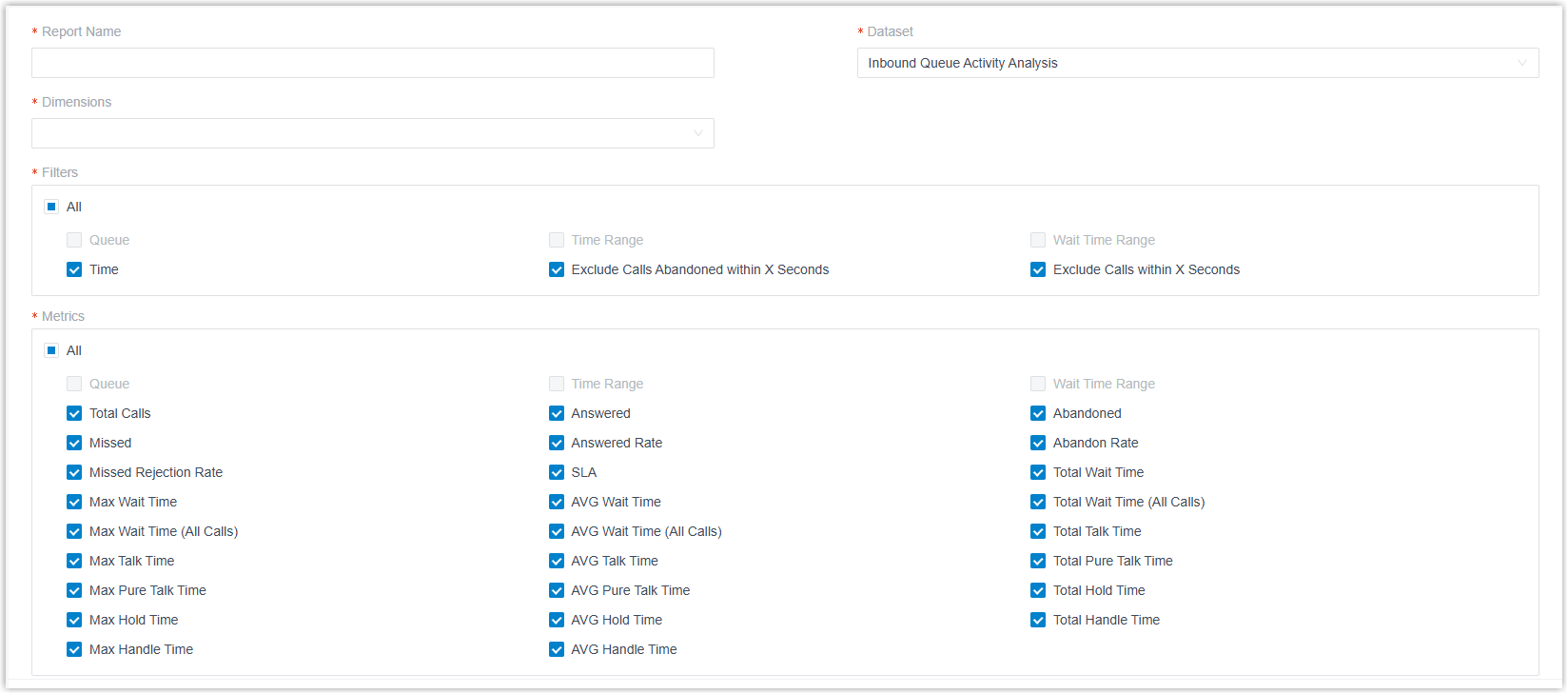
Field What to enter Report Name A name that makes the report easy to recognize in your list. Dataset The built-in call report you want to base this one on. Dimensions The dimension or dimensions used to break the data into segments. Filters The filters that narrow which records the report includes. Metrics The metrics that surface the numbers you care about most. -
Save the report as-is, or preview it first and fine-tune the settings.
-
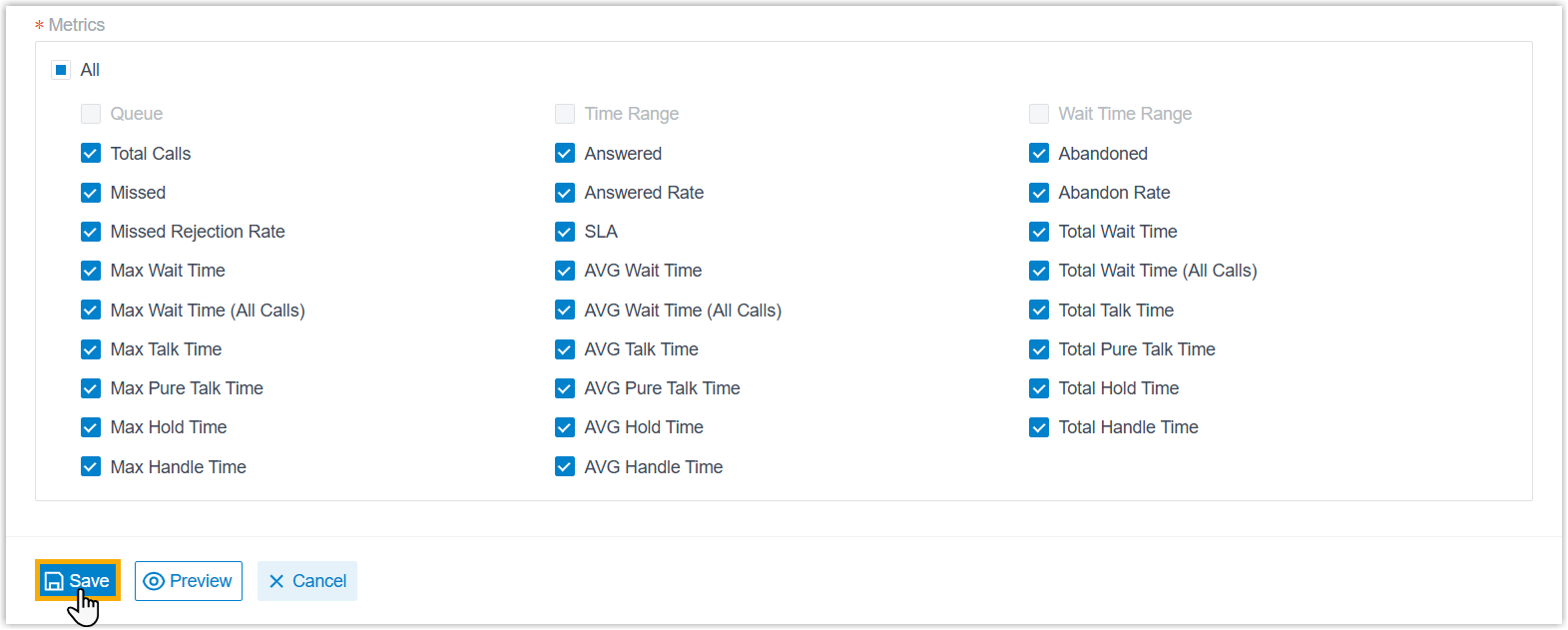
To save without previewing, click Save.
-
To review the report and adjust it before saving:
-
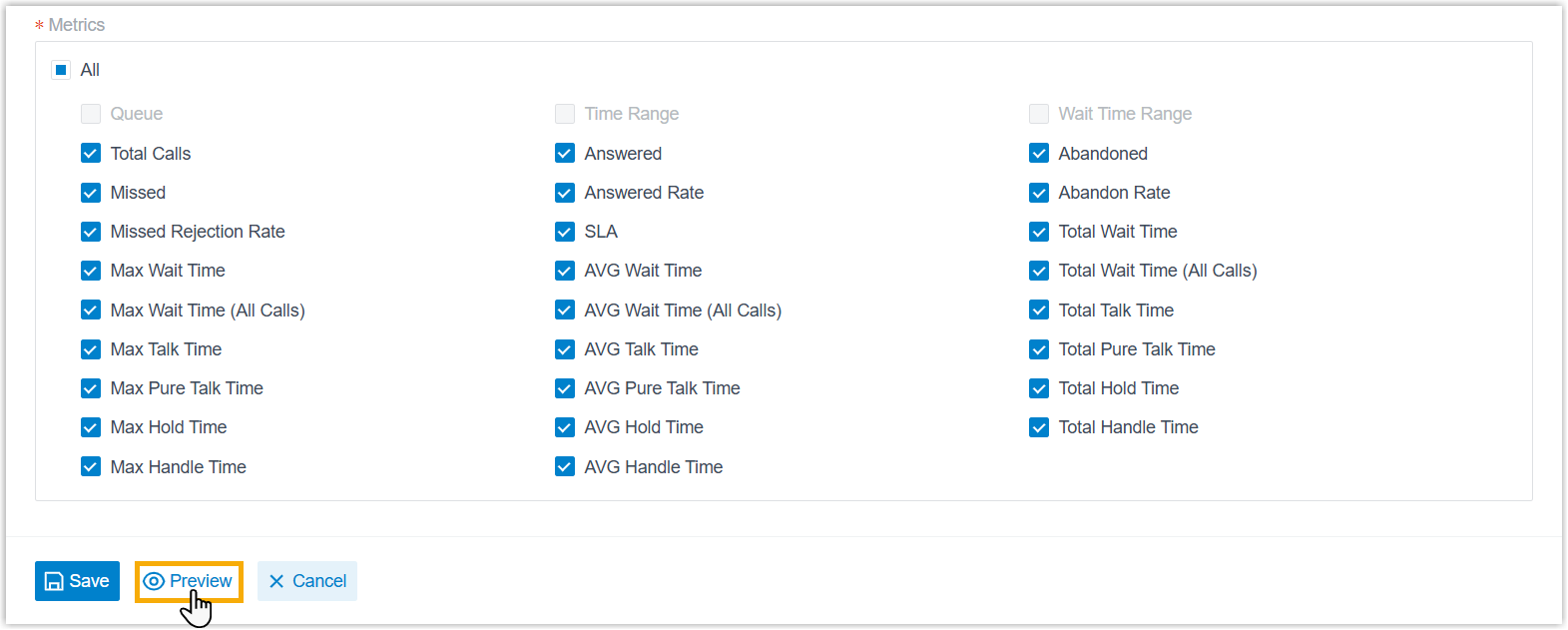
Click Preview.
-
Set the filter values you want the report to open with by default.
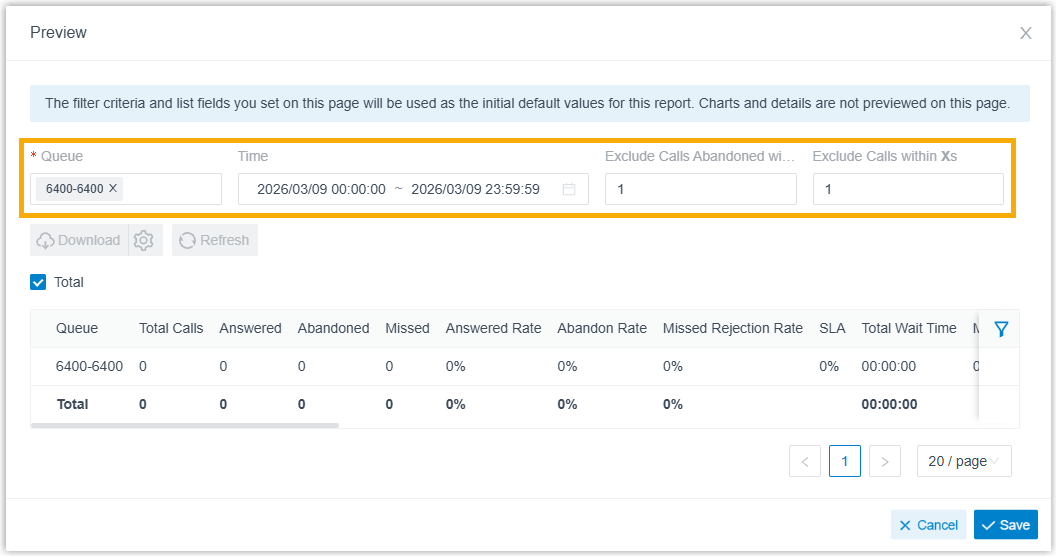
-
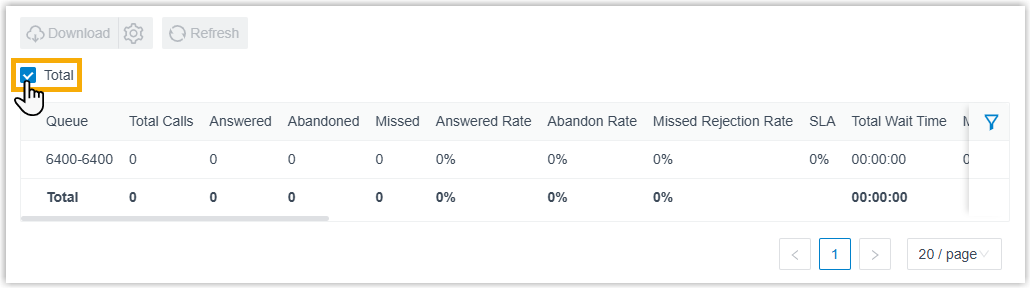
Optional: To add a summed total across the metric columns, select the Total checkbox.
-
Click Save.
-
-
Result
Section titled “Result”-
The new custom report appears in your report list.
-
To open a report, double-click it or click the view icon
 .
.
Question about this page?
Ask the AI assistant. It starts from this page, then searches the rest of the docs.
Ask Cloud Voice AI
Answers are AI-generated from the docs and may contain mistakes. Verify with the linked pages.