
Manage Call Logs
The Cloud Voice App for Dynamics 365 plugin keeps a record of your calls so you can follow up without leaving your CRM (Customer Relationship Management system). From the call log you can dial a number back, turn an unknown caller into a Dynamics contact, jump to an existing contact, and log the call as a phone call activity.
Open your call logs
Section titled “Open your call logs”- In the plugin, select Call Logs.
- Choose the log you want to view:
- Personal Call Logs for calls you made or received yourself.
- Queue Call Logs for calls handled through your queues.
Find a specific call
Section titled “Find a specific call”This step is optional. To narrow a long list, use the search box and filters at the top of the call log to locate the records you need.
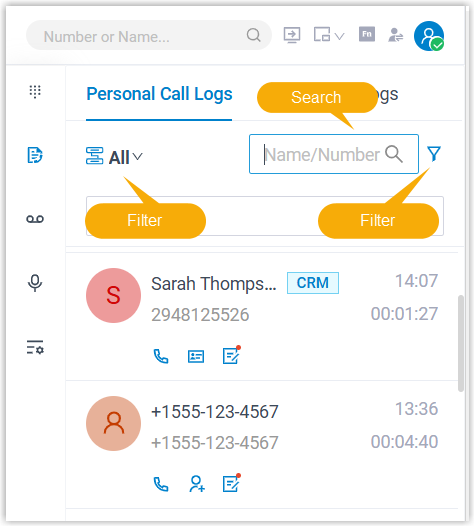
Act on a call log entry
Section titled “Act on a call log entry”Each record supports the following actions.
Call the contact back
Section titled “Call the contact back”Return the call in either of these ways:
- Double-click the record.
- Select the call icon
 on the entry.
Save an unknown number as a Dynamics contact
Section titled “Save an unknown number as a Dynamics contact”If the number isn’t tied to an existing contact, you can add it to Dynamics 365 directly from the log. This is handy for turning a first-time caller into a record you can track later.
- Select the add-contact icon
 on the entry.
 - In the pop-up, choose the contact type, then select Save.
The new contact is created and its details page opens automatically in the main Dynamics 365 area, ready for you to fill in any remaining details.
Open an existing contact’s details
Section titled “Open an existing contact’s details”Select the view-contact icon  on the entry to open that contact’s details page in the main Dynamics 365 CRM area.
Log or update a phone call activity
Section titled “Log or update a phone call activity”Record the call as a Dynamics phone call activity, or update one you’ve already created:
- Select the activity icon
 on the entry.
 - On the Phone Call Activity page, fill in the call details.
- Select Save.
- Select the close icon
 to close the page.
The phone call activity is saved and synced to Dynamics 365 CRM.
Question about this page?
Ask the AI assistant. It starts from this page, then searches the rest of the docs.
Ask Cloud Voice AI
Answers are AI-generated from the docs and may contain mistakes. Verify with the linked pages.