
Download a Call Report from the Web Portal
Cloud Voice lets you export any call report as a local file, which is handy when you need the raw numbers for call analysis or for reconciling billing. This page walks through opening a report, narrowing it with filters, tailoring the export, and downloading the result.
Open a report
Section titled “Open a report”-
Sign in to the web portal and go to Reports and Recordings > Call Reports.
-
Open the report you want to work with. Where you find it depends on whether it is one you built yourself or a built-in report.
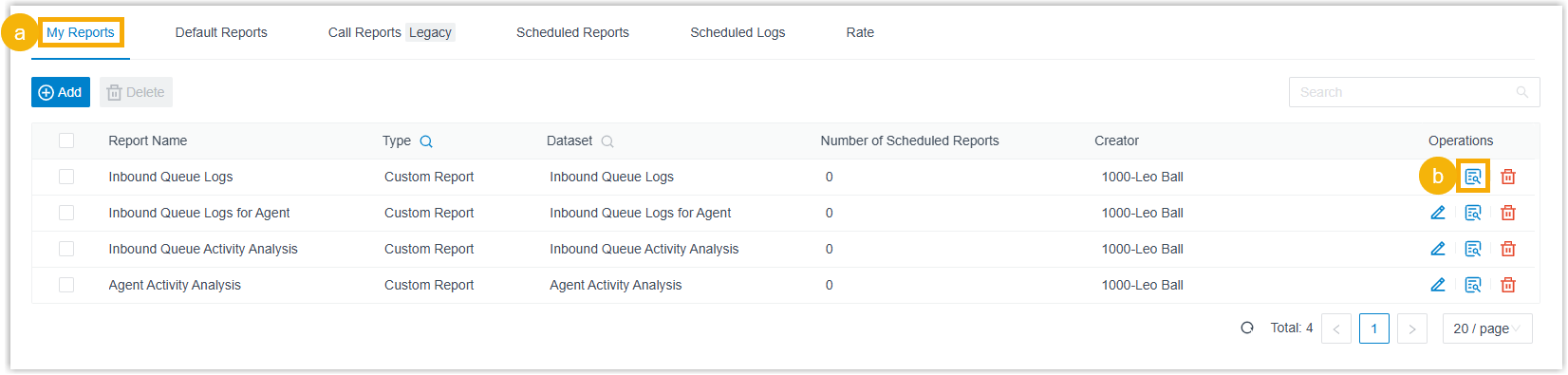
A report you created and saved lives on the My Reports tab. Open it by clicking the view icon next to it, or by double-clicking the row.
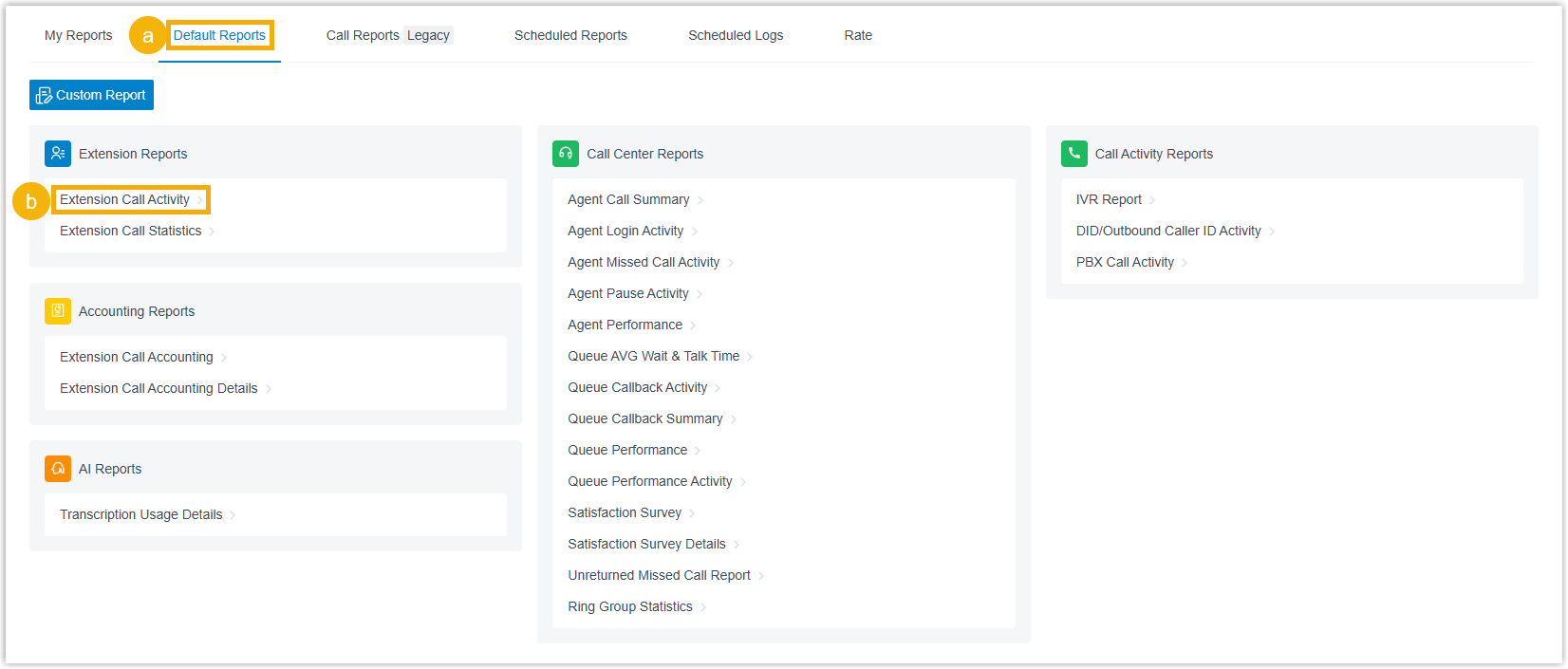
A built-in report lives on the Default Reports tab. Click the report you want.
Filter the report
Section titled “Filter the report”With the report open, set the period it covers and any filters that apply to that report type.
- Choose the time range the report should span.
- Apply the filters that are relevant to the report you opened. The available filters differ by report; use the table below to see which ones each report supports.
| Category | Report | Available filters |
|---|---|---|
| Extension | Extension Call Activity | Extensions/Extension Groups, Organization, Communication Type |
| Extension | Extension Call Statistics | Extensions/Extension Groups, Organization, Communication Type |
| Accounting | Extension Call Accounting | Extensions/Extension Groups, Trunk, Organization |
| Accounting | Extension Call Accounting Details | Extensions/Extension Groups, PIN Code, Organization, Trunk |
| Call Activity | IVR Report | Type, IVR |
| Call Activity | DID/Outbound Caller ID Activity | Trunk, DID, DOD, Communication Type |
| Call Activity | PBX Call Activity | Trunk, Include internal calls, Communication Type |
| Call Center | Agent Call Summary | Queue, Agent |
| Call Center | Agent Login Activity | Queue, Agent |
| Call Center | Agent Missed Call Activity | Queue, Agent |
| Call Center | Satisfaction Survey Detail | Queue, Agent |
| Call Center | Agent Pause Activity | Queue, Agent, Pause Reason |
| Call Center | Agent Performance | Queue, Agent, Exclude Calls Abandoned within Xs |
| Call Center | Queue AVG Wait & Talk Time | Queue |
| Call Center | Satisfaction Survey | Queue |
| Call Center | Queue Callback Summary | Queue |
| Call Center | Queue Callback Activity | Queue, Callback Result |
| Call Center | Queue Performance Activity | Queue, Exclude Calls Abandoned within Xs |
| Call Center | Queue Performance | Queue, Exclude Calls Abandoned within Xs, Exclude Calls within Xs |
| Call Center | Inbound Queue Activity Analysis | Queue, Wait Time Range, Time Range & Select Date, Exclude Calls Abandoned within Xs, Exclude Calls within Xs |
| Call Center | Unreturned Missed Call Report | Call From, Call To, Call Destination, Missed Call Type, Callback Status, Exclude Calls Abandoned within Xs |
| Call Center | Ring Group Statistics | Ring Group |
| Call Center | Inbound Queue Logs | Queue, Communication Type, Call From, Queue Status, Answered Agent, Wait Time, Agent Answer Time, Talk Time, Pure Talk Time, Hold Time, Source Trunk, DID/DDI, Exclude Calls Abandoned within Xs, Exclude Calls within Xs |
| Call Center | Agent Activity Analysis | Queue, Agent, Time Range & Select Date, Exclude Calls Abandoned within Xs, Exclude Calls within Xs |
| Call Center | Inbound Queue Logs for Agent | Queue, Agent, Communication Type, Call From, Agent Last Call Status, Queue Status, Process Result, Wait Time in Queue, Agent Wait Time, Talk Time, Pure Talk Time, Hold Time, Source Trunk, DID/DDI, Exclude Calls Abandoned within Xs, Exclude Calls within Xs |
| AI | AI Receptionist Call Activity | Receptionist |
| AI | Transcription Usage Details | No additional filters |
Once the filters are set, the matching results appear on the page.
What the less obvious filters mean
Section titled “What the less obvious filters mean”- Include internal calls: On the PBX (Private Branch Exchange, your organization’s phone system) Call Activity report, decides whether internal call activity is counted alongside external calls.
- Wait Time Range: The interval used to group callers by how long they waited in the queue before an agent picked up.
- Time Range & Select Date: The reporting period the report covers.
- Exclude Calls Abandoned within Xs: A ring-duration cutoff. Calls abandoned before this many seconds elapse are dropped from the report.
- Exclude Calls within Xs: A talk-duration cutoff. Answered calls that ended within this many seconds are dropped from the report.
- Call From / Call To: The caller’s number or name, and the callee’s number or name.
- Call Destination: The kind of destination an inbound call was routed to.
- Missed Call Type: The category of missed call to include in the report.
- Callback Status: Whether a missed call has since been returned.
- Talk Time vs. Pure Talk Time: Talk Time counts the whole conversation including any time on hold; Pure Talk Time counts only the time actually spent talking.
- Process Result: How an abandoned or missed queue call was ultimately handled.
Acronyms used in the filters
Section titled “Acronyms used in the filters”- DID (Direct Inward Dialing) and DDI (Direct Dialing In): An external phone number that routes calls straight to a specific extension or destination. DDI is the European name for the same thing.
- DOD (Direct Outward Dialing): The caller ID number presented to the far end when an extension places an outbound call.
- IVR (Interactive Voice Response): The automated voice menu that answers callers and routes them by key presses (for example, “press 1 for sales”).
- PIN Code: A Personal Identification Number an extension enters before dialing, used to attribute the call to a person or project for accounting.
Adjust the columns (optional)
Section titled “Adjust the columns (optional)”You can reshape the list so the metrics you care about are front and center.
| Action | How |
|---|---|
| Choose which columns show | Click the column-selection icon and pick the columns to display. |
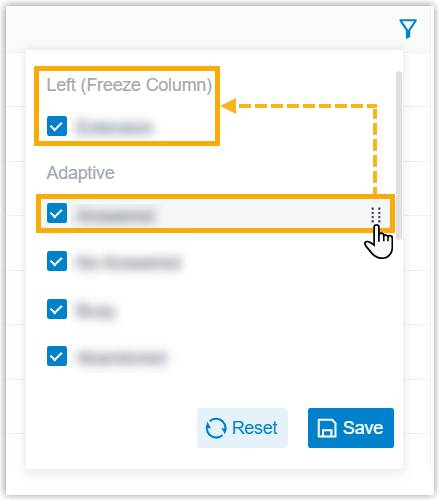
| Freeze a column | Click the drag handle beside a field and drag it to Left (Freeze Column) or Right (Freeze Column). |
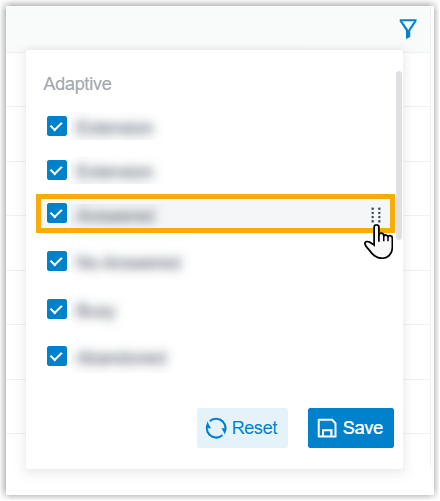
| Reorder columns | Click the drag handle beside a field and drag it to the position you want. |

Set the download options (optional)
Section titled “Set the download options (optional)”Before you export, you can control the file format and what it contains.
-
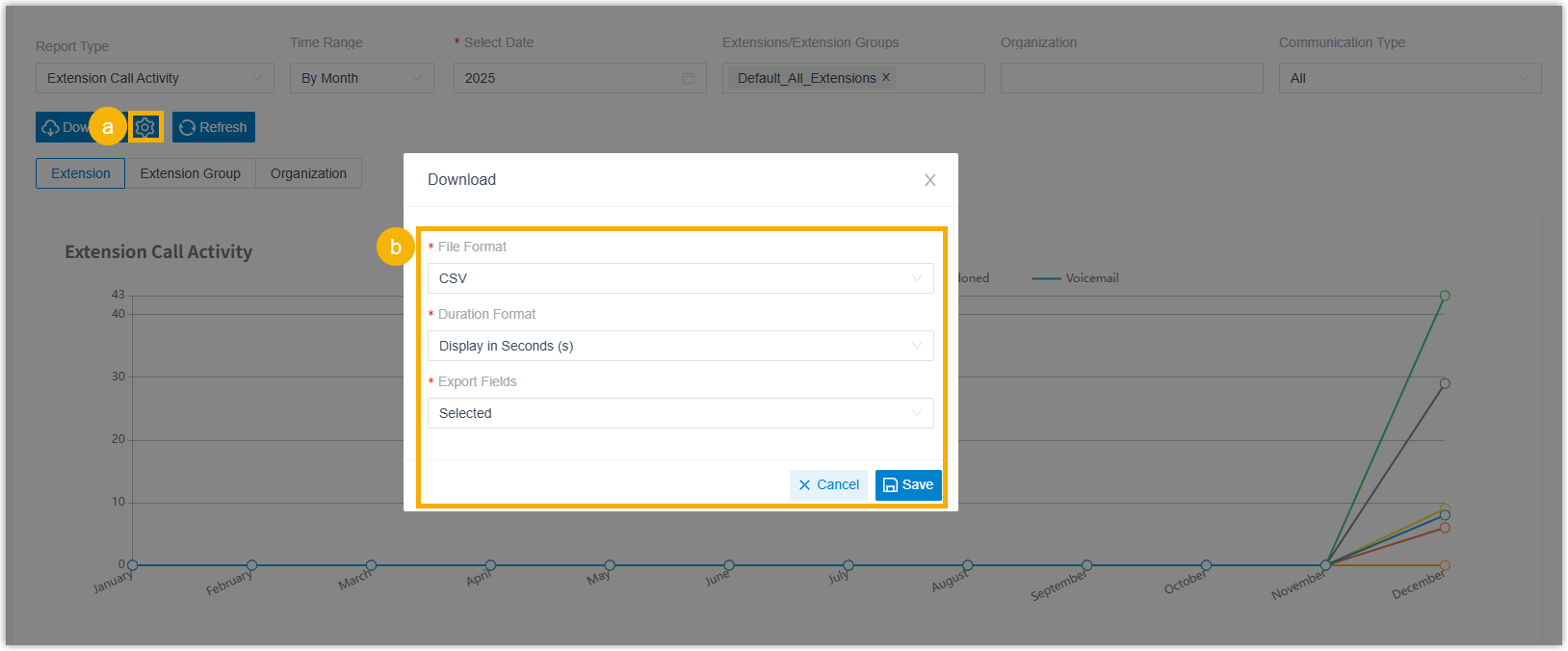
At the top of the page, click the settings icon.
-
In the window that opens, adjust the options below, then click Save.
- File Format: The format of the exported file: CSV, XLS, HTML, or PDF.
- Duration Format: How every duration field is shown: Display in Second (s) or Display as HH:MM:SS.
- Export Fields: Whether to export All fields or only the Selected ones.
Download
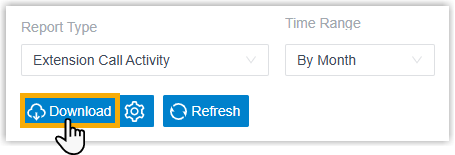
Section titled “Download”Click Download. The filtered report is saved to your computer in the format you chose.
Question about this page?
Ask the AI assistant. It starts from this page, then searches the rest of the docs.
Ask Cloud Voice AI
Answers are AI-generated from the docs and may contain mistakes. Verify with the linked pages.